Place a stability study order
Last updated: October 9, 2026
A stability study tests your product at set time points over its shelf life, so you can back up a claim like "24 months." You build the study as a quote, our quality team reviews it, and once it's approved you confirm it and ship your samples.
The whole flow has six build steps, a quality review, and a confirm-and-ship step. This article walks through all of it. Each part links to a deeper article when there's more to know.
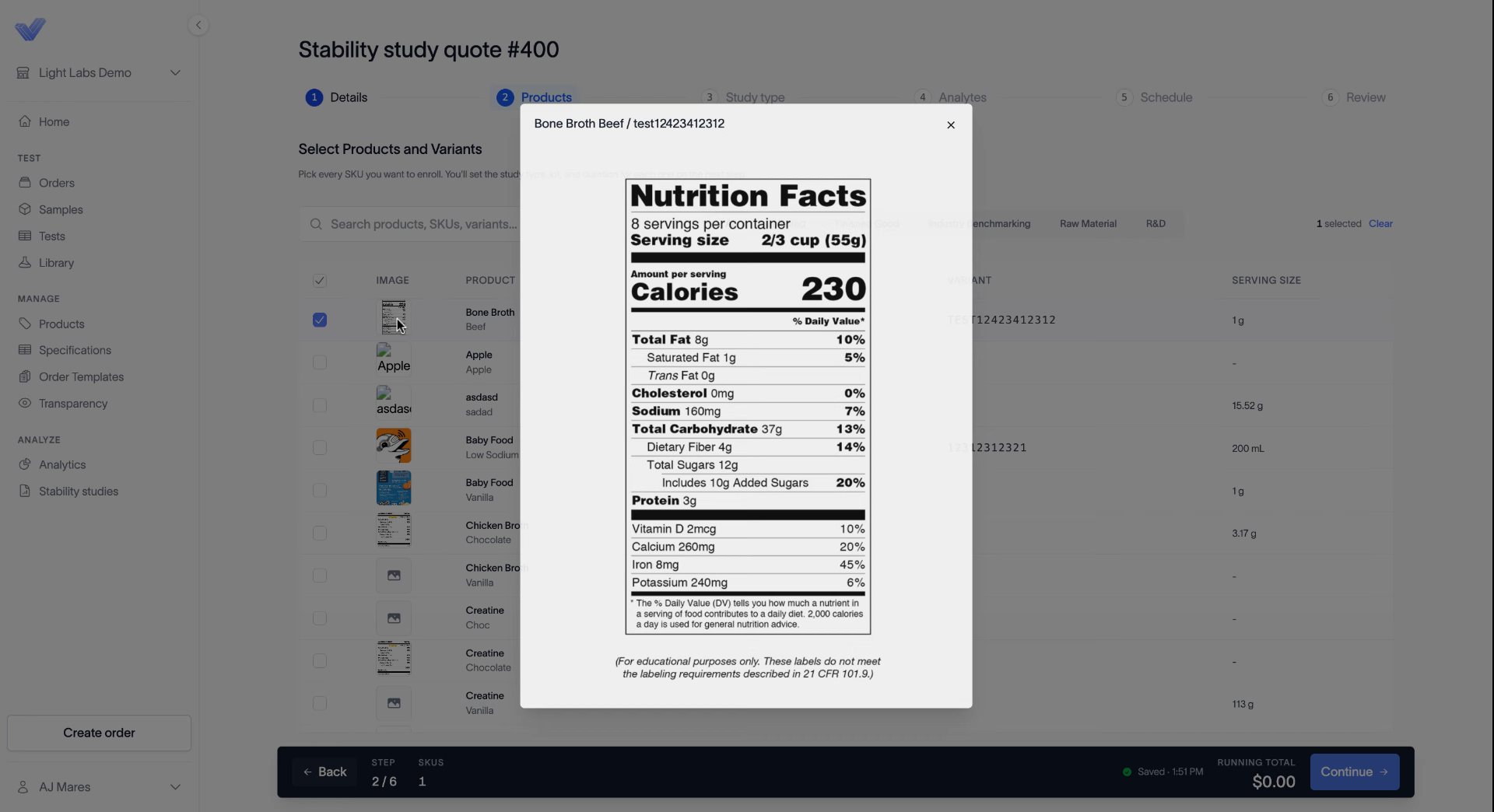
Before you start: Every product in the study needs a supplement facts panel (SFP) image attached. You can't move forward with a product that doesn't have one.
Where studies live
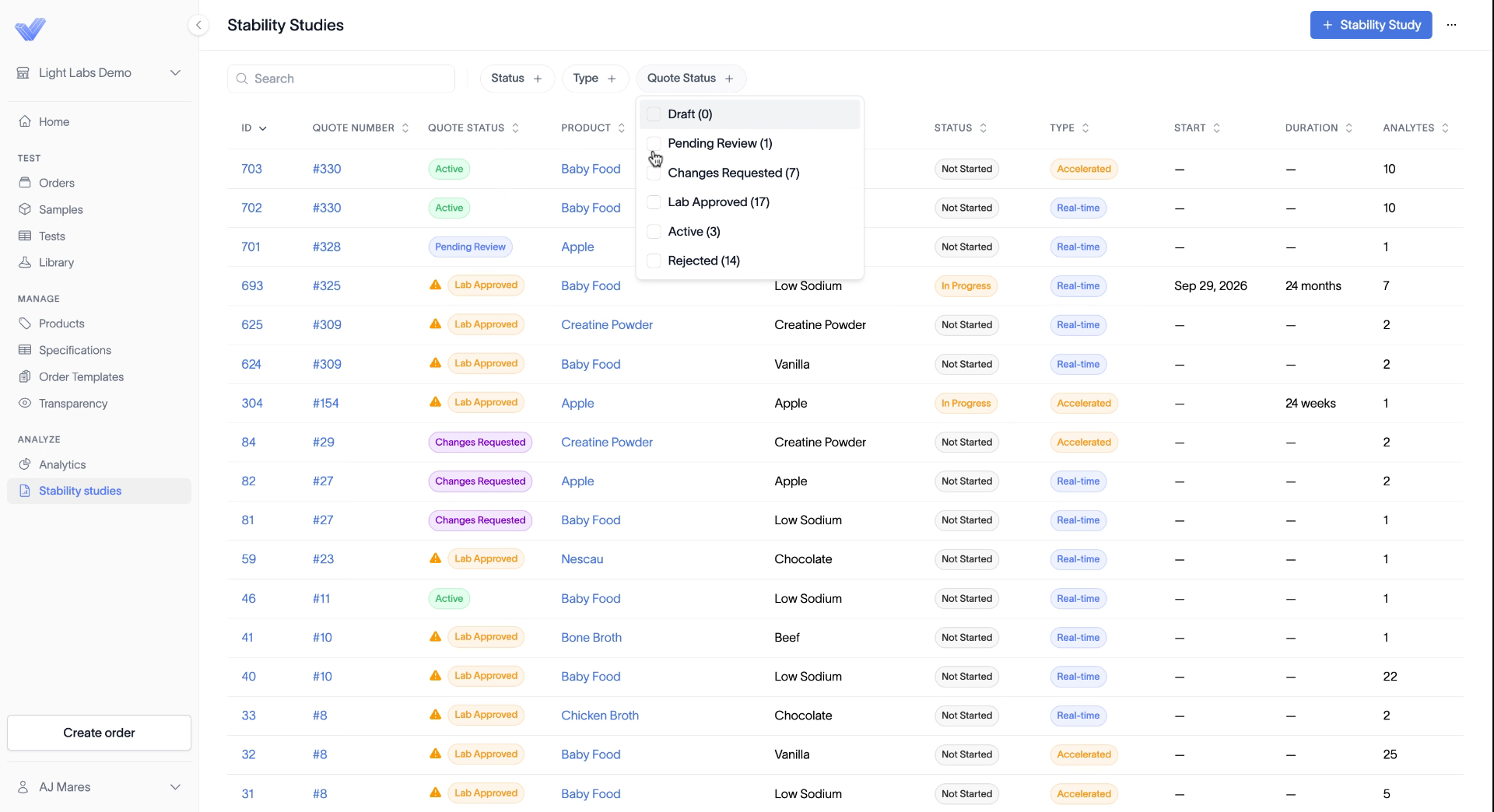
Open Stability studies in the left sidebar, under Analyze. The page lists every quote and study on your account, with its type (real-time or accelerated), product, variant, IDs, and status.
Use the search box to find one, or filter by Status, Type, or Quote Status. Quote Status has six values: Draft, Pending Review, Changes Requested, Lab Approved, Active, and Rejected.
Related: Find and filter your stability studies
Build your quote
Click + Stability Study at the top right. A six-step builder opens: Details, Products, Study type, Analytes, Schedule, and Review. Your progress saves as you go, and the running total stays visible at the bottom.
1. Details
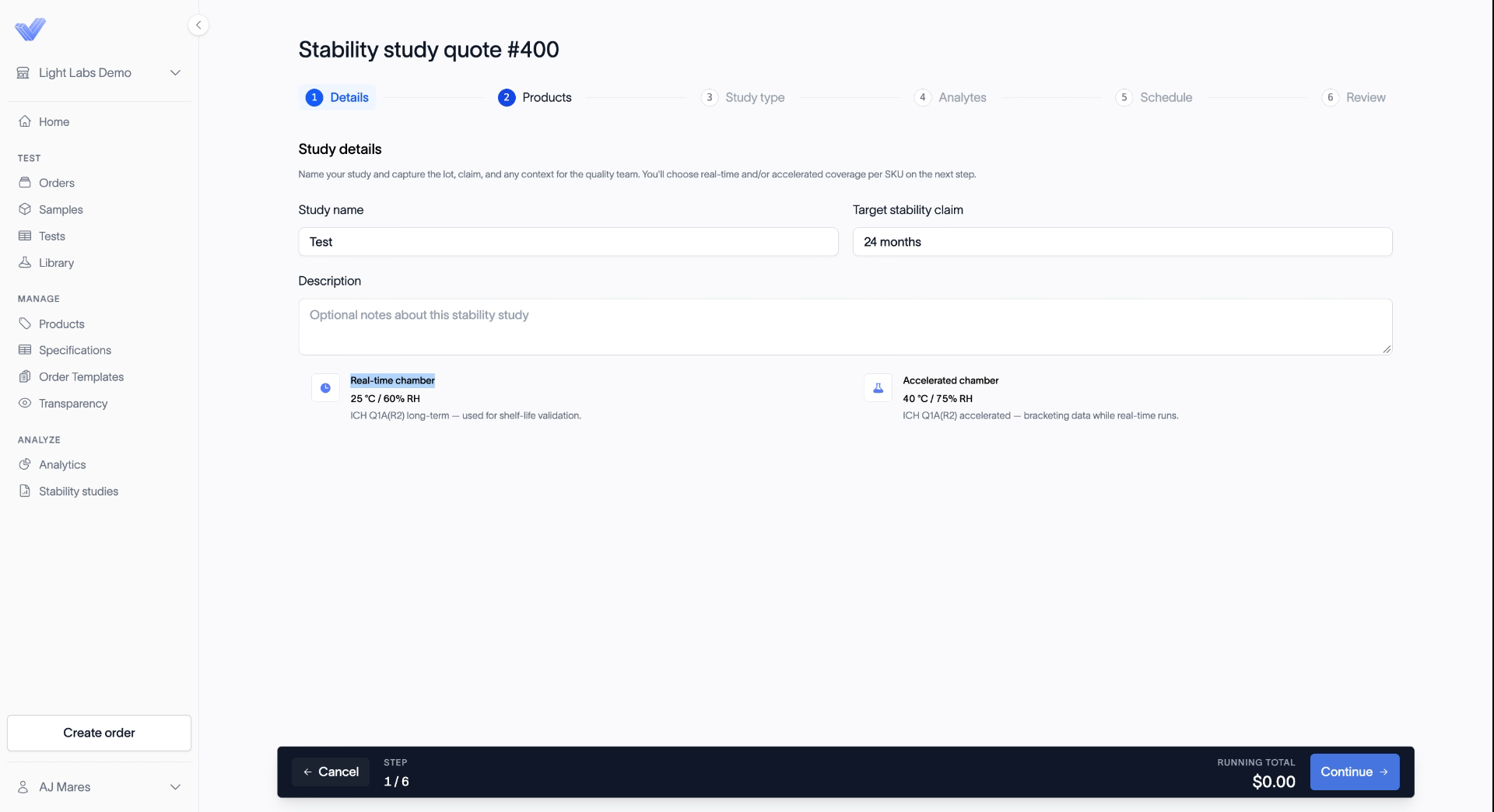
Enter a Study name and your Target stability claim. If your shelf life is 24 months, enter 24 months. You can add notes in Description, which is optional.
The page also shows the two chambers we test in:
Real-time chamber: 25 °C / 60% RH, used for shelf-life validation.
Accelerated chamber: 40 °C / 75% RH, which brackets the data while real-time runs.
Click Continue.
Related: Name your study and set a target stability claim
2. Products
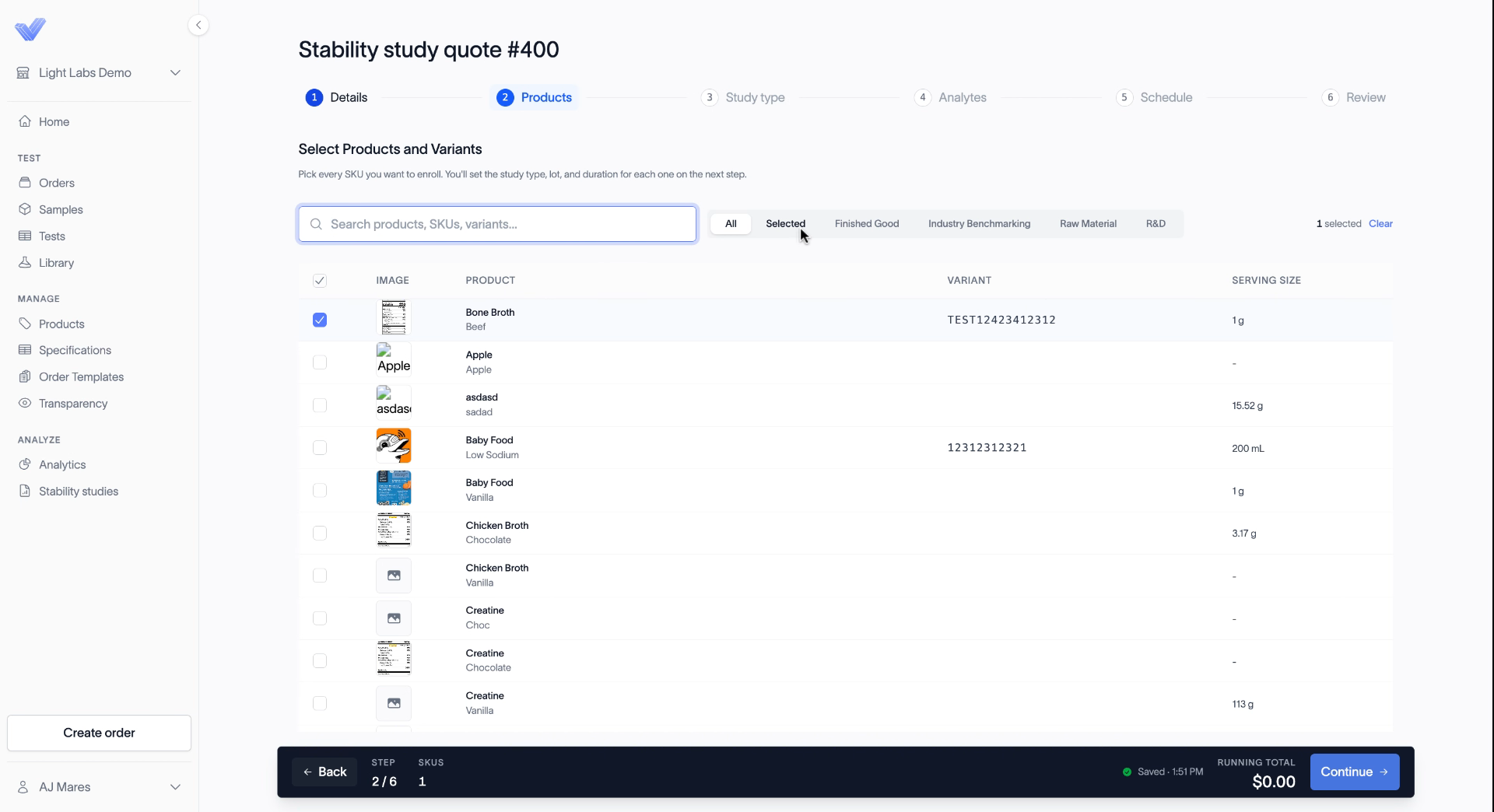
Pick the product and variant you want to enroll. Search by name, or narrow the list with the All, Selected, Finished Good, Industry Benchmarking, Raw Material, and R&D tabs. Select the checkbox next to each product, then click Continue.
Each product needs an SFP before you can move forward. Click a product's image to preview its supplement facts panel.
Related: Select products for a stability study; Add a supplement facts panel to a product
3. Study type
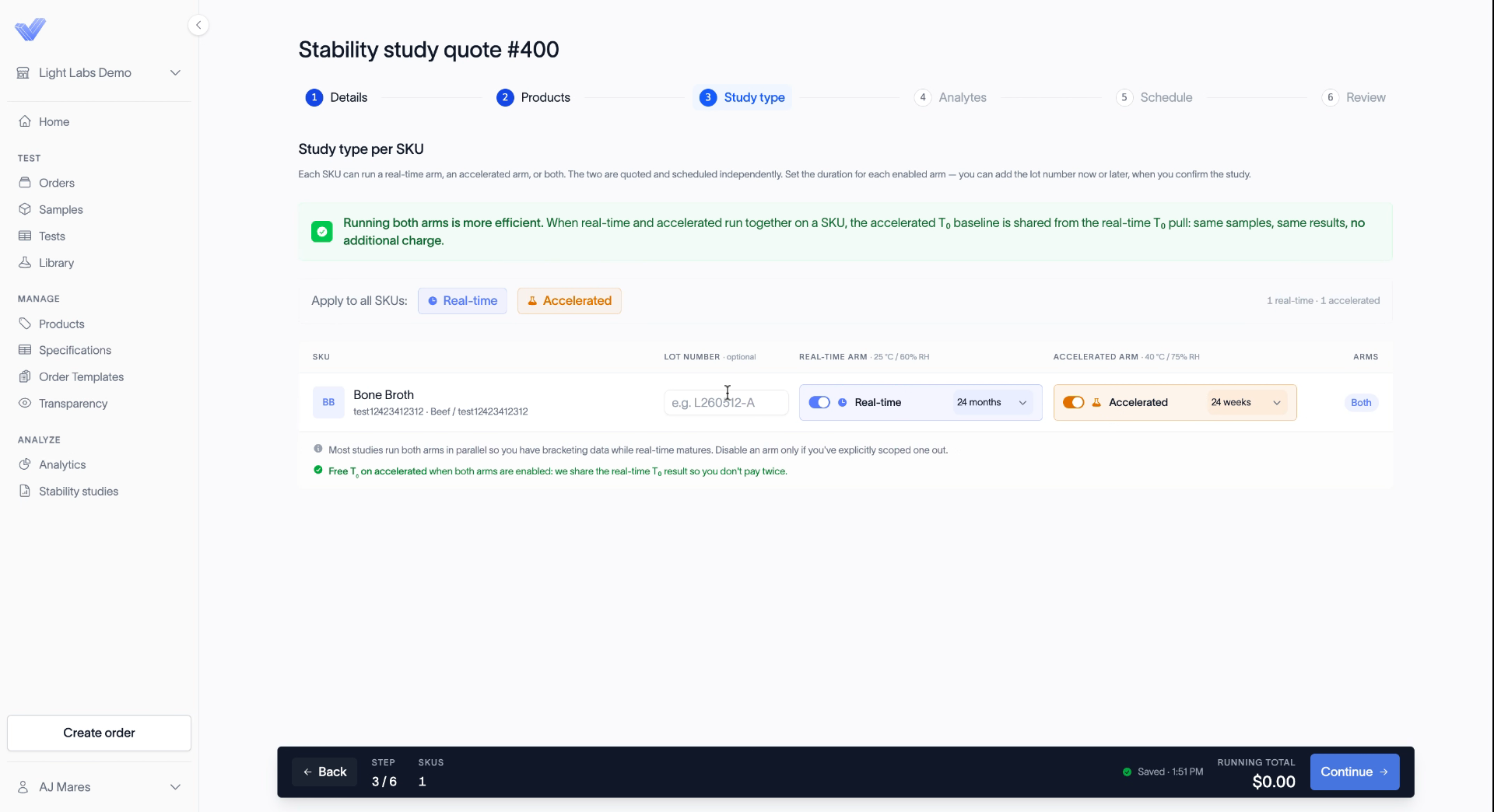
Choose how each product is tested. Turn on Real-time, Accelerated, or both. You can also use Apply to all SKUs to set the same type on every product at once.
For each arm, set the duration. Real-time runs in months, so a four-year shelf life means selecting four years. Accelerated runs in weeks. You can add a Lot number here, or wait and add it after the quote is approved.
Running both arms costs less. The accelerated T0 baseline reuses the real-time T0 result, so you don't pay for it twice.
Related: Choose real-time, accelerated, or both
4. Analytes
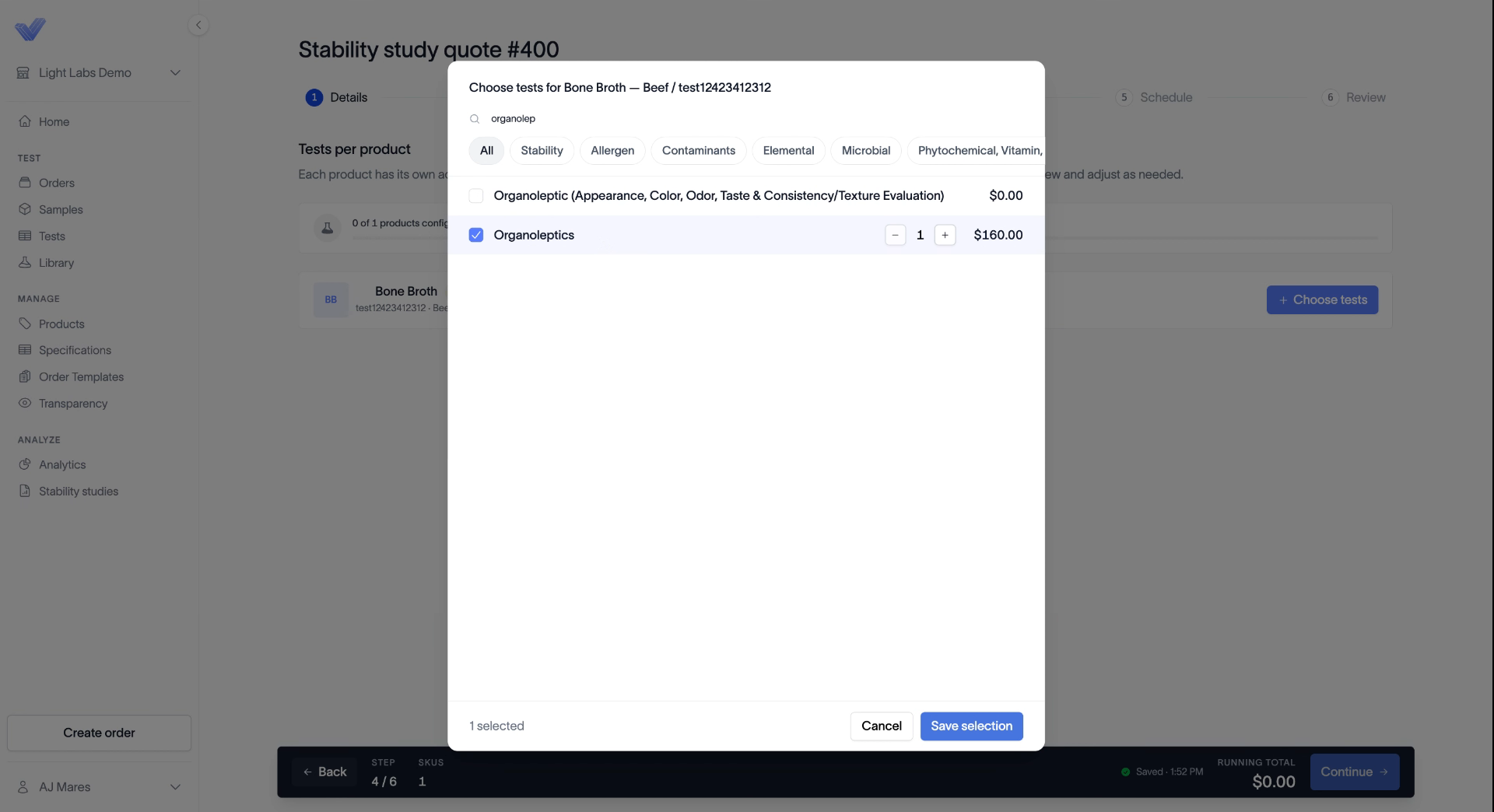
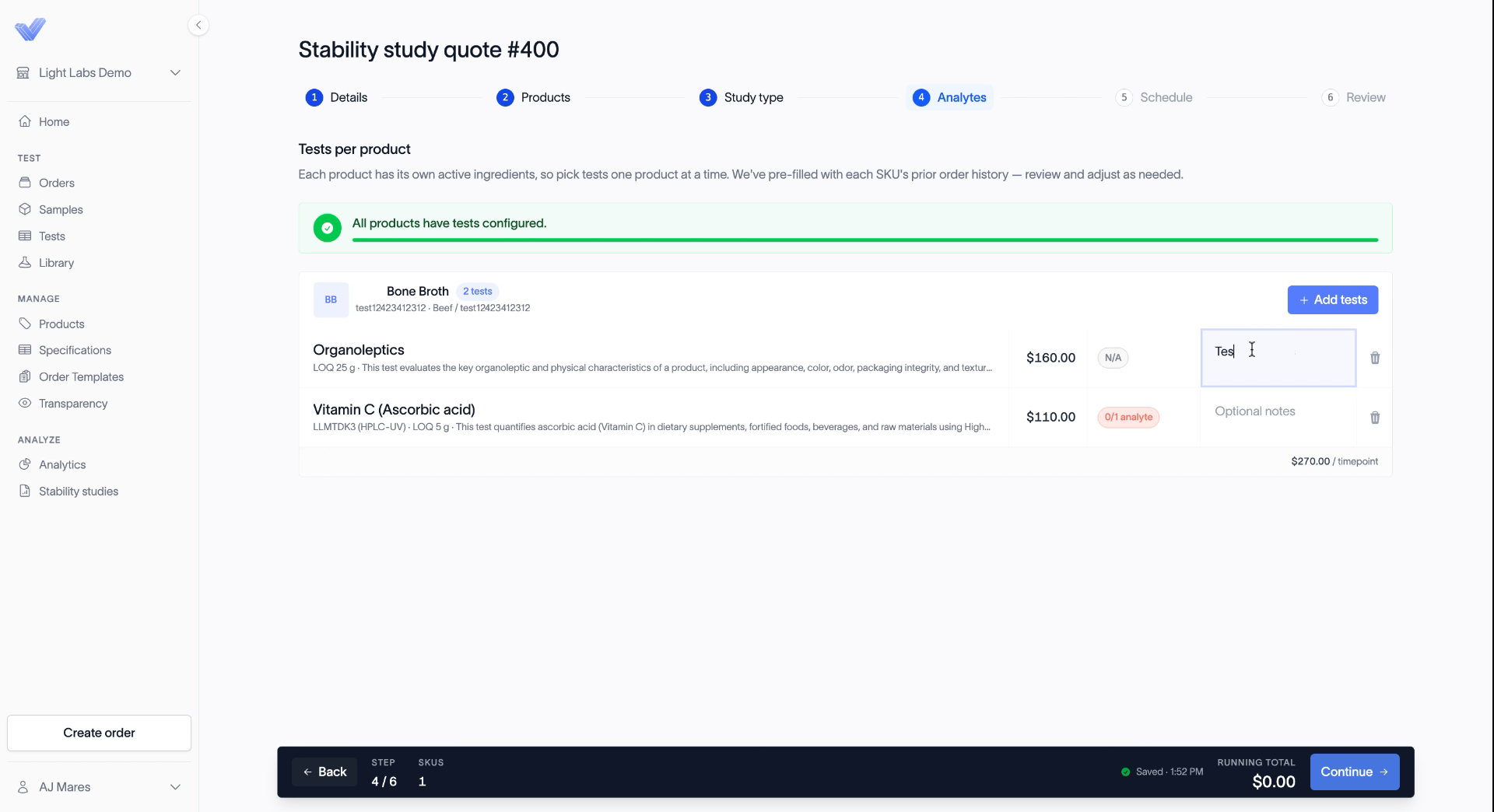
Pick the tests to run, one product at a time. Click + Choose tests, search the way you would when you place an order, and check each test you want. Set the quantity if you need to, then click Save selection.
Each test row has an optional Notes field. When you're done, click Continue.
Related: Choose analytes for a stability study
5. Schedule
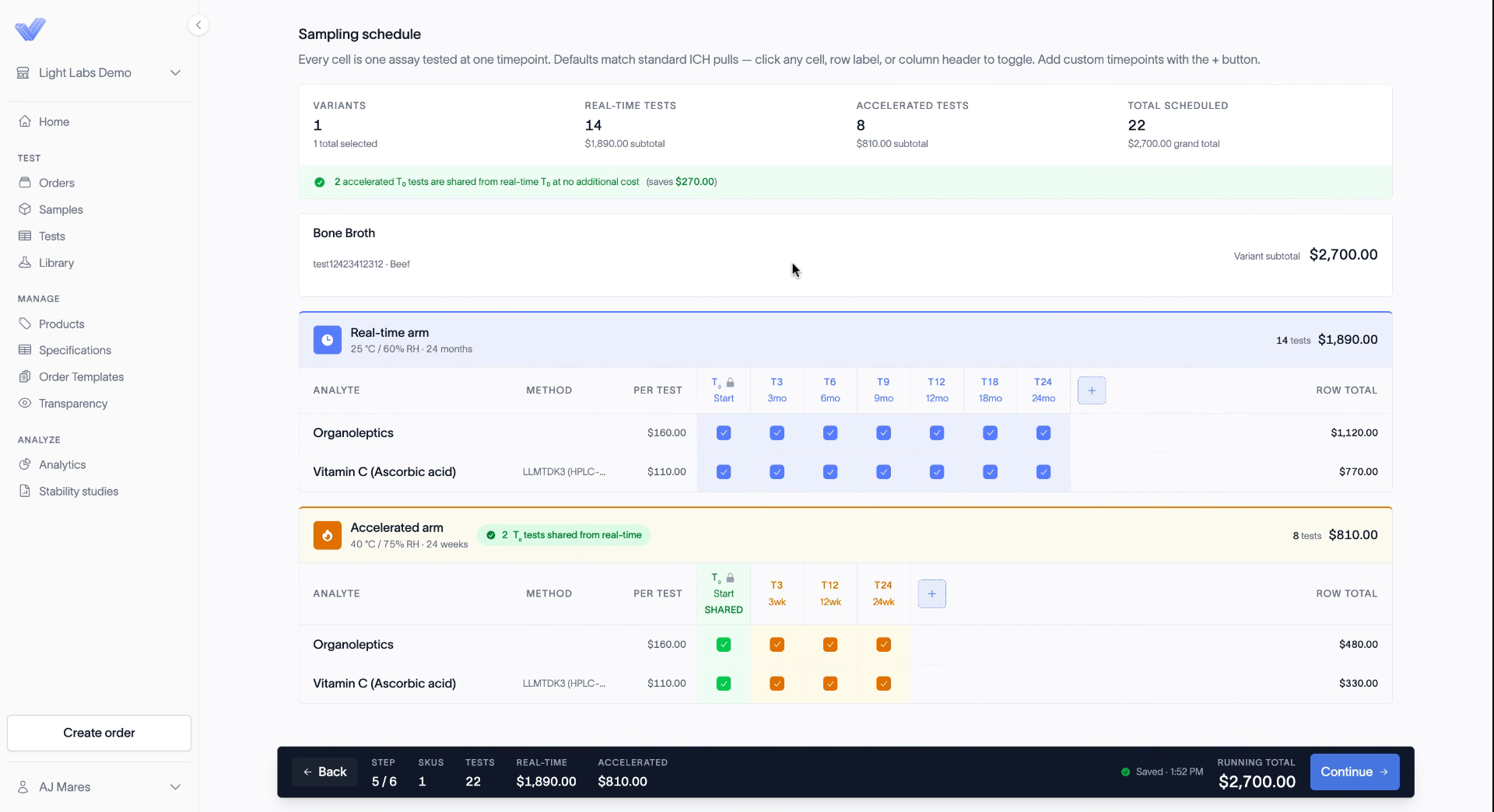
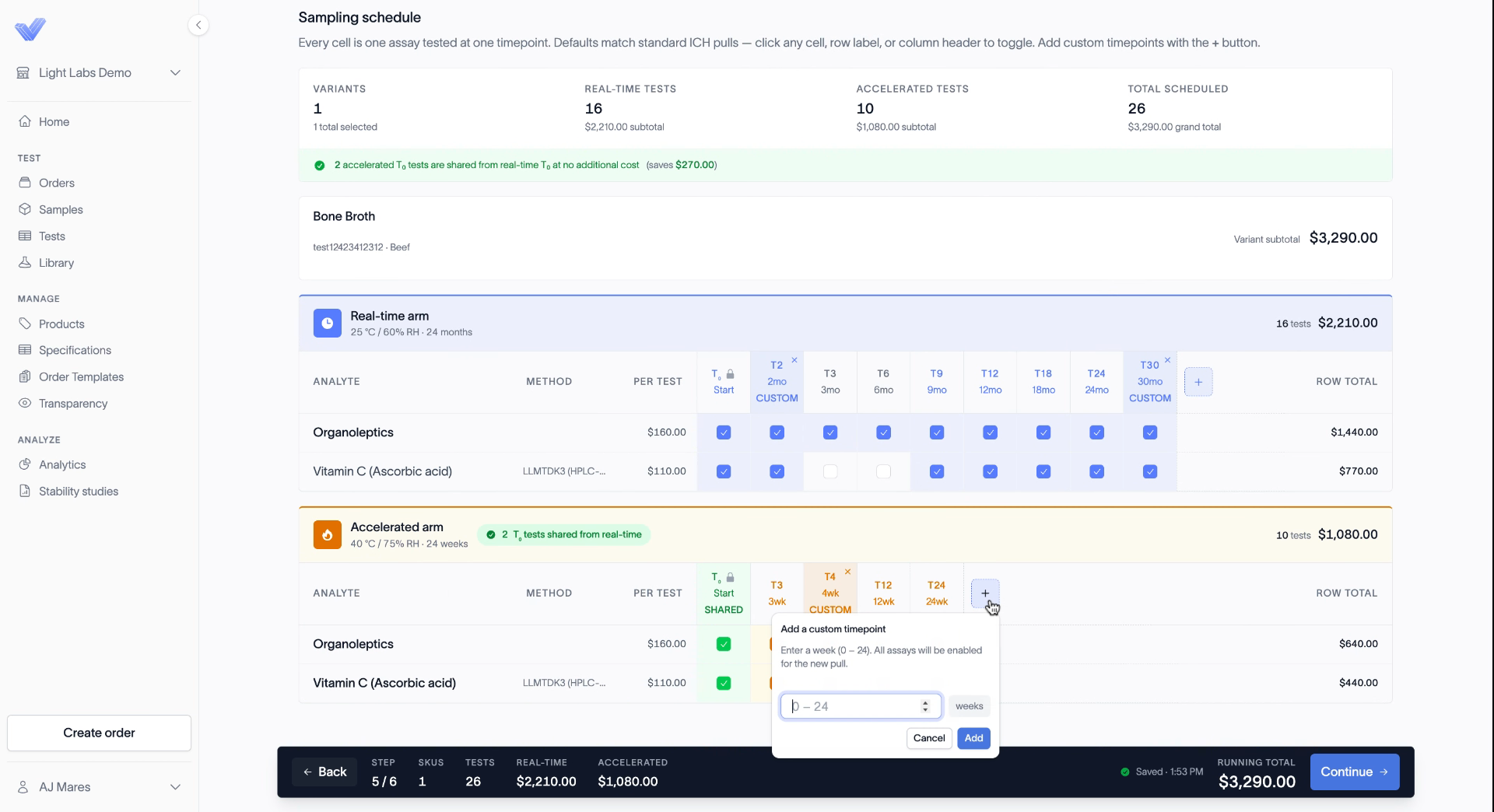
The sampling schedule is where you customize the study. Each cell is one test at one time point. The defaults follow standard ICH pulls.
T0 is required and can't be removed. When you run real-time and accelerated together, both arms share it, and you aren't charged for T0 on the accelerated arm.
Toggle time points. Click a cell to switch one test at one time point. Click a test name to switch it across all time points. Click a time point header to run every test at that time point.
Add custom time points with the + button. For example, add a 2-month or 30-month pull on real-time, or a 4-week pull on accelerated.
The totals at the top update as you toggle, and each arm shows its own subtotal. Click Continue when the schedule looks right.
Related: Build your sampling schedule; Add custom time points
6. Review and submit
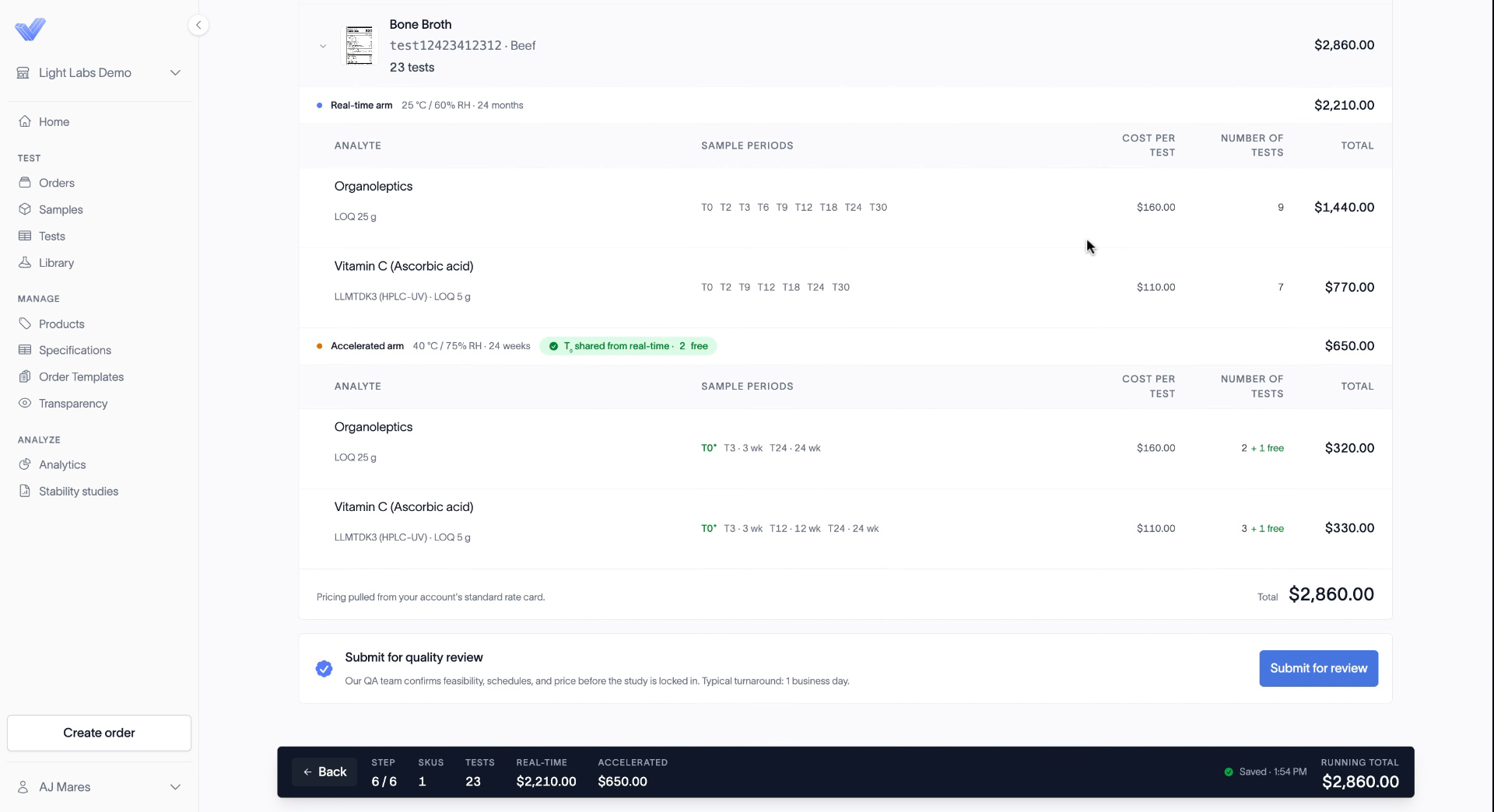
The review page shows your quote total, both arms, the number of variants, and your claim. Line items are broken out by product, with the time points, cost per test, and test count for each analyte. You can also see the cost per time point.
When it looks right, click Submit for review.
Related: Review and submit your stability quote
After you submit
You're taken back to the Stability Studies list, where your new quote shows with a Pending Review status and a quote number.
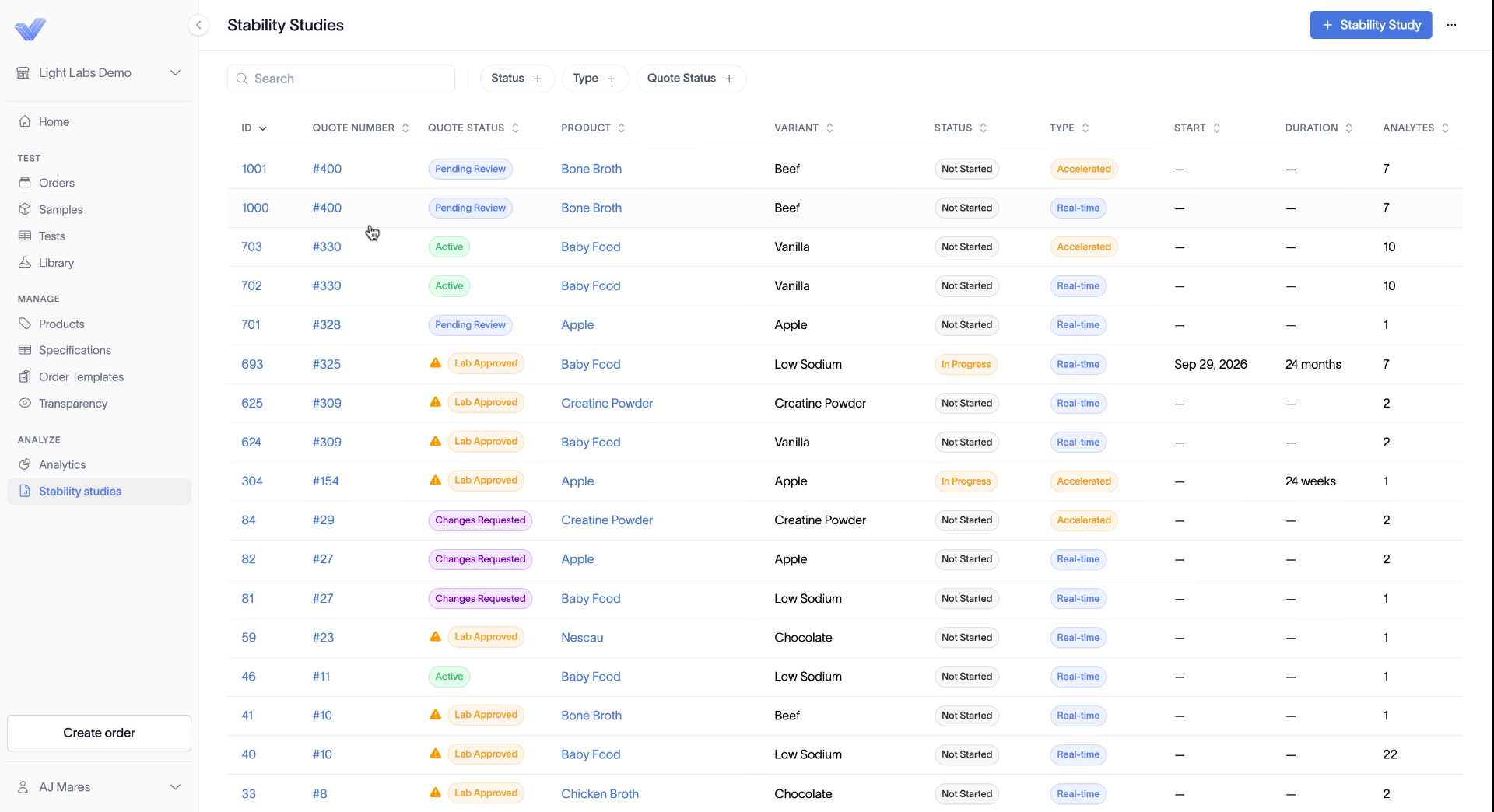
Our quality team reviews every quote, usually within one business day. They confirm feasibility, schedules, and price before the study is locked in. They'll either approve it or request changes.
Related: What happens during quality review
Approve and start your study
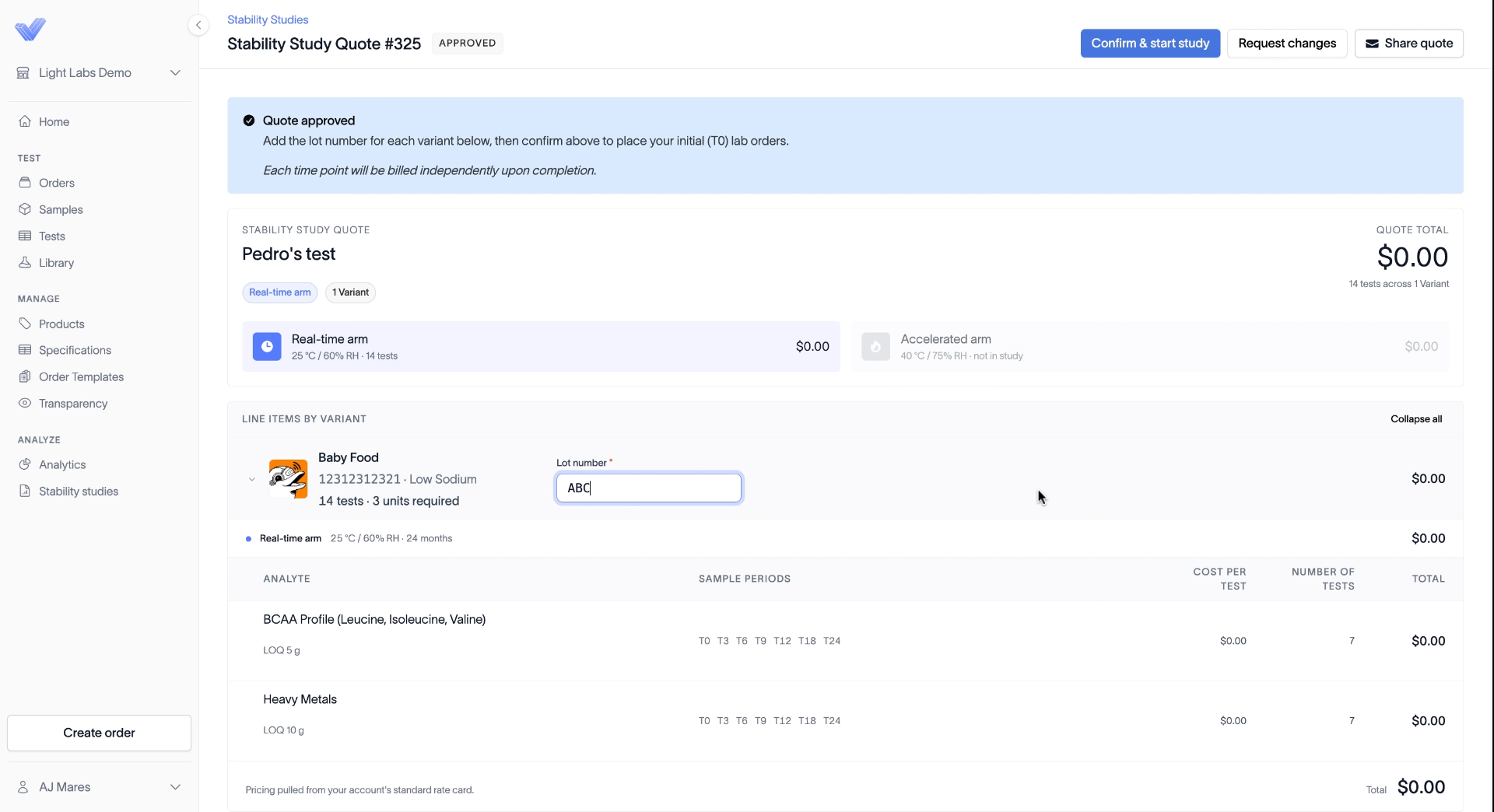
When the lab approves your quote, its status changes to Lab Approved. Click into the quote. From there you can:
Add the Lot number for each variant.
Click Share quote to email a PDF of the quote.
Click Request changes.
Click Confirm & start study to place the order.
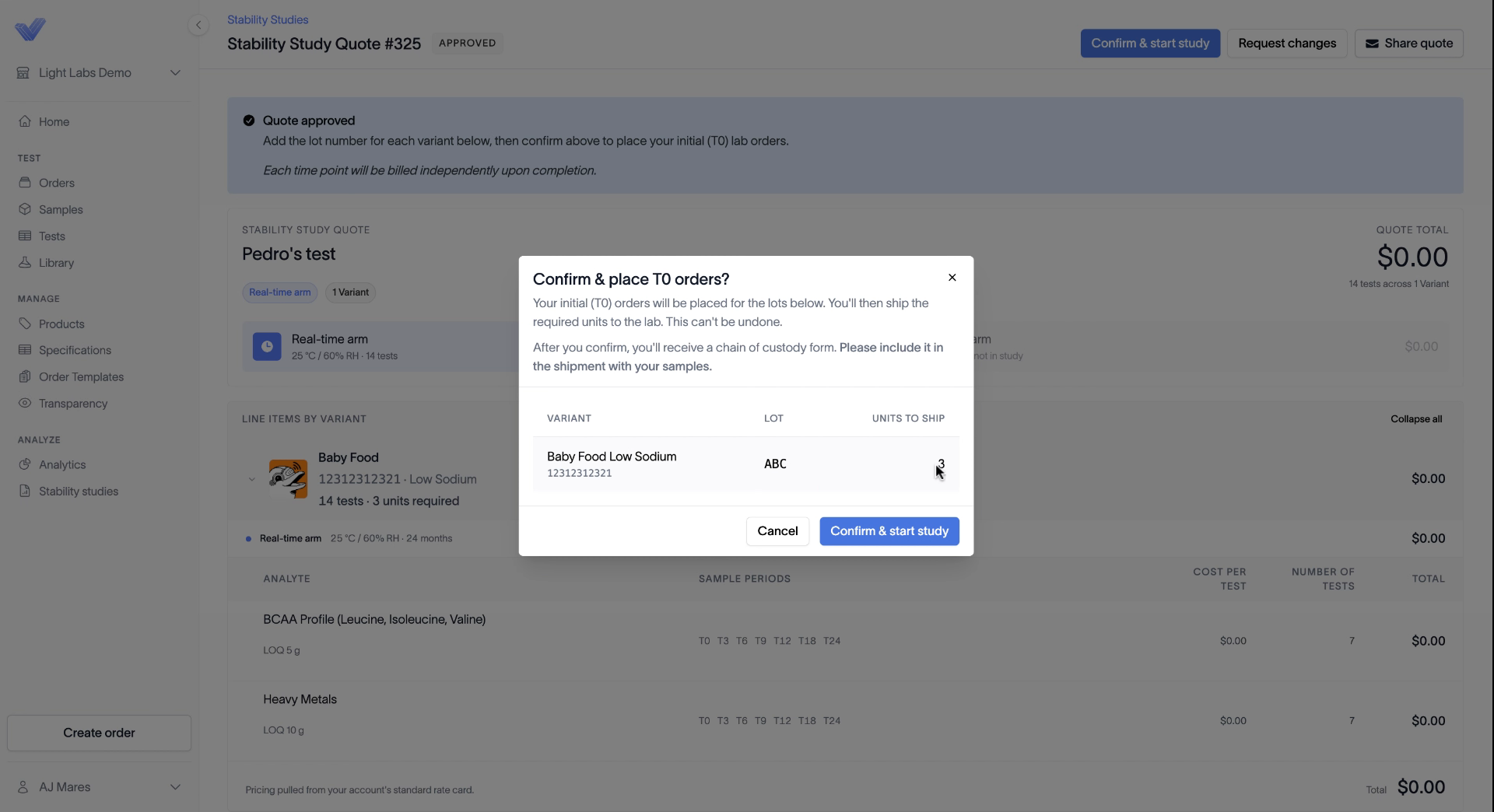
When you click Confirm & start study, a dialog shows the lot and the number of units to ship for each variant. Confirming places your initial (T0) orders and can't be undone.
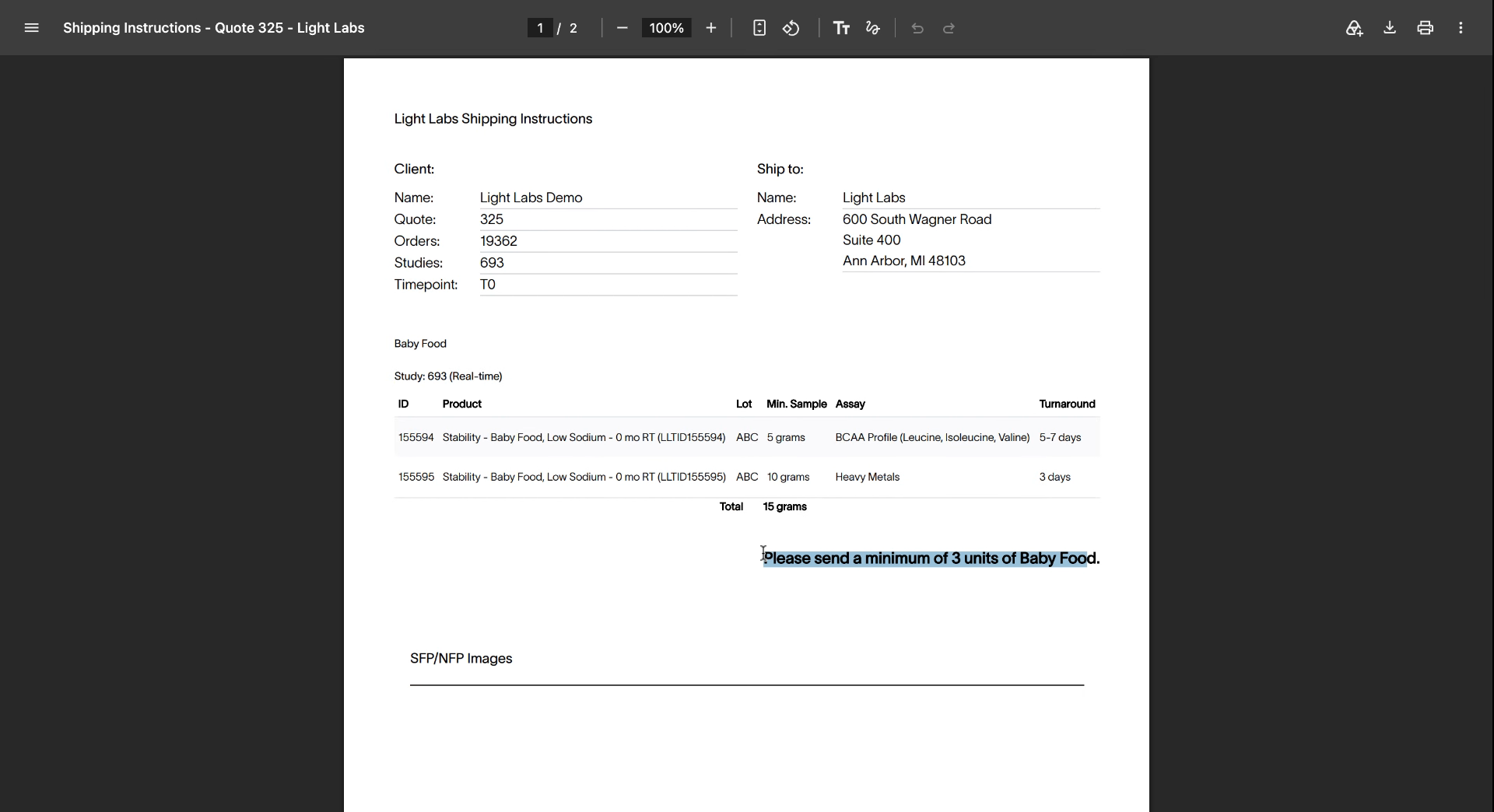
You'll then receive your shipping instructions and a chain of custody form. Print it and include it with your samples. The shipping instructions list the minimum number of units to send, which is three for this product.
Back on the Stability Studies list, the study now shows as active.
Related: Approve and start your stability study; Ship samples for a stability study
If the lab requests changes
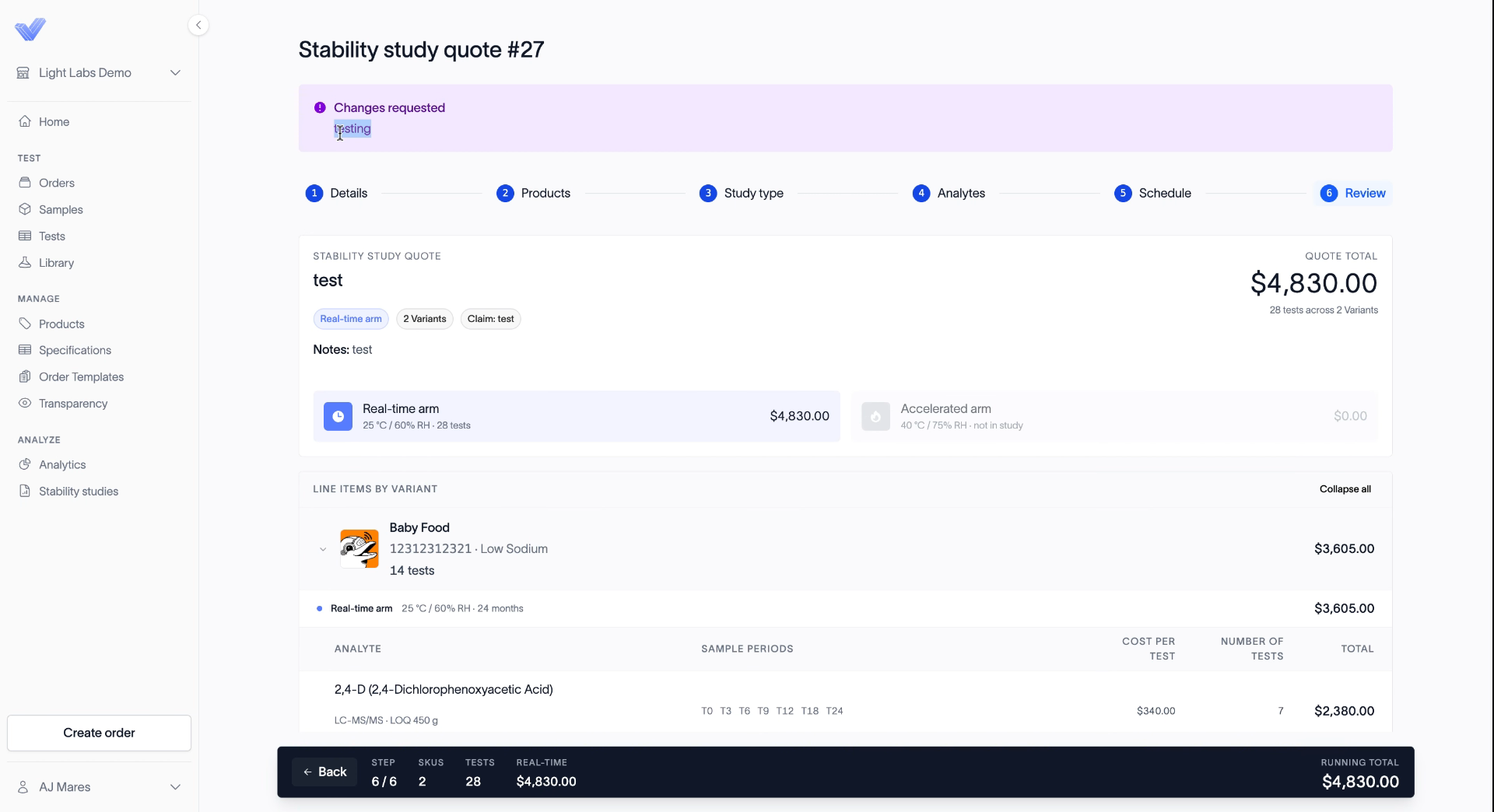
Sometimes the lab asks for changes before approving. When that happens, open the quote and you'll see a Changes requested banner at the top with the lab's notes. You can update your schedule, update your analytes, or resubmit the full review to move ahead without making the requested changes.
Related: Respond when the lab requests changes
Billing and results
You're billed per time point, so you only pay as testing is completed.
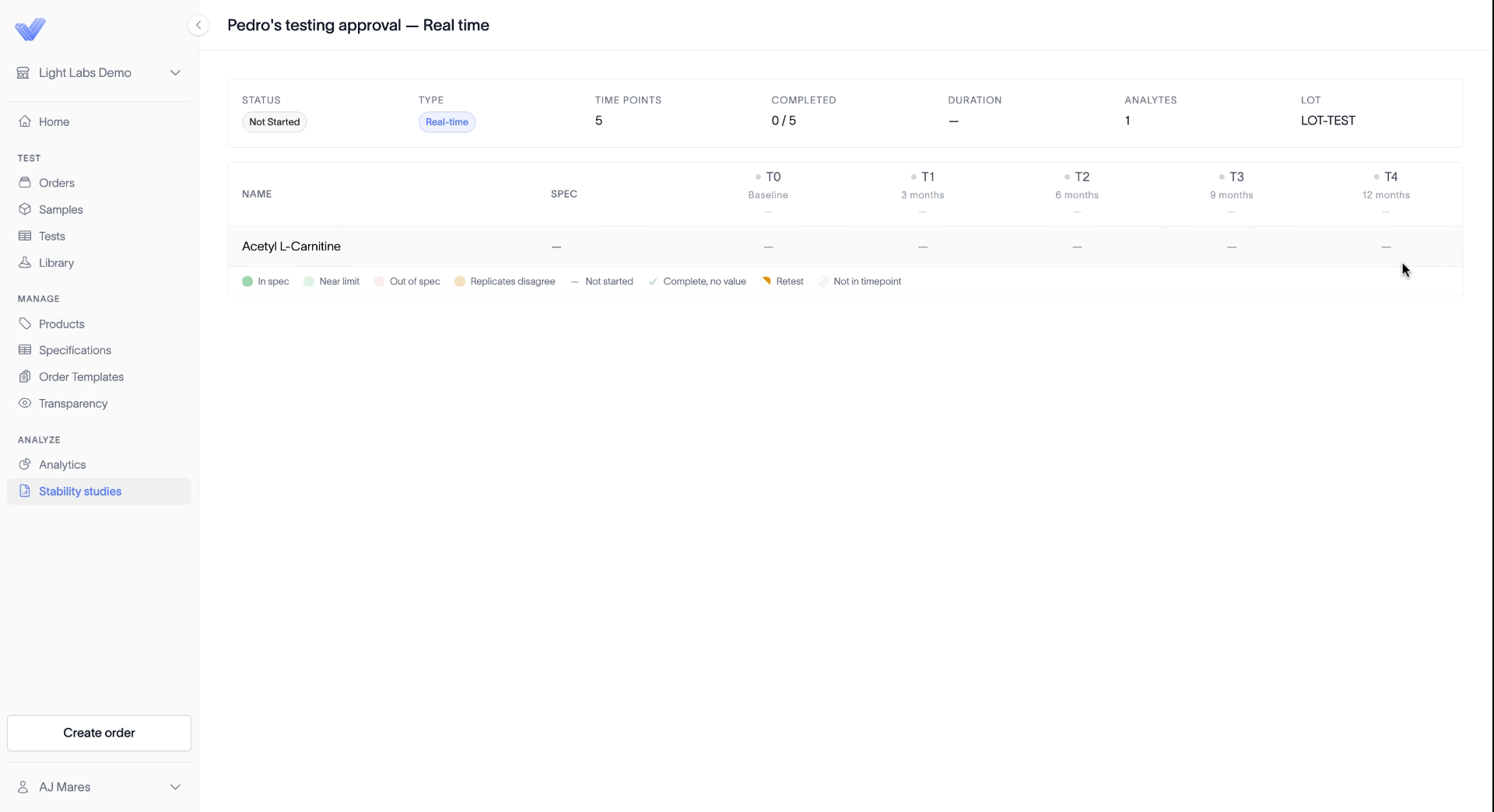
As results come in, open the study to see its spec, every time point mapped out, and a heat map of your results over the course of the study. A green box means a result is in spec. A red box means it's out of spec.
Related: How stability study billing works; Read your stability study results