Add custom time points
Last updated: October 9, 2026
The schedule starts with standard time points. If you need a pull at a different point, add your own.
Add a custom time point
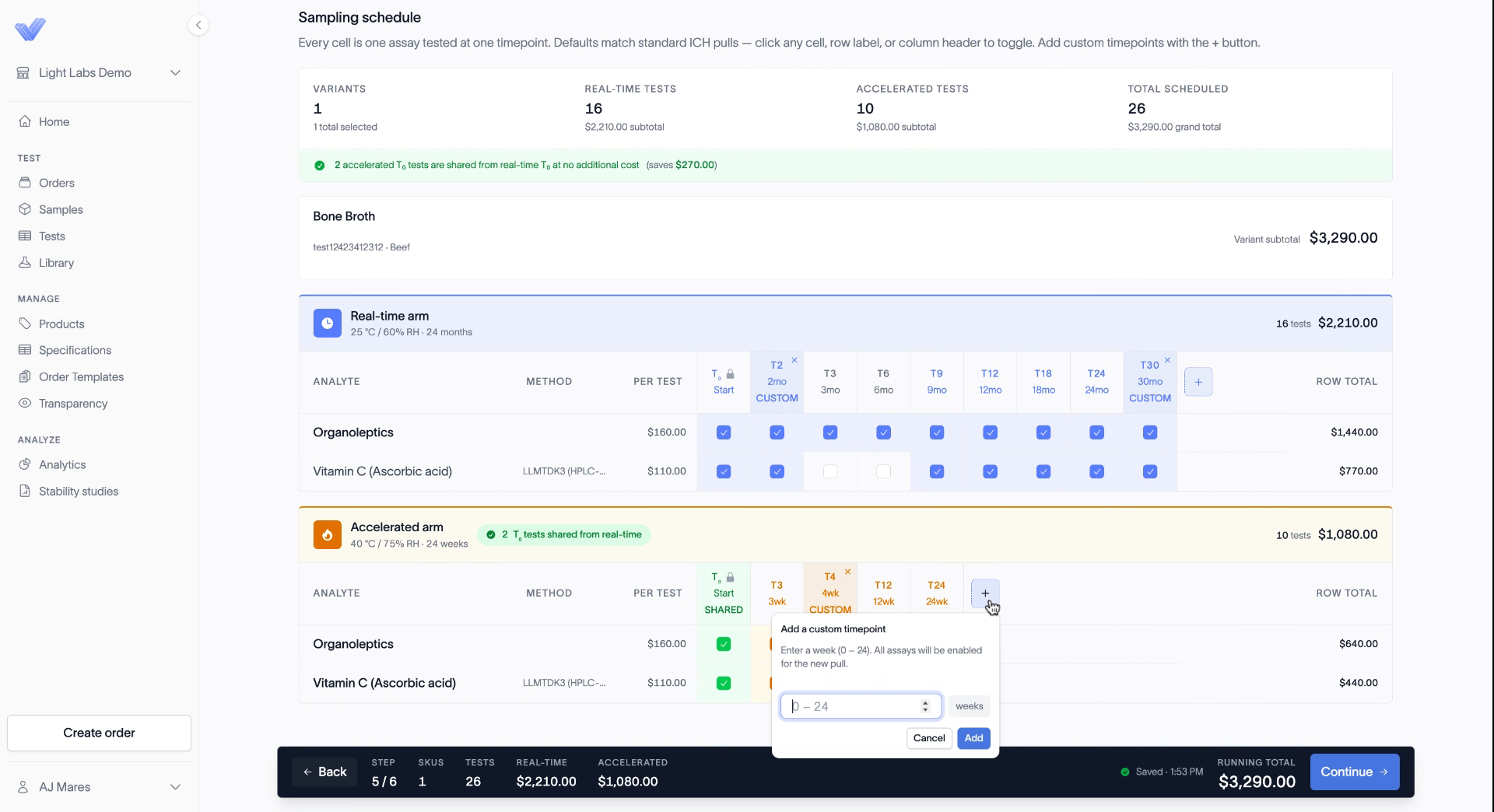
On the Schedule step, click the + button at the end of the real-time or accelerated arm.
Enter the time point.
On real-time, enter a number of months, such as 2.
On accelerated, enter a number of weeks, such as 4. The prompt reads "Enter a week (0 – 26)."
Click Add.
The new time point appears in the grid with a CUSTOM label, and every test is turned on for it. Turn off any tests you don't want at that time point, the same way you would for any other time point.
Remove a custom time point
Custom time points show a small x in the column header. Click it to remove the time point.
Related
Build your sampling schedule
Review and submit your stability quote