Open a test in the side panel
Last updated: August 14, 2026
Time To Completion: 1 minute
Quick-view a test's details in a side panel without leaving the Tests page.
Prerequisites: The Tests page open with at least one test.
1. Open the panel
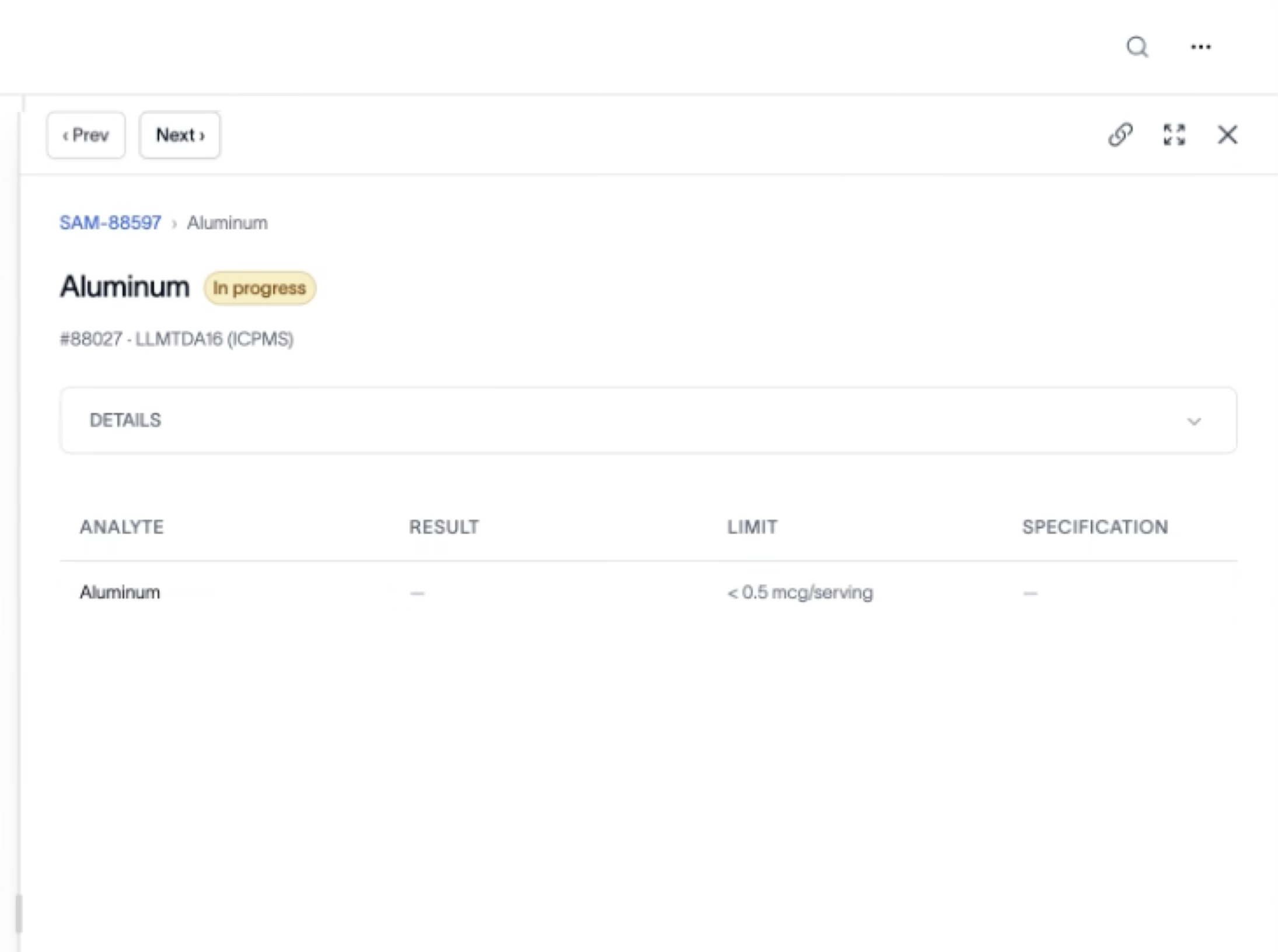
Click a test row. A panel slides in from the right with the test's details, including the sample ID breadcrumb (for example, SAM-88597 › Aluminum), the status, the assay and method (for example, #88027 · LLMTDA16 (ICPMS)), a DETAILS section, and the analyte results table (ANALYTE, RESULT, LIMIT, SPECIFICATION).
2. Move, expand, or link out
Use the panel controls in the top right:
‹ Prev / Next › — step through tests without closing the panel.
The link-out icon — open the full test record in its own page.
The expand icon — grow the panel to full screen; click again to contract.
The ✕ — close the panel and return to the list.
Outcome
You can review a test's results and details inline, page through neighboring tests, and open the full record only when you need it.