Read your stability study results
Last updated: October 9, 2026
As testing is completed, results appear on your study. Open the study to see how your product is holding up across every time point.
Open your study
Go to Stability studies.
Click the study's ID or quote number.
What you'll see
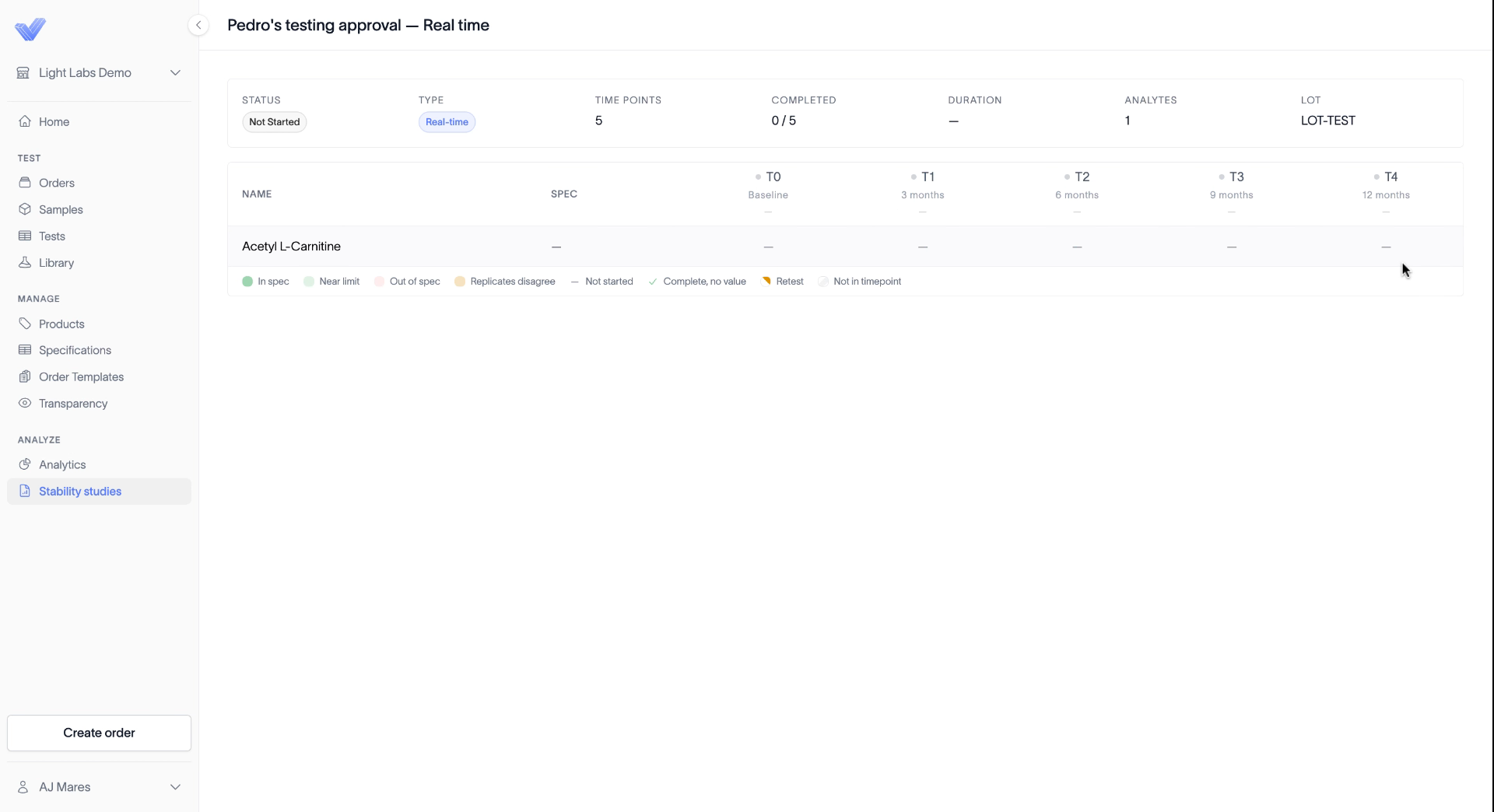
At the top, the study shows its status, type, number of time points, how many are completed, its duration, the number of analytes, and the lot.
Below that, a grid lays out the study:
Each row is an analyte, and its Spec populates in the grid once results come in.
Each column is a time point, from T0 (baseline) through the end of the study.
A heat map shows your results over the course of the study. A green box means the result is in spec. A red box means it's out of spec.
The legend under the grid lists every state a cell can show: In spec, Near limit, Out of spec, Replicates disagree, Retest, Not started, Complete, no value, and Not in timepoint.
Related
Find and filter your stability studies
How stability study billing works