Add a PO number to an order
Last updated: October 21, 2026
If your company tracks orders by purchase order (PO), add the PO number when you place the order.
Add a PO number
Click Create order at the bottom of the left sidebar.
Choose the product, enter the lot information, and add your tests, the same way you would for any order.
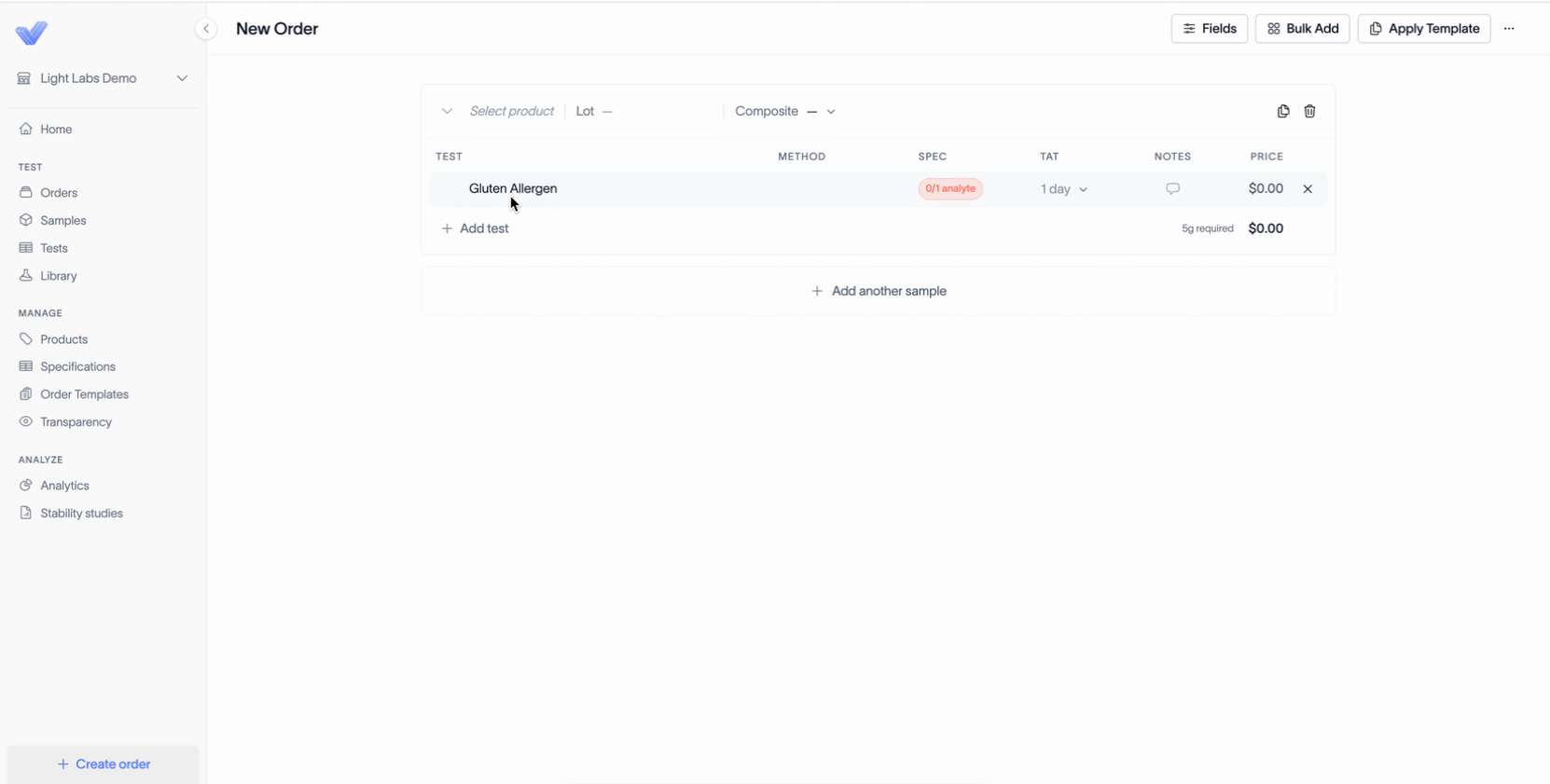
Click Check out. This opens the review page, where you'll see your tests and the Billing details.
Under Billing details, below Billed to and Payment, click + Add PO number.
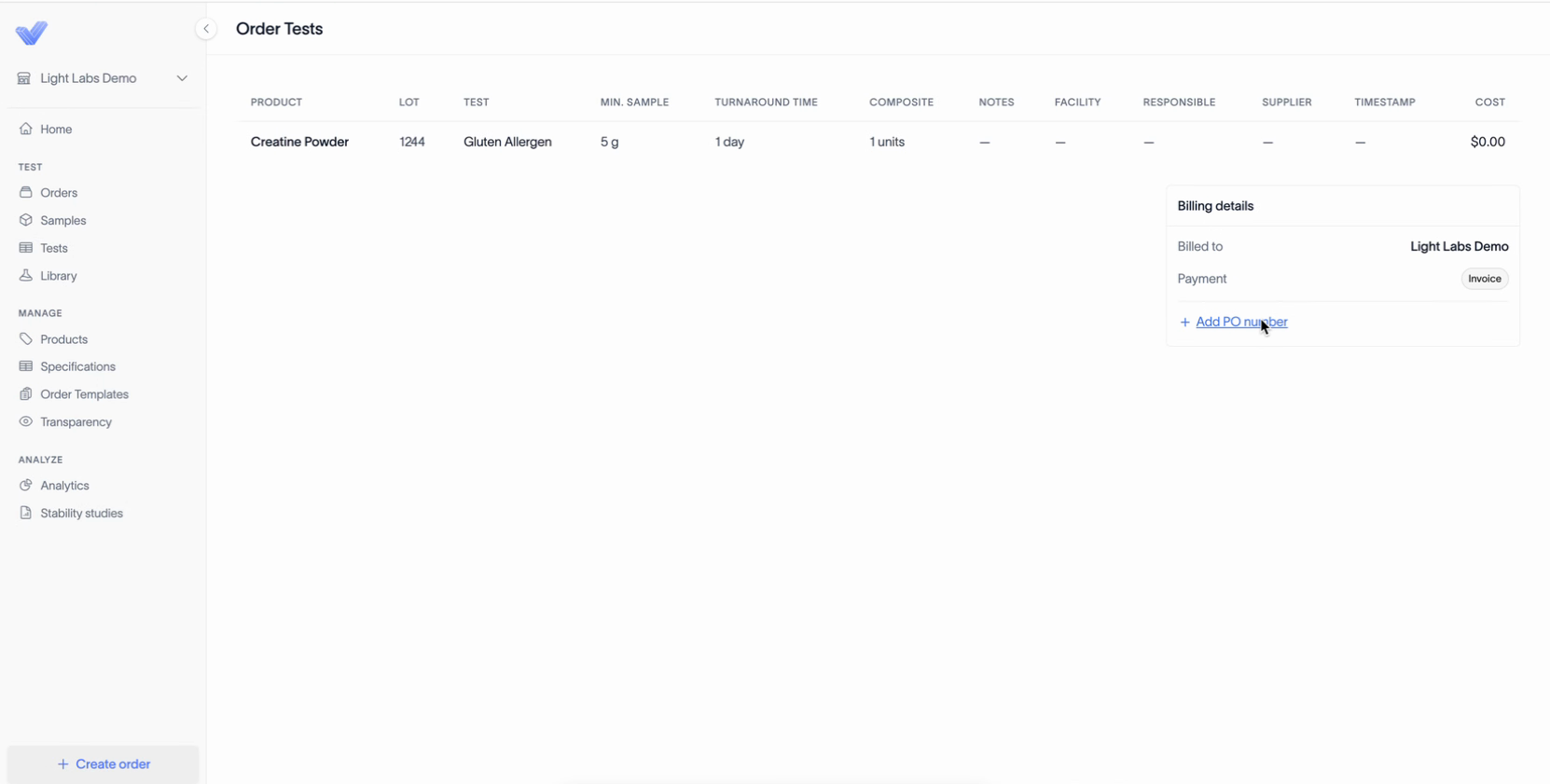
Type your PO number in the PO number field.
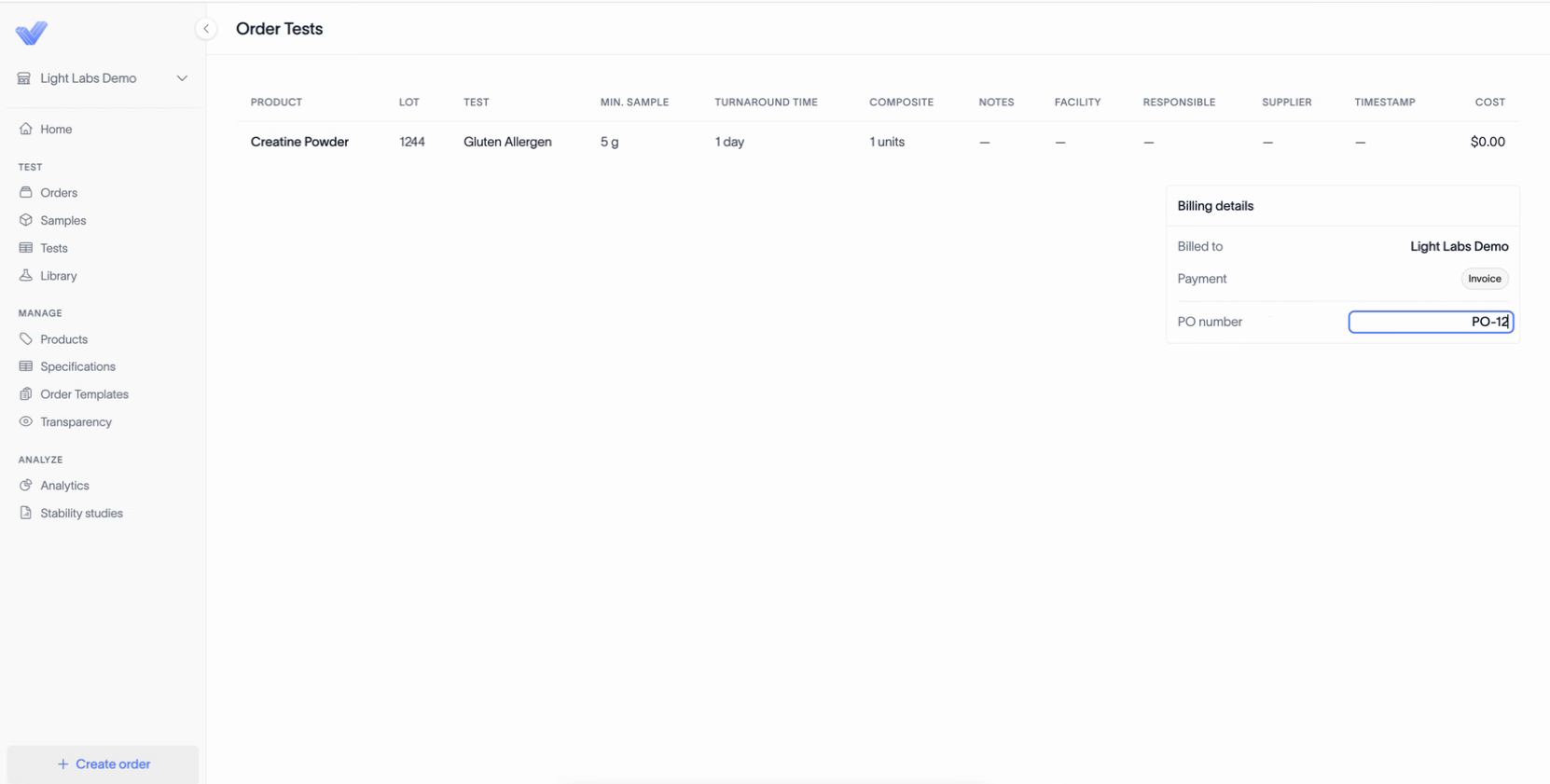
Check that the PO number shows in your billing details.
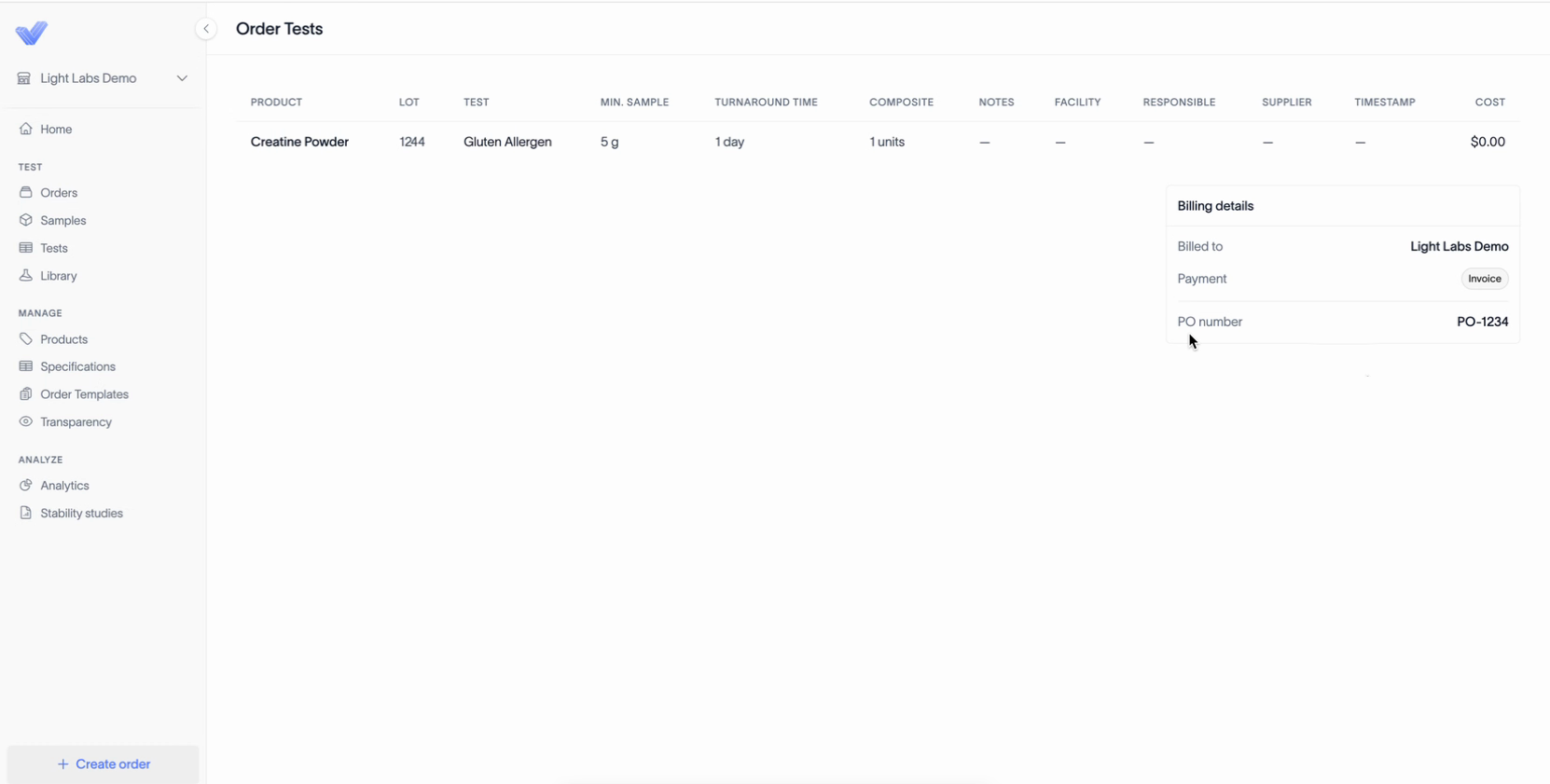
Click Place order.
The PO number is saved with the order.