Copy a draft sample
Last updated: August 14, 2026
Time To Completion: 1 minute
Duplicate an existing sample tile to start a new one with the same tests, specs, custom fields, and notes already filled in — useful when you're submitting several lots of the same product or near-identical SKUs.
Prerequisites: A draft order with at least one configured sample tile.
1. Find the copy icon on the sample tile
Every sample tile header has two icons in the top right: a copy icon (two overlapping squares) and a delete icon (trash). The copy icon sits to the left of the trash icon.
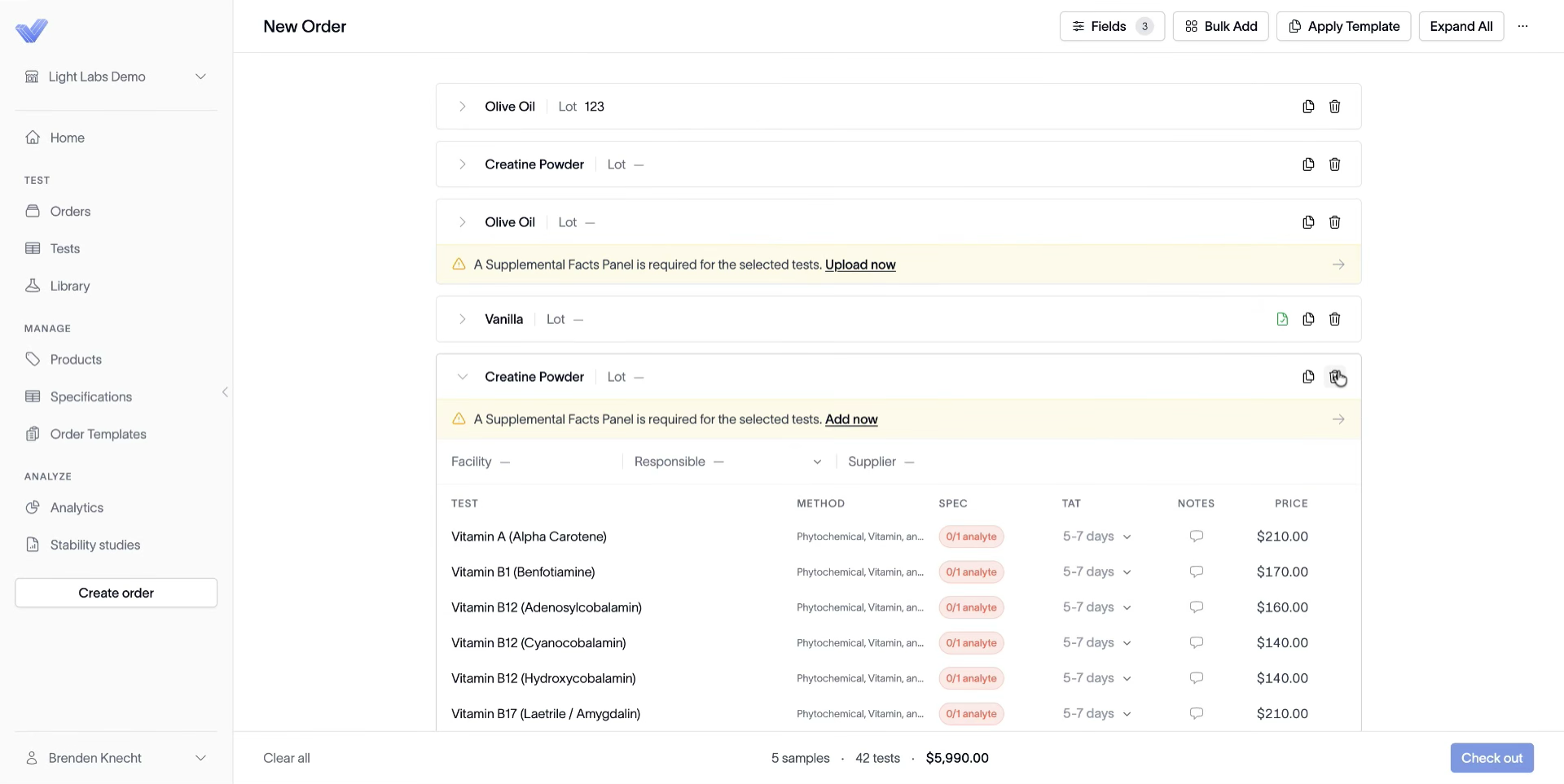
2. Click the copy icon
A new sample tile appears below the original with all the same fields, tests, specs, TAT, and notes pre-filled. The footer's sample count goes up by one.
3. Edit the lot and any per-sample differences
Type the new Lot number on the duplicated tile and adjust any fields that differ. The rest carries over from the source.
Outcome
Multi-lot or near-identical submissions take seconds instead of repeating the full pick-product / pick-tests / configure-specs flow.