Cancel an order
Last updated: October 21, 2026
If you no longer need an order tested, you can cancel it from the order page.
Cancel an order
Click Orders in the left sidebar.
Click the order ID of the order you want to cancel.
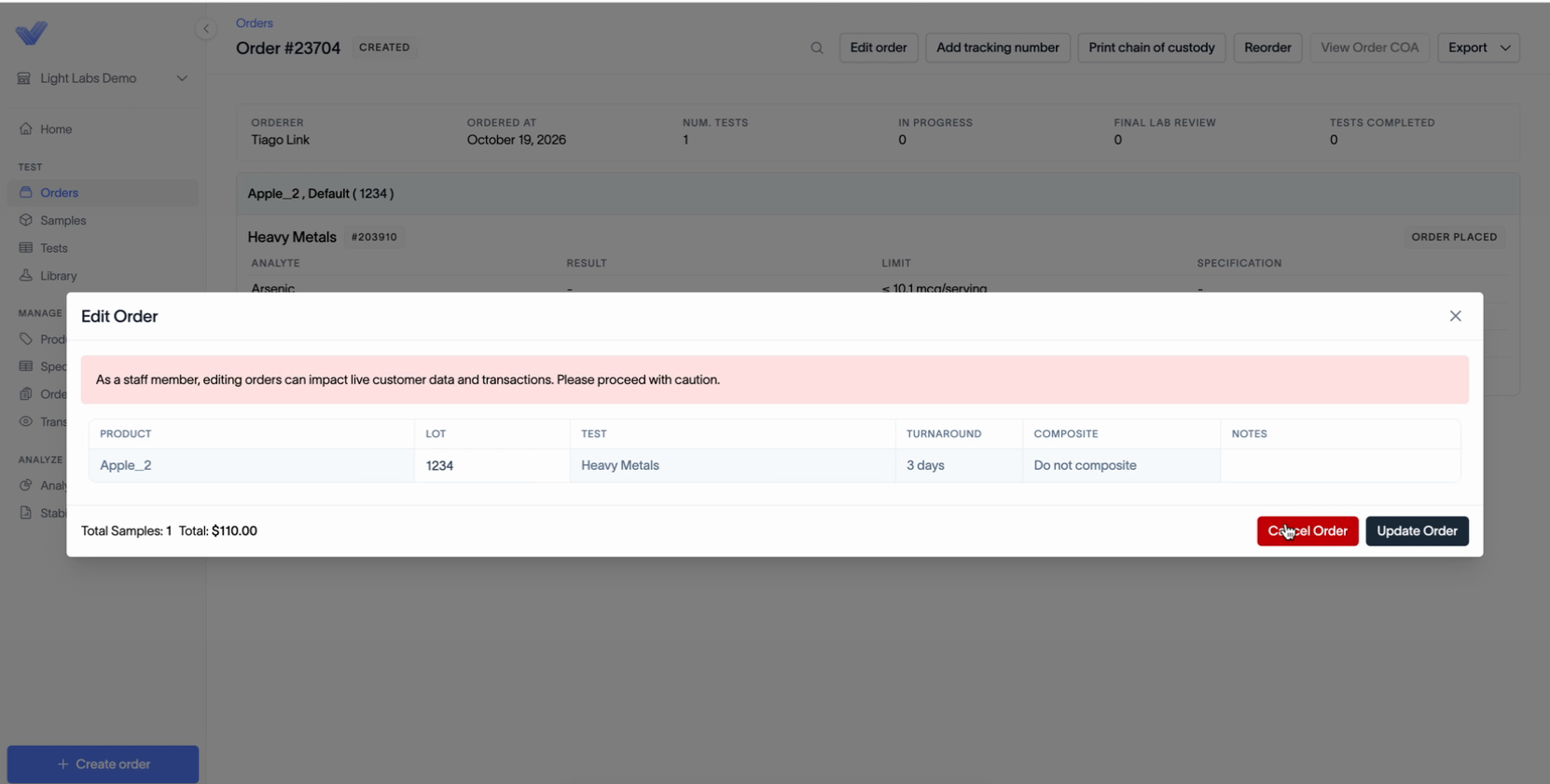
Click Edit order at the top of the page.
In the Edit Order window, click Cancel Order.
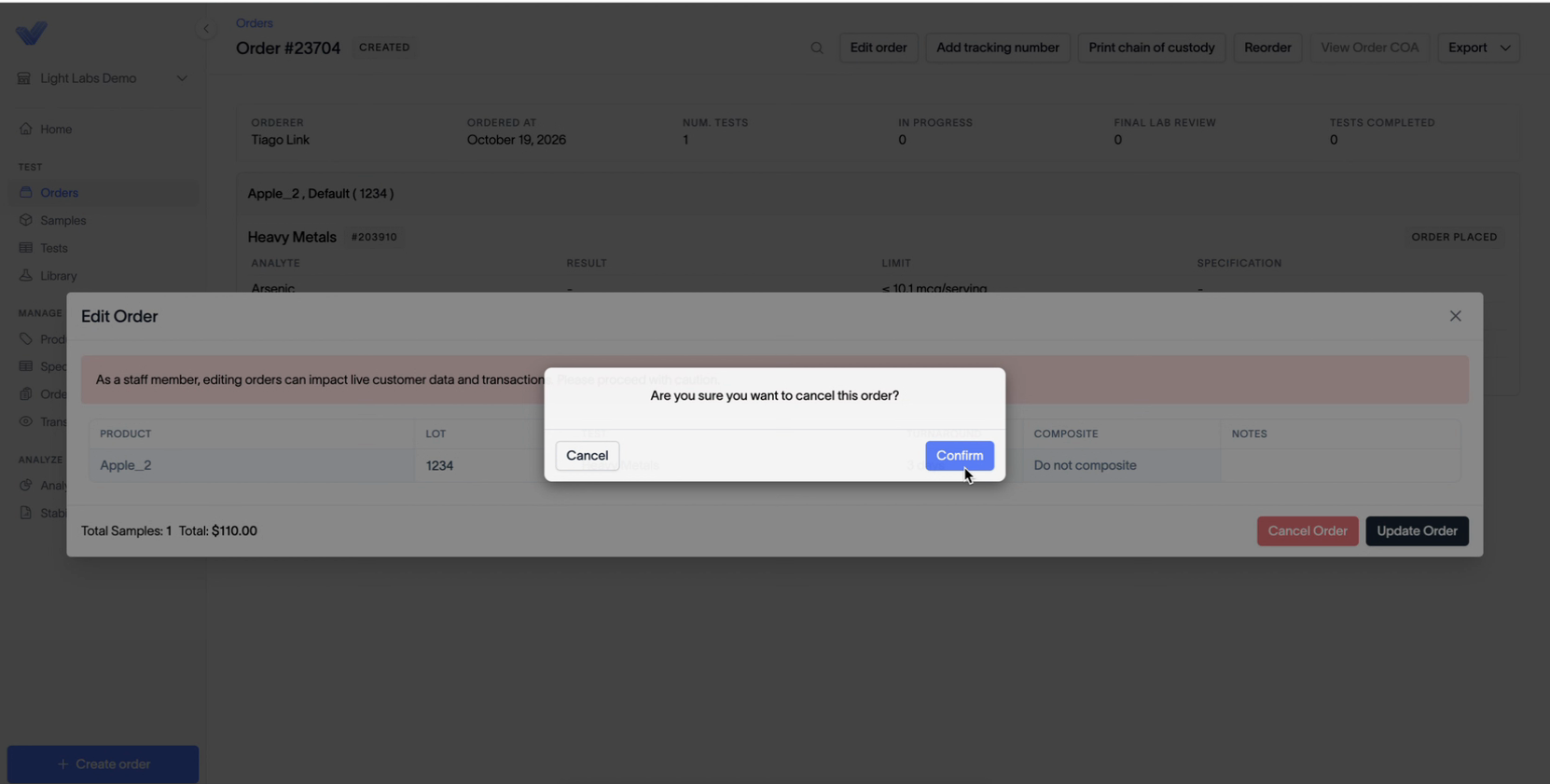
When asked "Are you sure you want to cancel this order?", click Confirm. Click Cancel to keep the order instead.
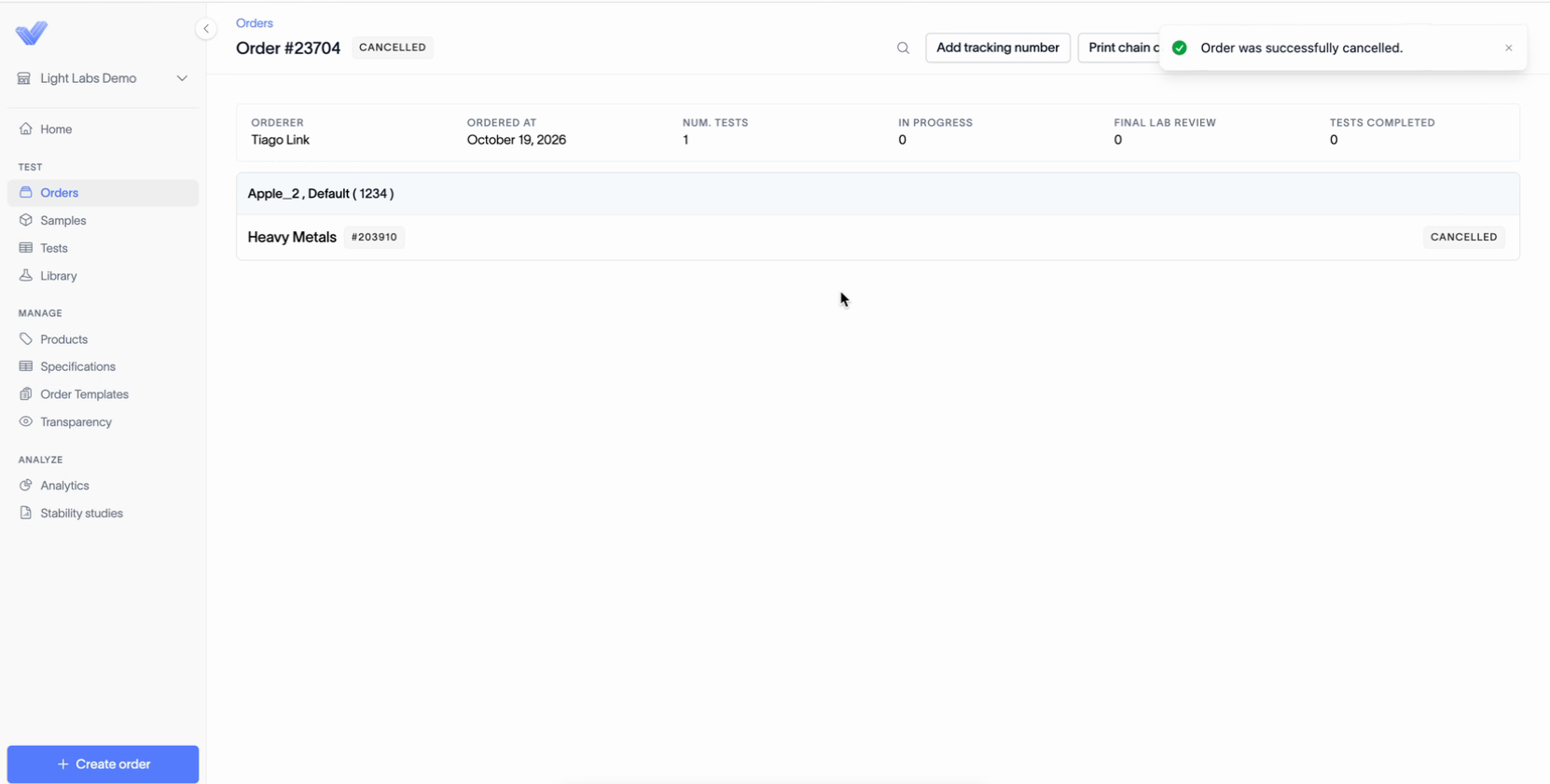
A message appears that says "Order was successfully cancelled." The order's status changes to Cancelled, and each test on the order is marked Cancelled.
After you cancel
Cancelled orders stay in your list. To see all of them, open Orders and click the Cancelled tab.