Delete a draft sample
Last updated: August 14, 2026
Time To Completion: 1 minute
Remove a sample tile from your draft order. This only affects the draft — no orders have been placed yet, so nothing is sent to the lab.
Prerequisites: A draft order with at least one sample tile.
1. Find the delete icon on the sample tile
Every sample tile header has two icons in the top right: a copy icon and a delete icon (trash). The delete icon is the rightmost one.
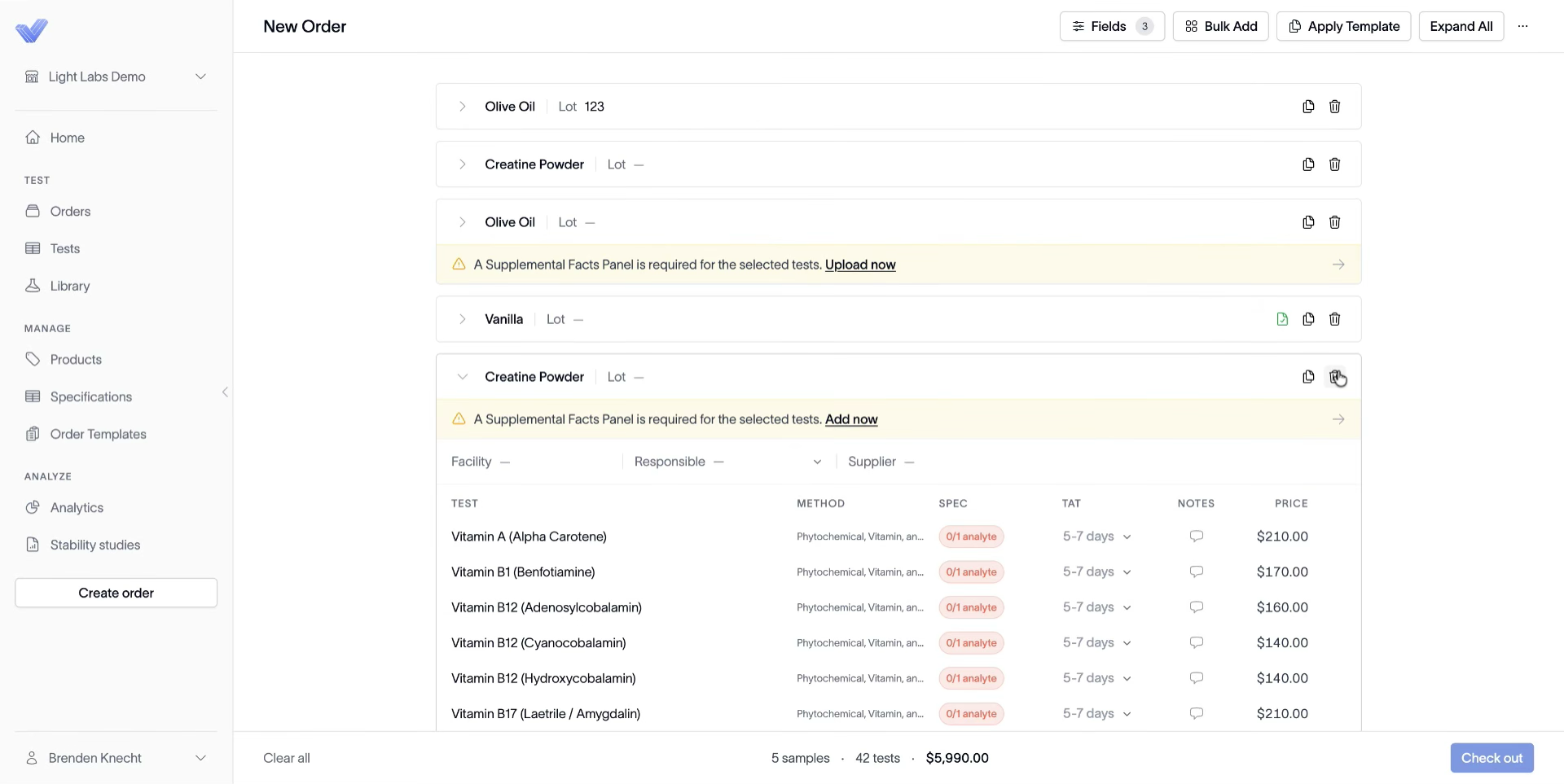
2. Click the trash icon
The sample tile is removed from the order. The footer's sample, test, and price counts update to reflect what remains.
Tip: Need to wipe the whole order? Click Clear all in the footer instead of deleting one tile at a time.
Outcome
The unwanted sample is out of the draft and won't be checked out. Nothing was sent to the lab.