View ETA In Platform
Last updated: October 23, 2026
Time To Completion: 1-2 minutes
Adding the tracking number to an order unlocks sample-arrival, testing-in-progress, and ETA updates inside the platform. Without one, the order status stays at Order placed and you will not have insight into the ETA for results.
Prerequisites:
A placed Light Labs order
The tracking number from your shipping carrier (the number itself, not the tracking URL)
1. Open the order
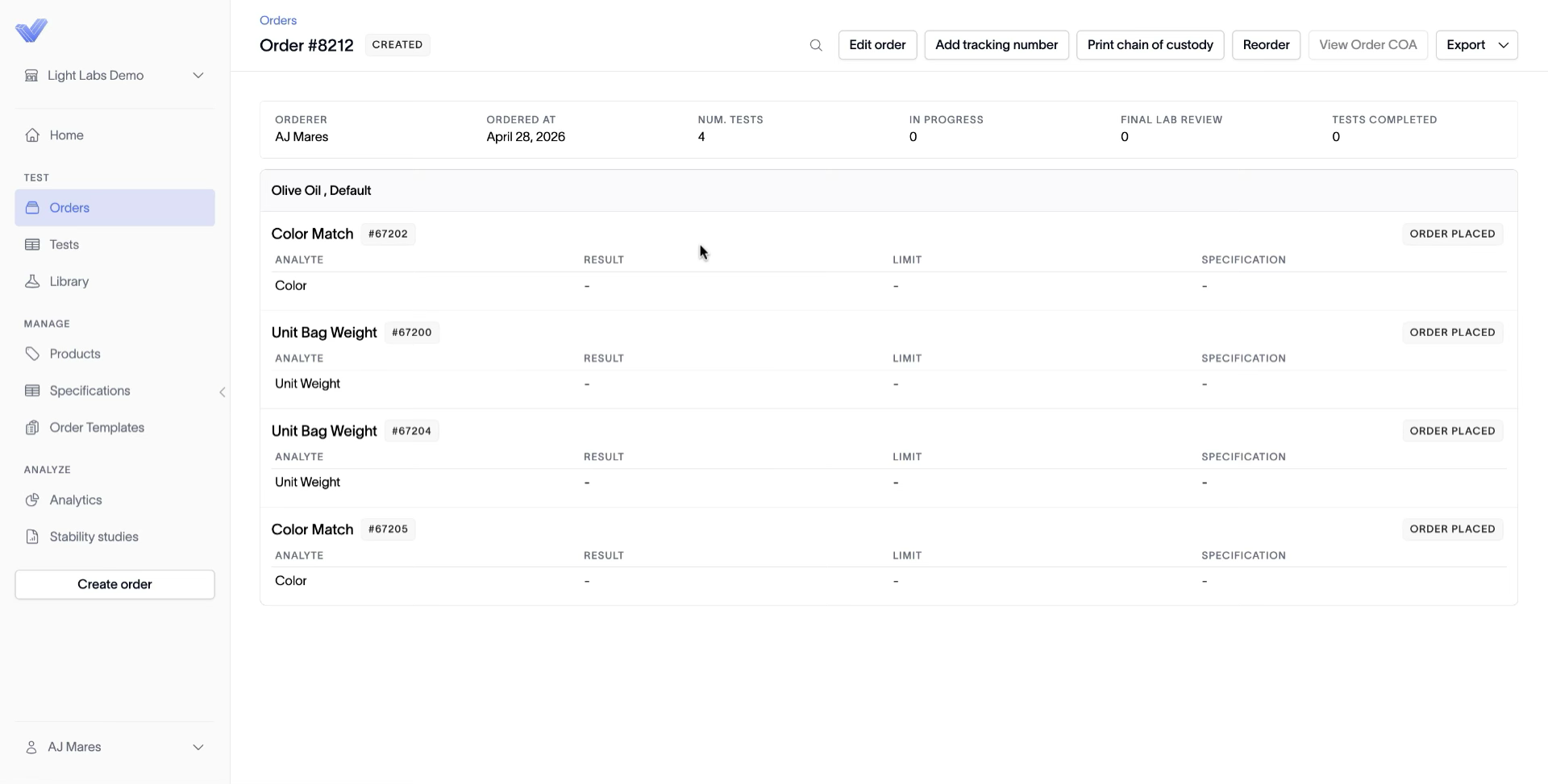
In the left navigation, go to Orders and click into the order you placed. Each test row shows Order placed until a tracking number is added.
2. Open the shipping details dialog
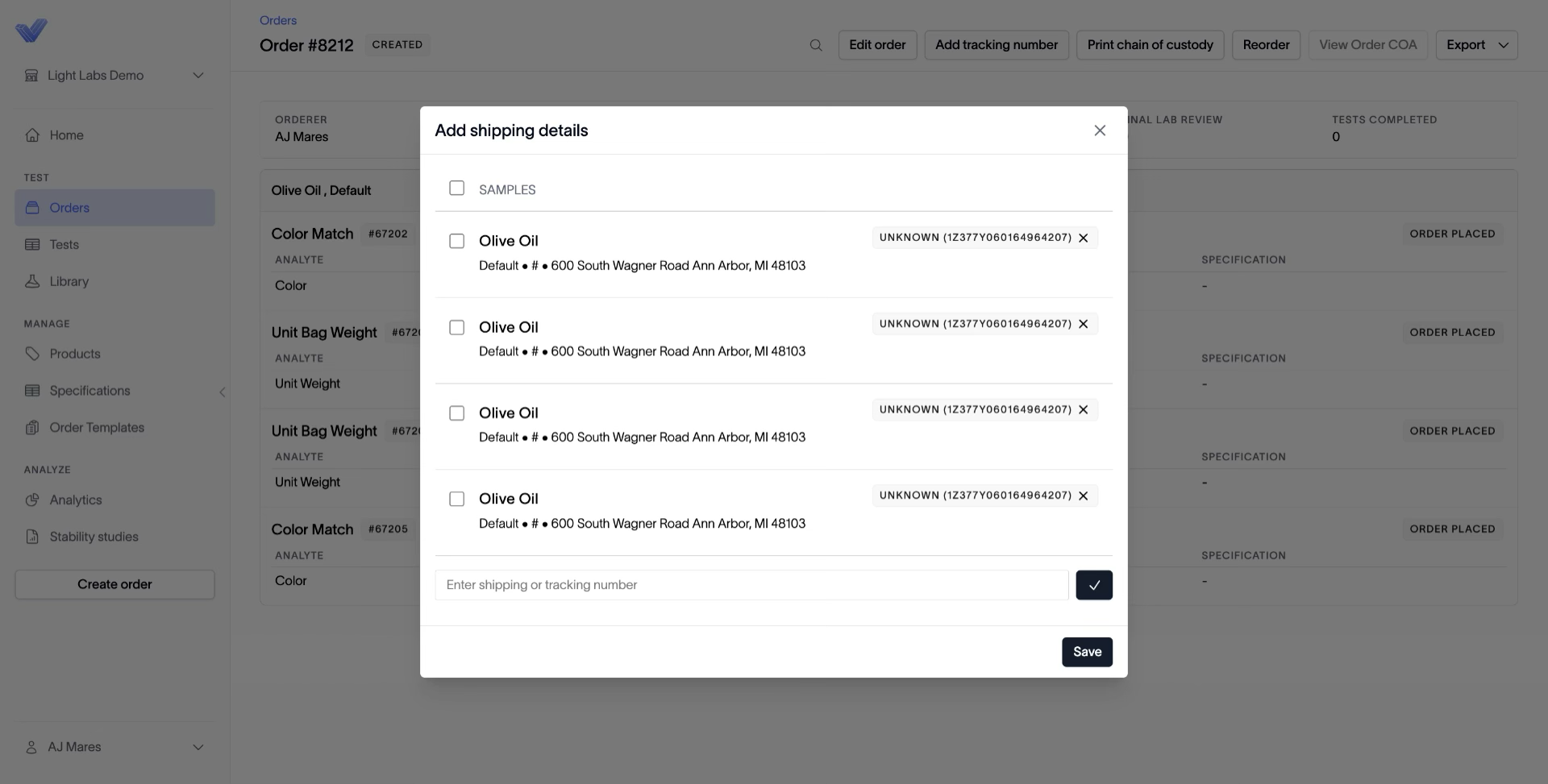
In the top right of the order, click Add tracking number. The Add shipping details dialog opens with one row per sample, each showing its destination address and a No shipping details pill.
3. Select which samples this tracking number covers
If every sample ships to the same address, click the SAMPLES header checkbox to select all. If samples ship to different addresses, check only the rows headed to one address — you'll repeat steps 3–4 for each shipment.
Tip: Confirm the address on each sample row before selecting all. Mismatched addresses produce wrong ETAs.
4. Enter the tracking number and save
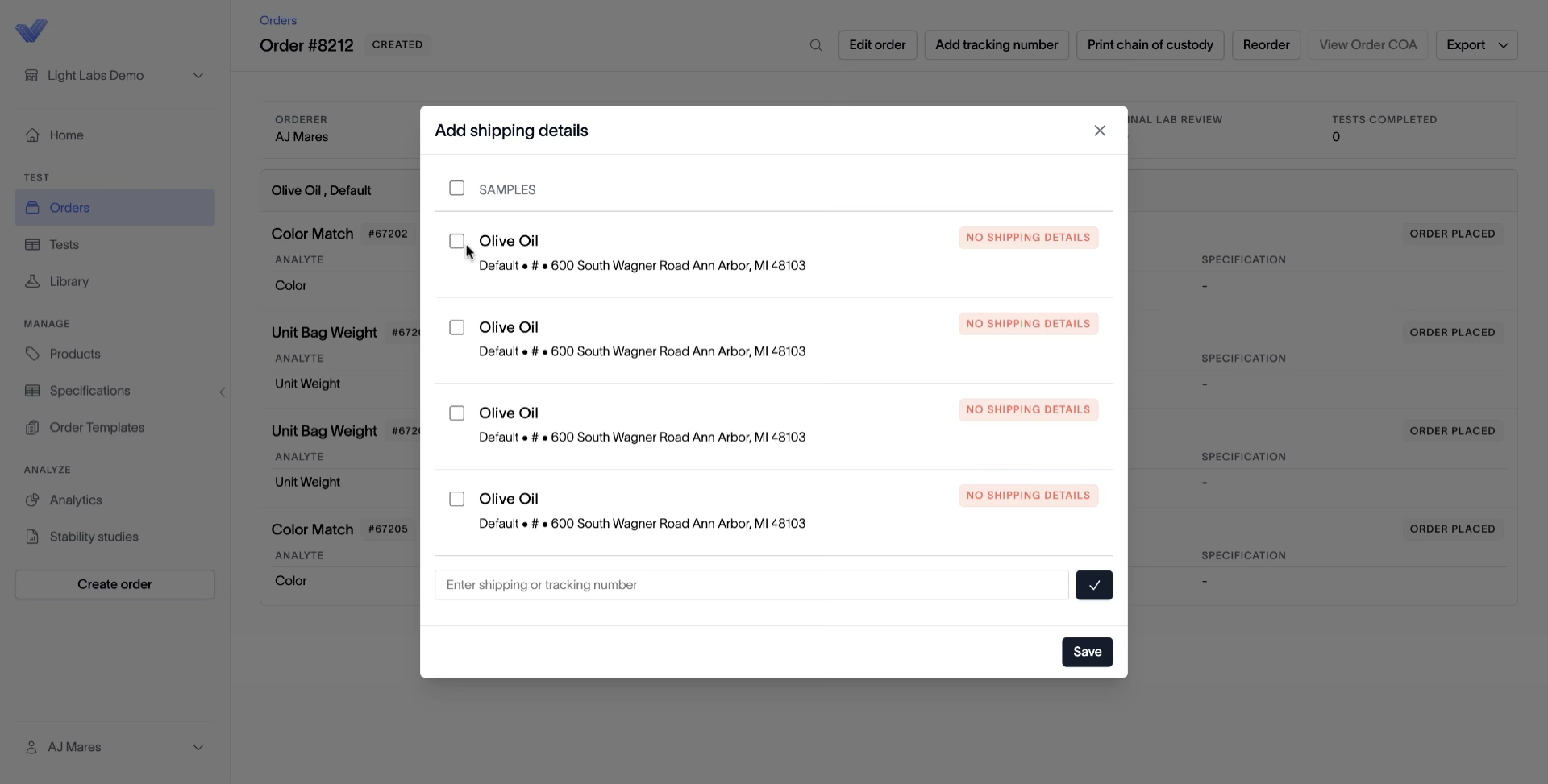
Paste the tracking number into the Enter shipping or tracking number field, click the check mark to confirm the entry, then click Save.
Warning: Use the tracking number only. The tracking URL won't resolve — paste only the number your carrier provides.
5. Refresh the order to see updated status
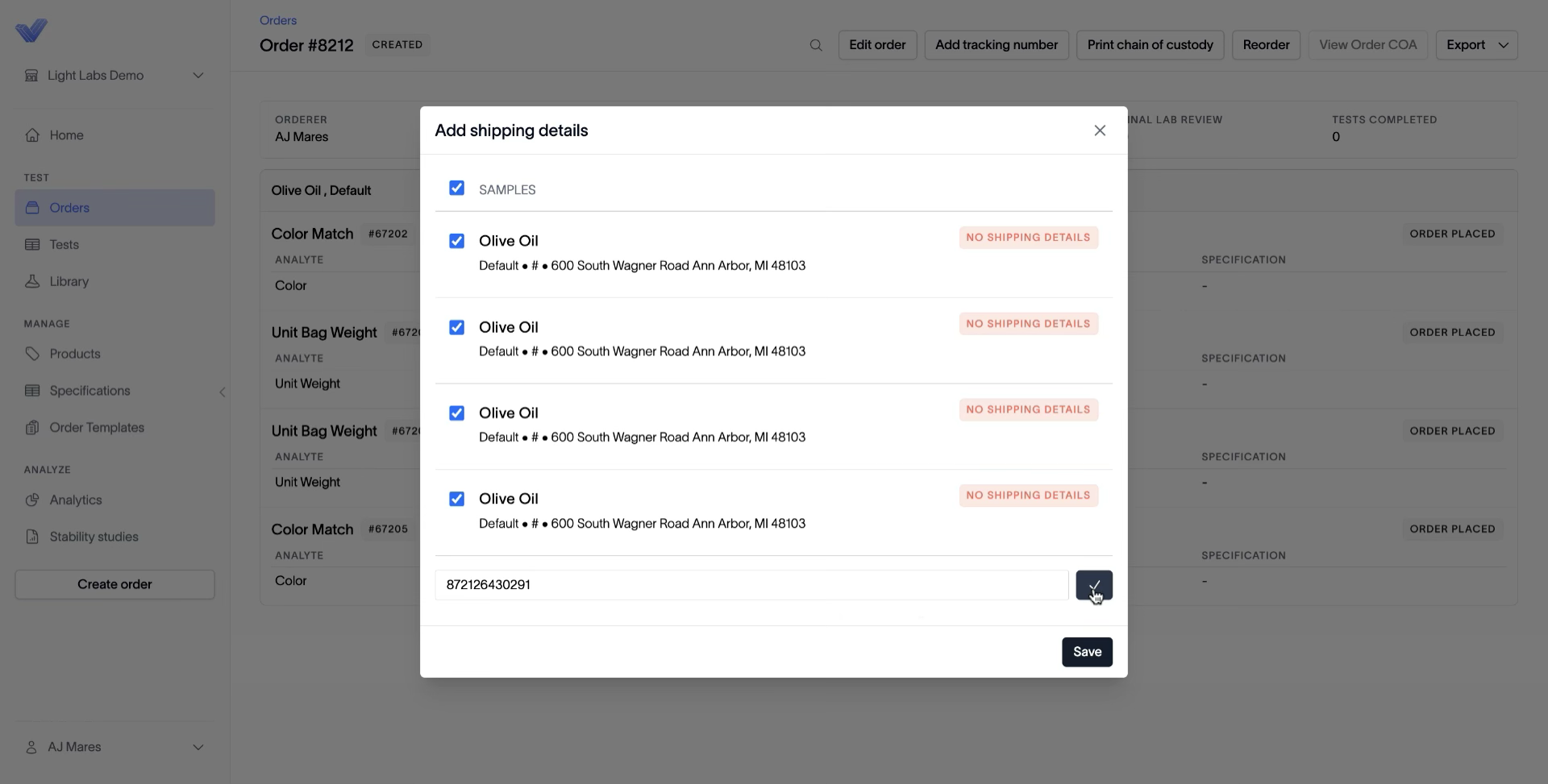
Reload the order page. Each test row updates from Order placed to Sample arrived with an ETA date.
Note: If a row shows Unknown instead of Sample arrived, email support@lightlabs.com and the team will troubleshoot.
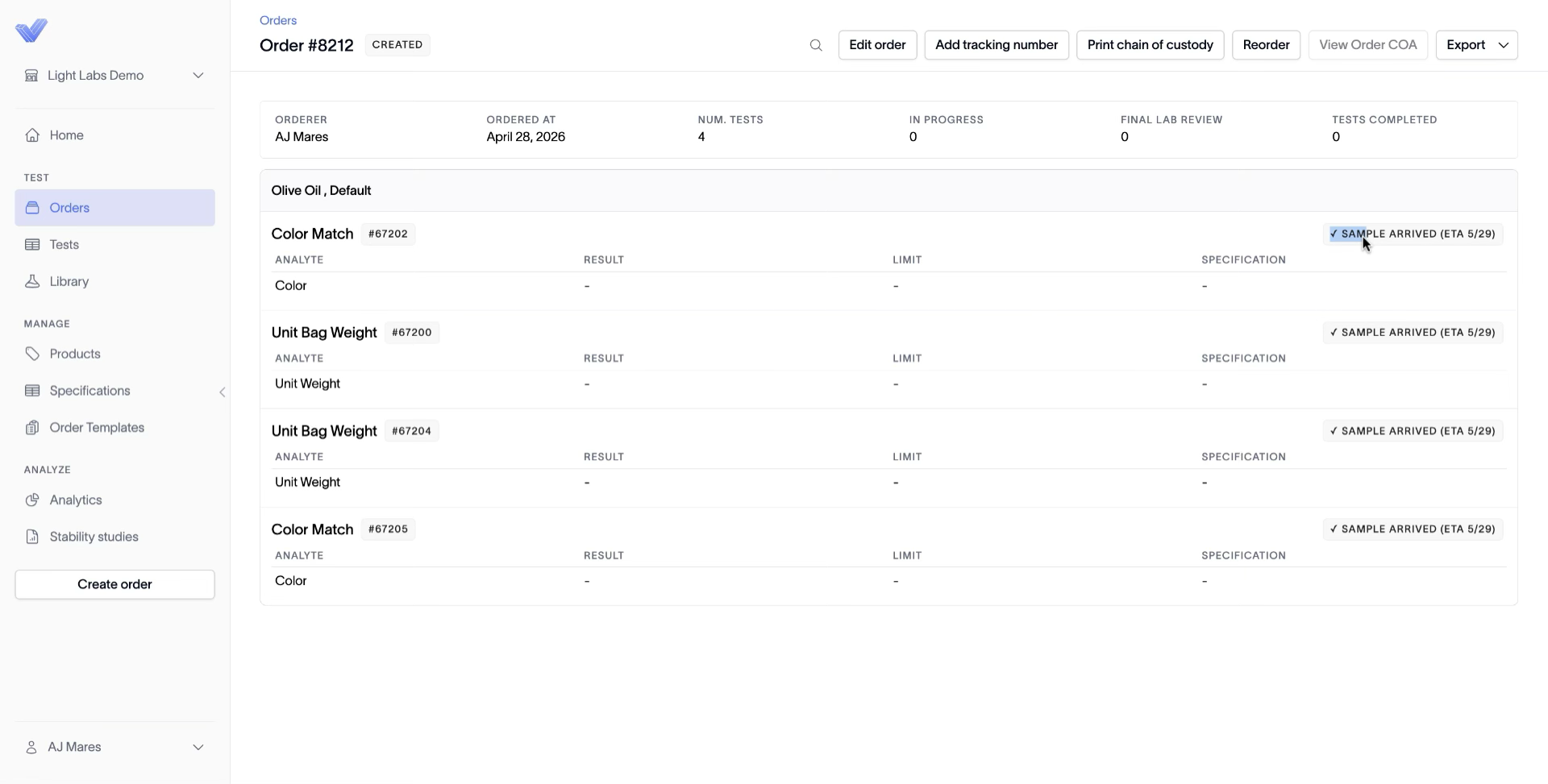
6. Check ETAs anytime from Orders
To revisit ETAs later, go to Orders, click the order ID, and read the ETA on each test row.
Outcome
Sample arrival, testing-in-progress, and per-test ETAs are visible on the order page for every order you ship with a tracking number attached.