Bulk-add products to an order
Last updated: August 14, 2026
Time To Completion: 1 minute
Use Bulk Add when several products in one order share the same test list. Bulk Add creates one sample tile per product and pre-applies the tests you pick — faster than adding each sample by hand.
Prerequisites: A draft order open in the new order flow.
1. Open Bulk Add
In the top right of the New Order page, click Bulk Add.
2. Pick the products and the shared tests
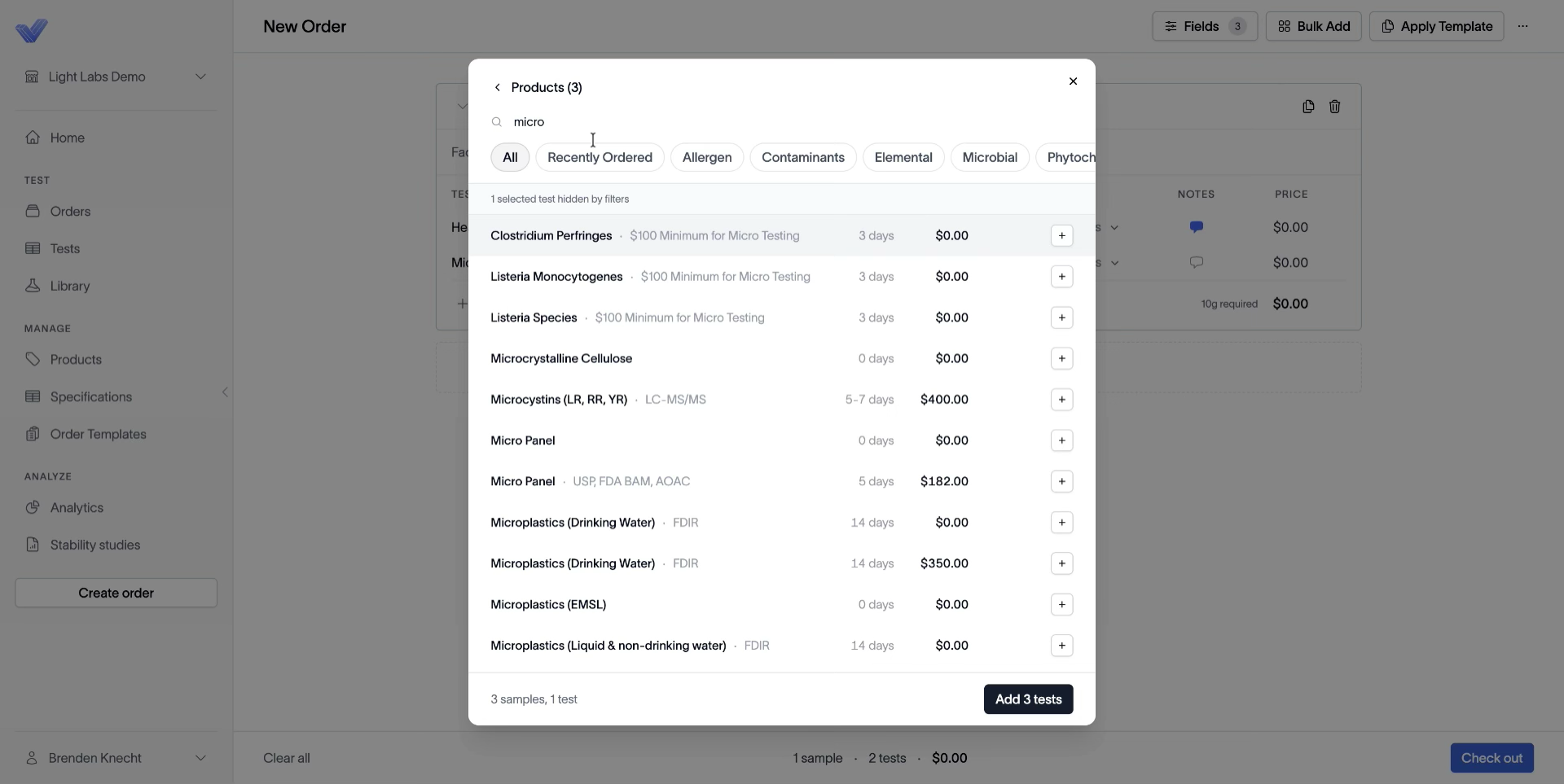
Choose the products to include (for example, Olive Oil, Creatine Powder, Vanilla Baby Food). On the next step, search and select the tests you want applied to every selected product. The dialog footer shows the running count (for example, 3 samples, 1 test).
Click Add tests to commit.
3. Verify the new sample tiles
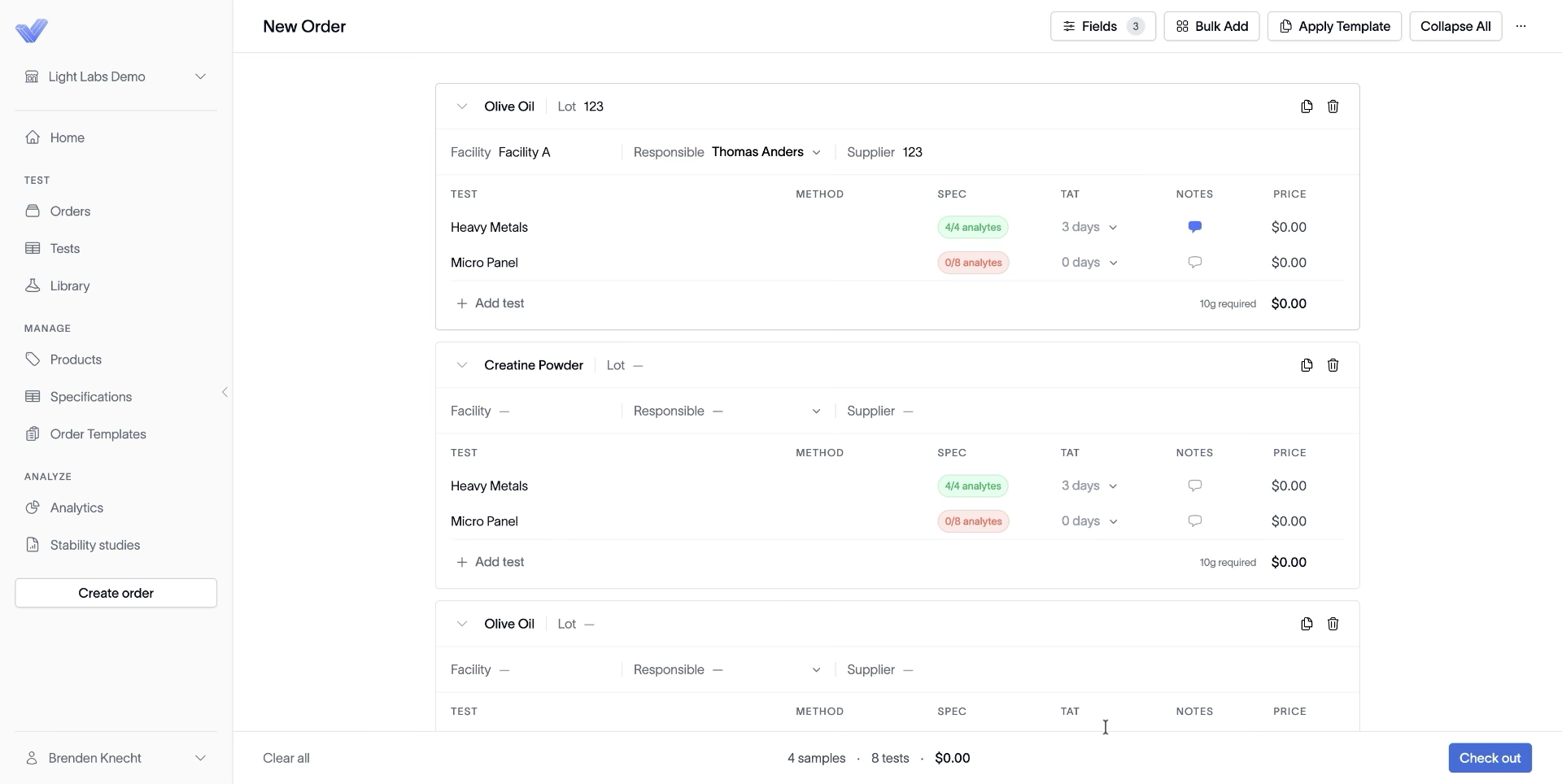
The page now shows one sample tile per product, each pre-loaded with the same test list. Configure lots, specs, TAT, and notes on each tile as needed.
Outcome
A single Bulk Add action replaces N rounds of pick-product-then-pick-tests, and you can still tweak any individual tile afterwards.