Create an order
Last updated: September 25, 2026
Time To Completion: 1-3 minutes
Build a Light Labs order in the new checkout flow: add samples, pick tests, confirm specs and turnaround, then check out. The whole flow lives on a single page, with optional shortcuts for bulk-adding products, applying templates, copying samples, and more (linked at the bottom).
Prerequisites:
A Light Labs account with at least one product configured (see how to add one here)
A lot number for each sample you'll submit
1. Start a new order
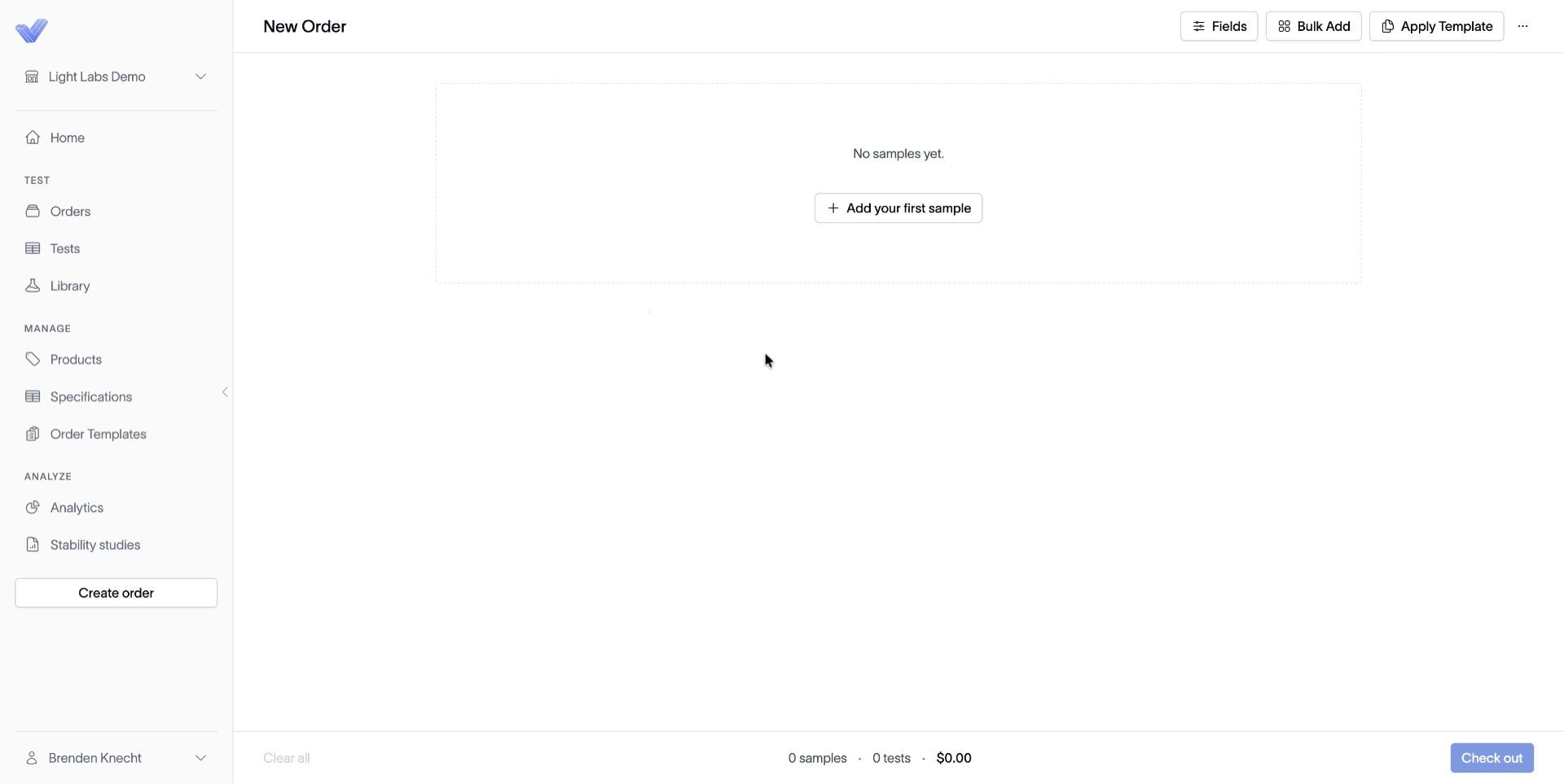
In the bottom-left of the navigation, click Create order. The New Order page opens with an empty state.
The top right of the page exposes the order-level controls: Fields, Bulk Add, Apply Template, and a … overflow menu.
2. Add your first sample
Click + Add your first sample, pick the product (for example, Olive Oil), and type the Lot number in the field next to the product name.
Each sample shows as its own tile with the product name and lot at the top.
3. Add tests
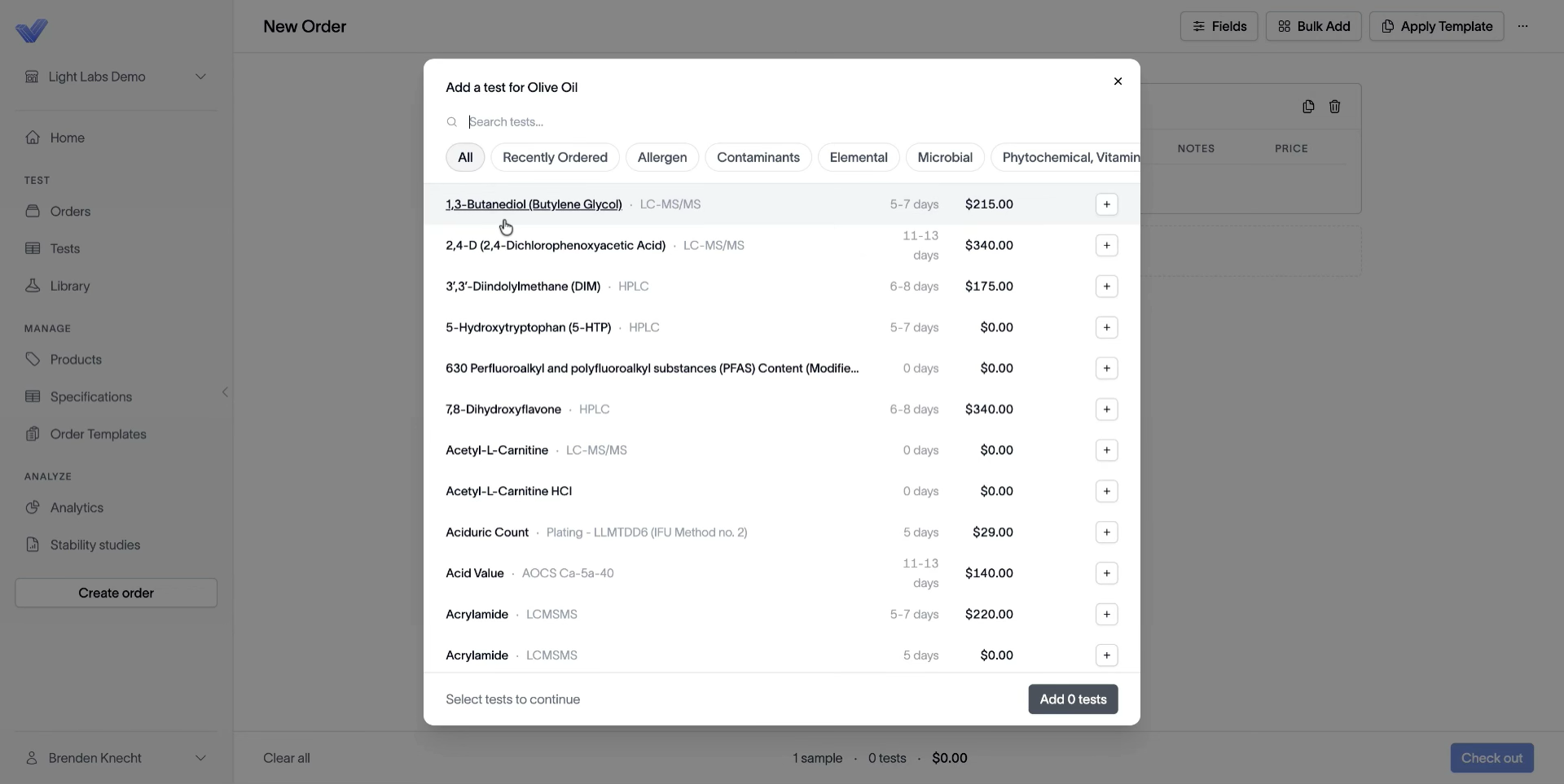
On the sample tile, click + Add test. The Add a test for {Product} dialog opens with a search bar and category chips (All, Recently Ordered, Allergen, Contaminants, Elemental, Microbial, Phytochemical / Vitamin, etc.). Pick the tests you want (for example, Heavy Metals and Micro Panel), then click Add N tests.
4. Inspect specs and configure each test
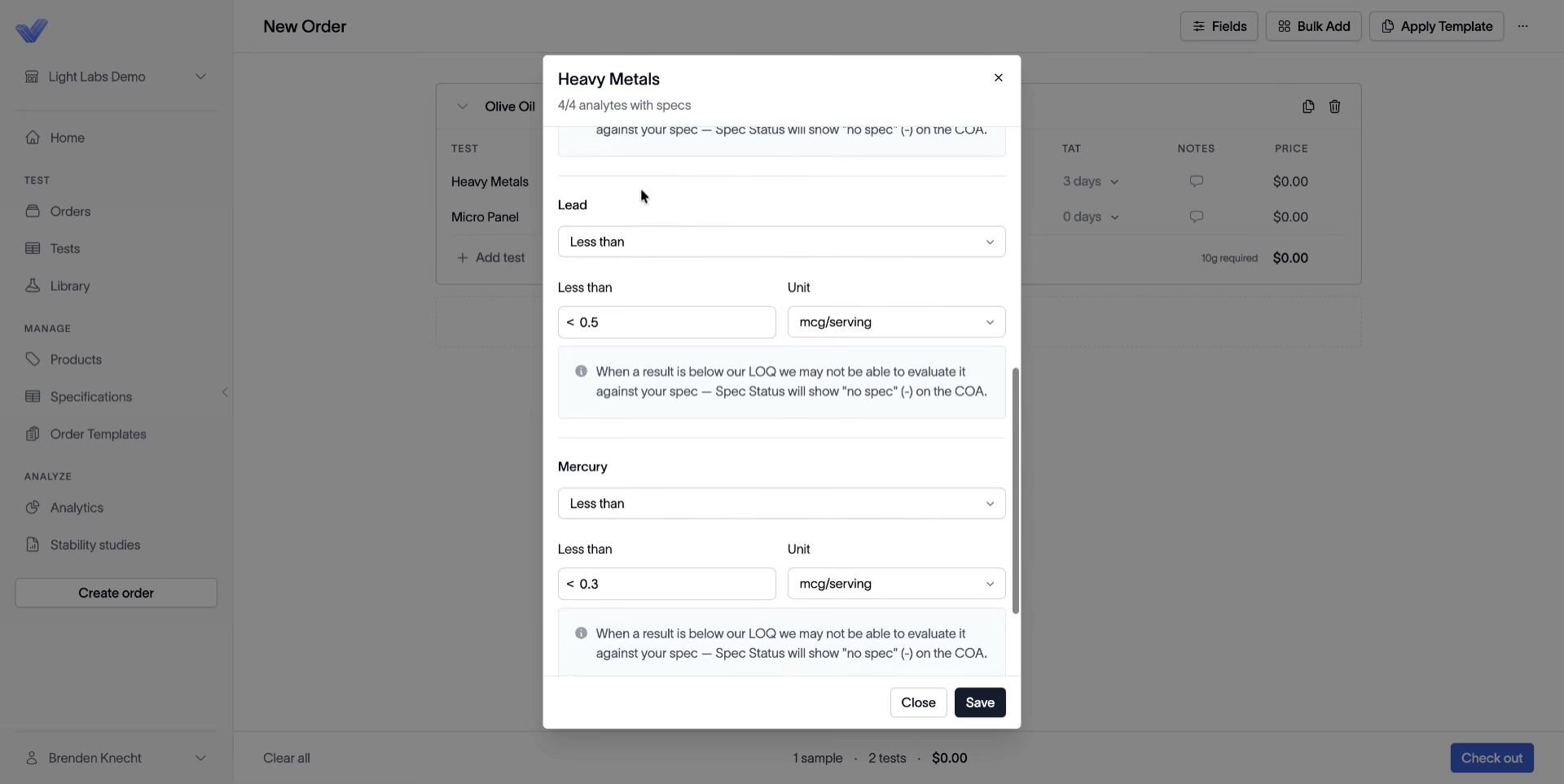
Each test row shows its SPEC status as a colored pill (e.g., 4/4 analytes green, 0/8 analytes red). Click the pill to open the Specifications dialog and either apply one limit to every analyte at once or inspect each analyte individually.
Set the TAT (turnaround time) from the dropdown if the assay offers multiple options, then click the NOTES icon to add per-test notes.
5. (Optional) Turn on custom fields per sample
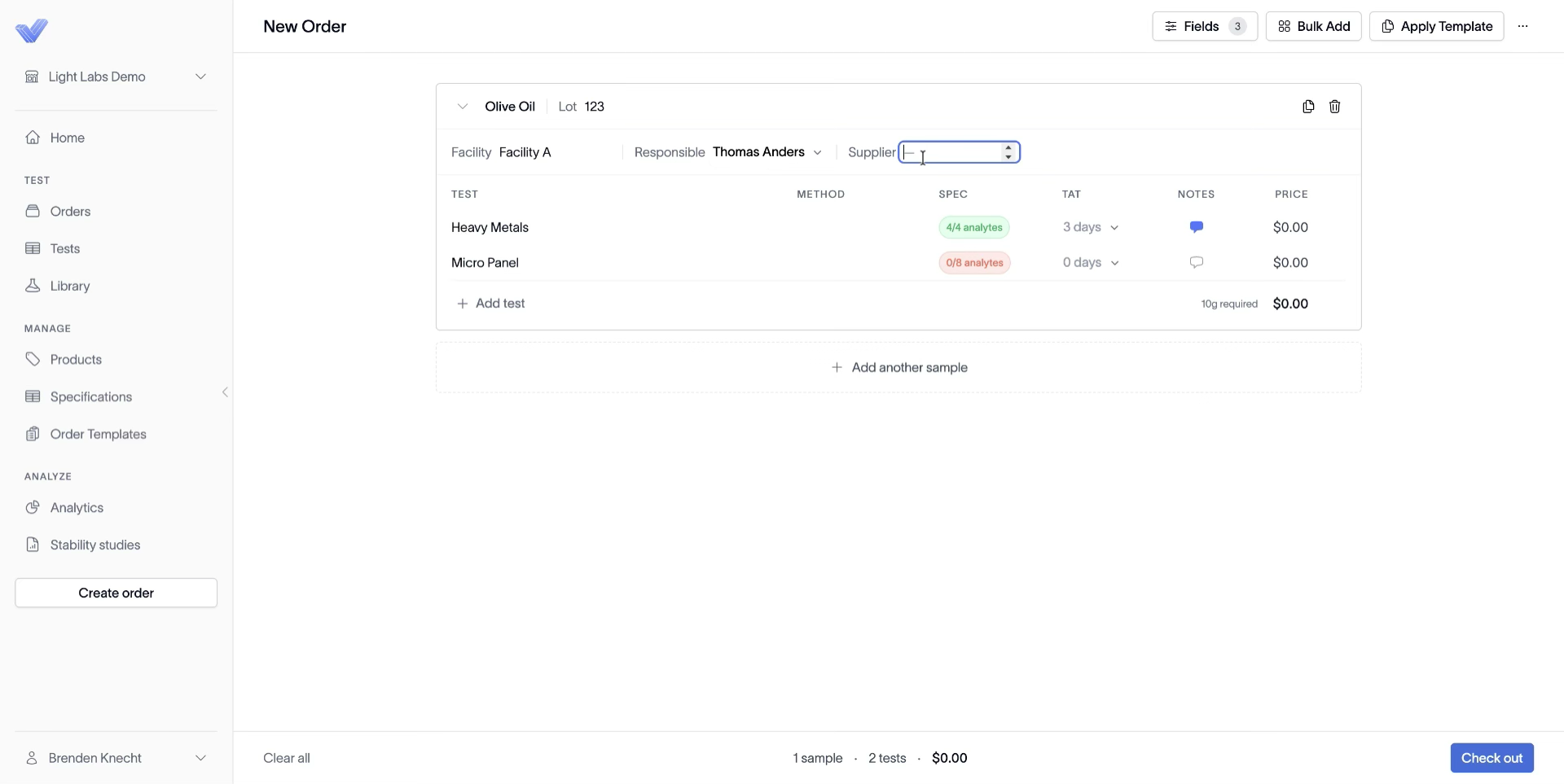
If your account has custom fields enabled, click Fields in the top right and toggle the ones you want exposed (for example, Facility, Responsible, Supplier). The chosen fields appear as a row inside every sample tile, where you fill them in per sample.
6. Add more samples — by hand or in bulk
Click + Add another sample at the bottom of the sample list to repeat the flow for the next product. For multiple products at once, use Bulk Add in the top right.
Shortcuts: Each of the following has its own help article: Bulk-add products to an order · Apply a template to an order · Copy a draft sample · Delete a draft sample · Upload an SFP at order time.
7. Check out and place the order
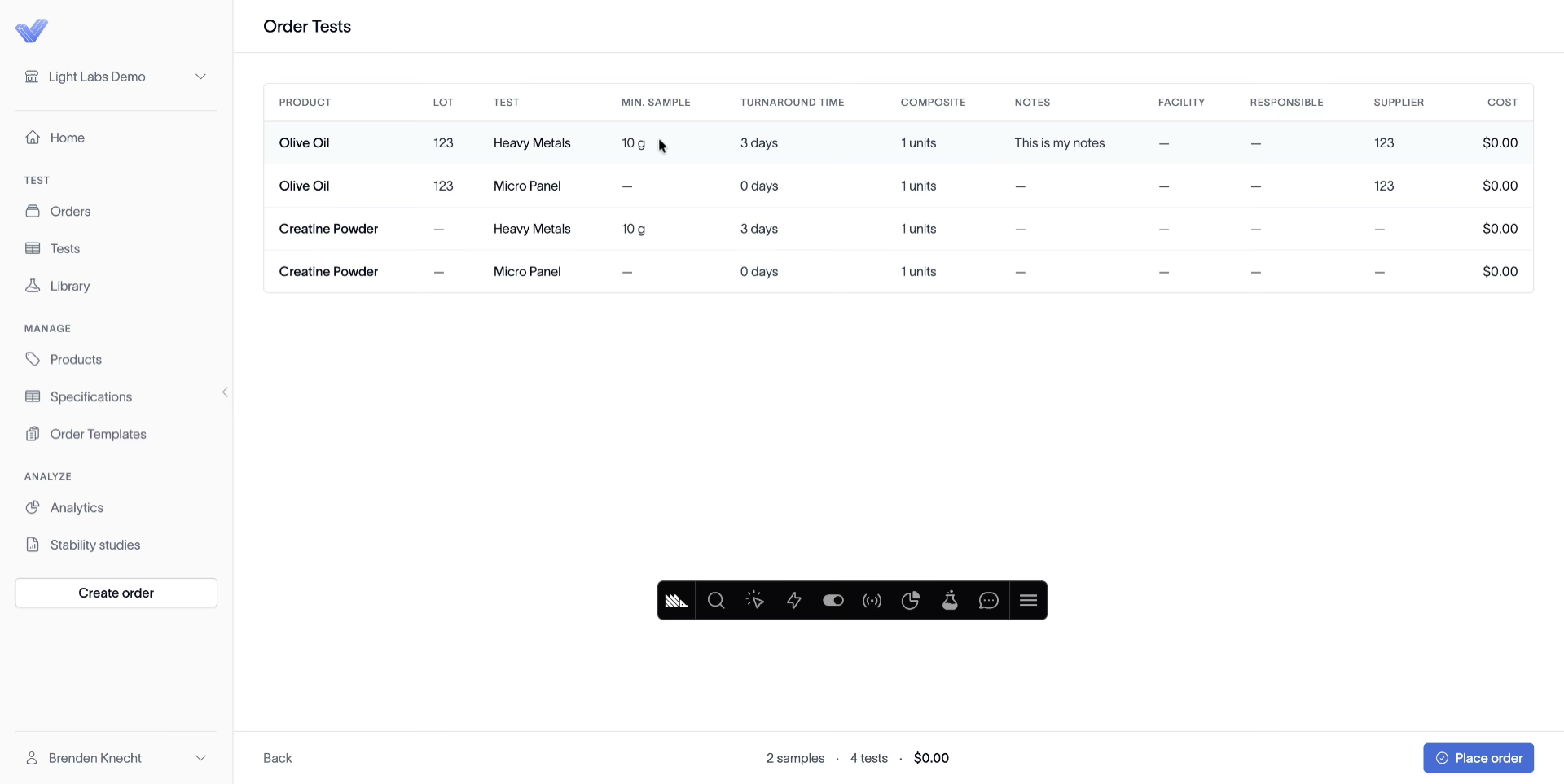
The footer always shows the running totals: N samples · N tests · $total. Click Check out to open the Order Tests review page with every test row itemized (product, lot, test, minimum sample, turnaround, composite, notes, custom fields, cost). Click Place order to submit.
8. Follow this walkthrough on how to print out the shipping instructions and ship samples in
Outcome
Your order is placed, tests are queued at the lab, and each sample carries its lot, custom fields, specs, and turnaround through to the result.