Set a unit preference for an analyte
Last updated: October 23, 2026
Time To Completion: 1-2 minutes
Tell Light Labs how you want an analyte's result displayed on the Product Insight Panel — for example, sodium as mcg/g instead of mg/100g.
Prerequisites:
A Light Labs account with access to organization settings
Serving sizes set on the variant if you want per-serving units
1. Open organization settings
In the top left, click your company name (for example, Light Labs Demo) and pick View organization settings.
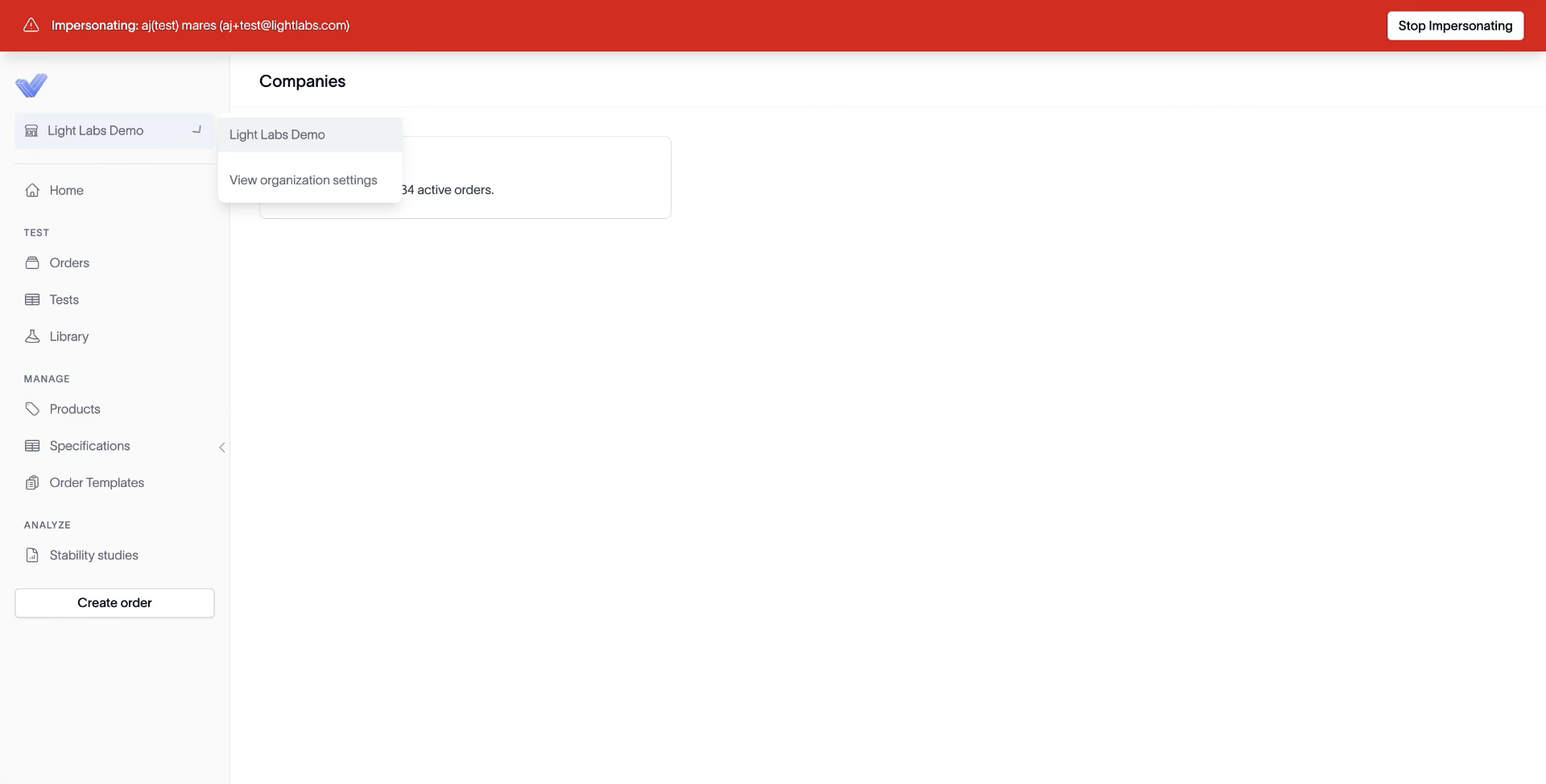
2. Go to Unit Preferences and click Add
Click the Unit Preferences tab. The page shows the Unit Display Preferences table with one row per existing preference. Click Add in the top right.
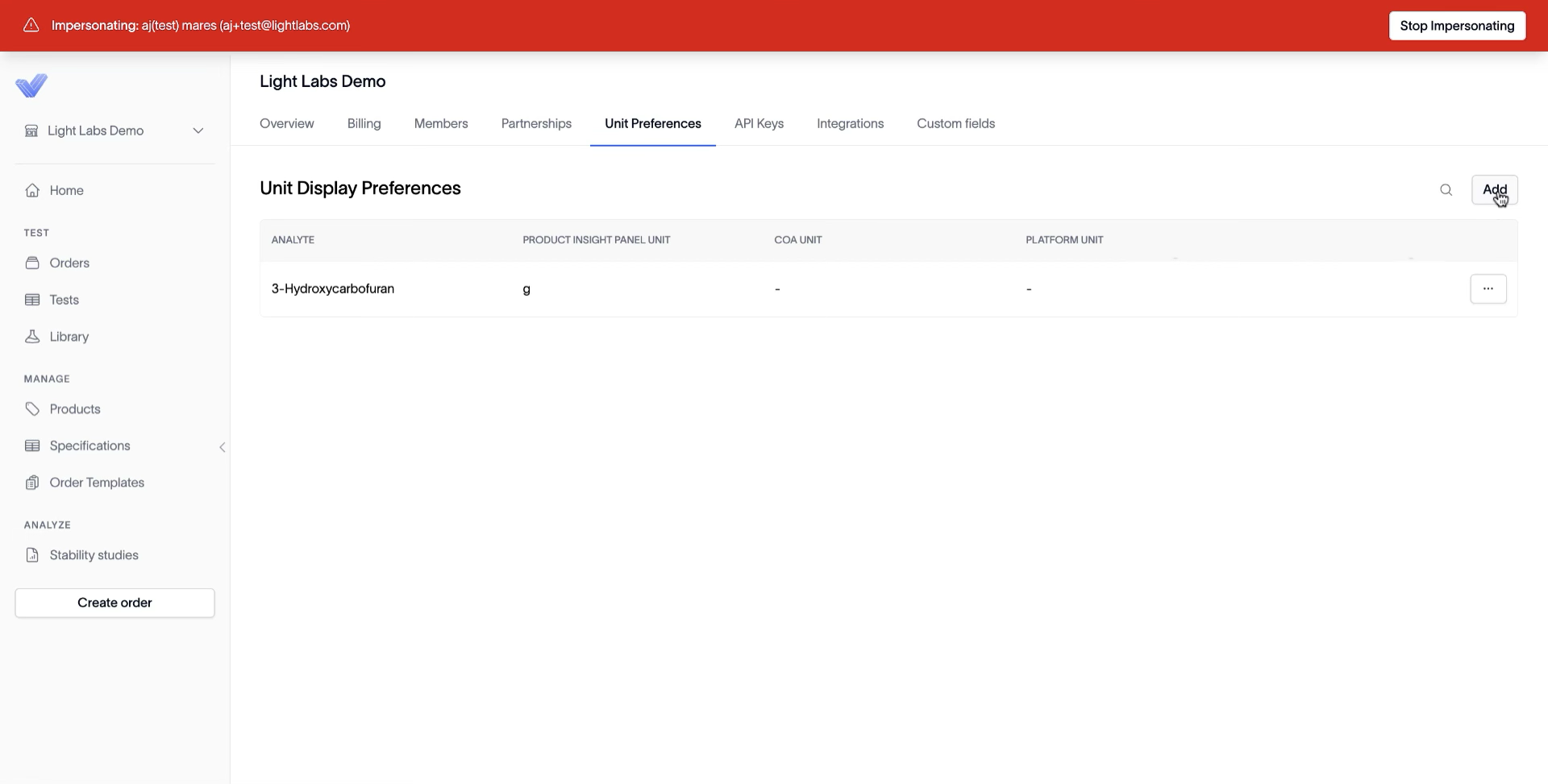
3. Pick the analyte and unit, then save
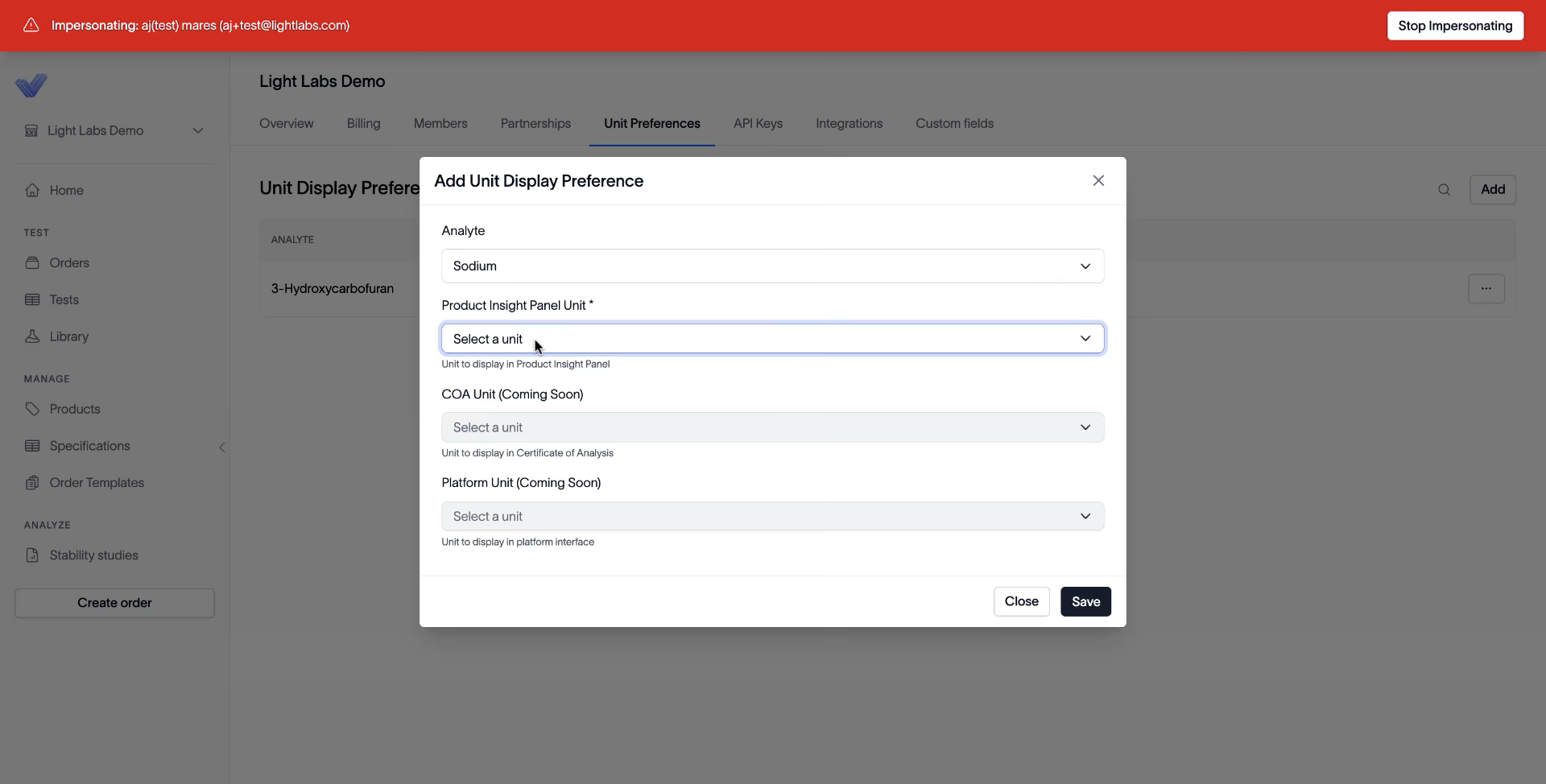
In the Add Unit Display Preference dialog, select the Analyte (for example, Sodium) and choose a unit in the Product Insight Panel Unit dropdown. Click Save.
Note: Per-serving units only appear if the variant has a serving size set. Without one, only concentration and mass units are selectable. COA Unit and Platform Unit are marked Coming Soon — only the Product Insight Panel unit is configurable today.
Outcome
Every result for the chosen analyte now displays in your preferred unit on the Product Insight Panel — no manual conversion needed when reviewing results.