Navigate the Orders page
Last updated: October 21, 2026
The Orders page lists every order on your account, so you can find an order, check where it stands, and open it to see its tests and results.
Open the Orders page
Click Orders in the left sidebar, under Test.
Read the list
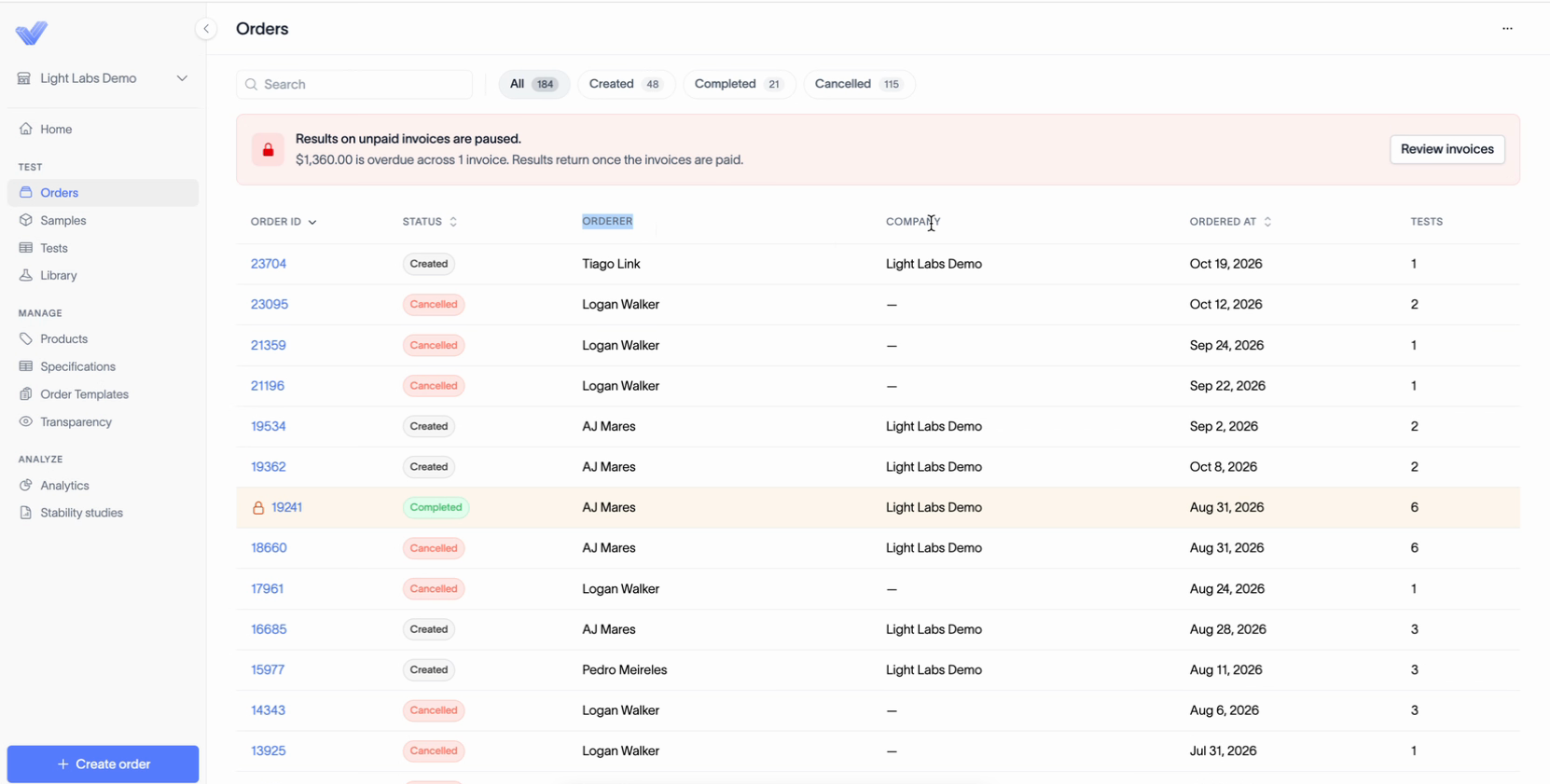
Each row is one order. The columns show:
Order ID
Status, which tells you whether the order is Created, Completed, or Cancelled
Orderer, the person who placed the order
Company
Ordered at, the date the order was placed
Tests, the number of tests in the order
Filter by status
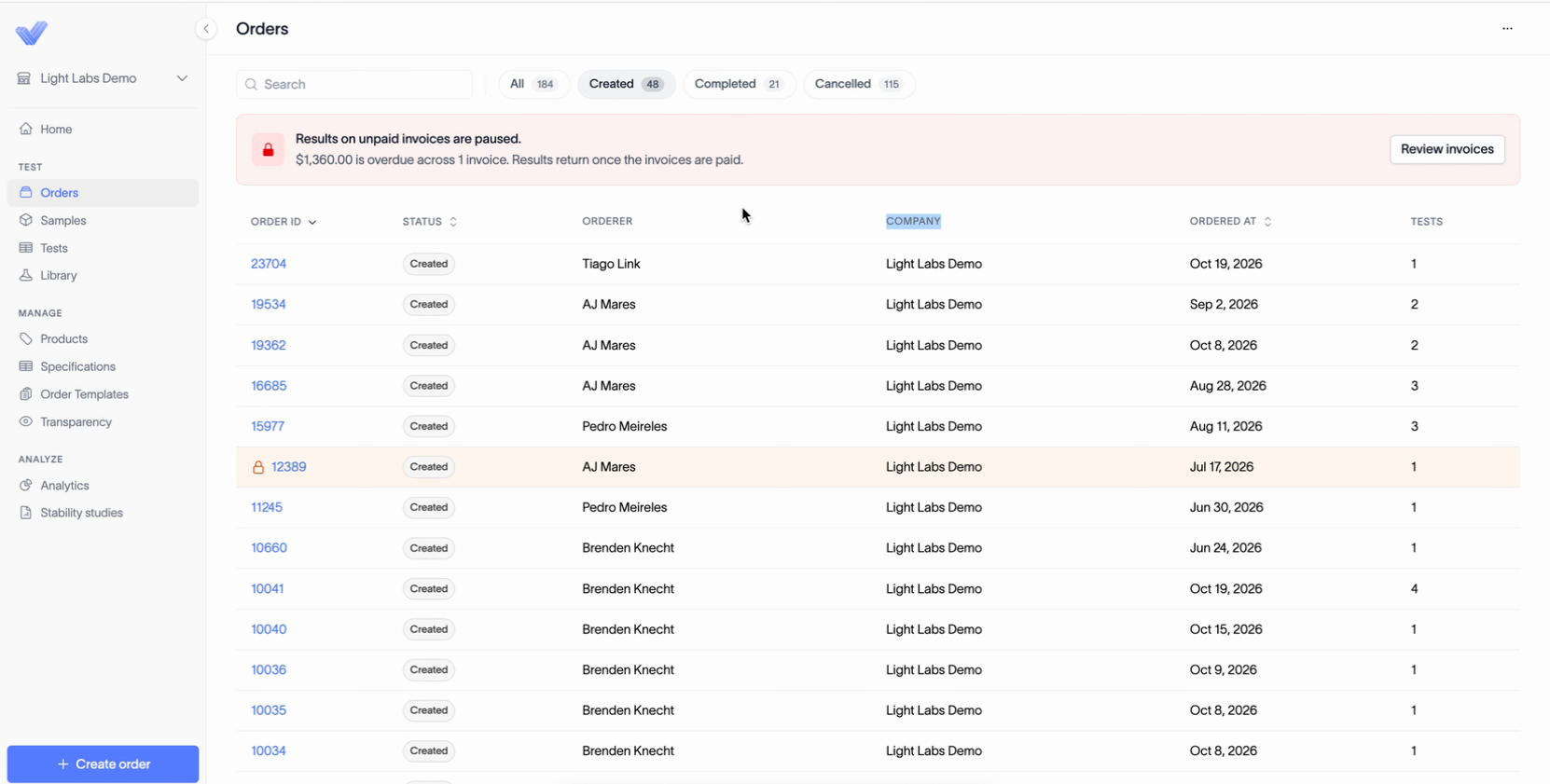
Above the list, the All, Created, Completed, and Cancelled tabs each show how many orders are in that group. Click a tab to see only those orders. To go back to everything, click All.
Use the Search box to find a specific order.
Choose which columns to show
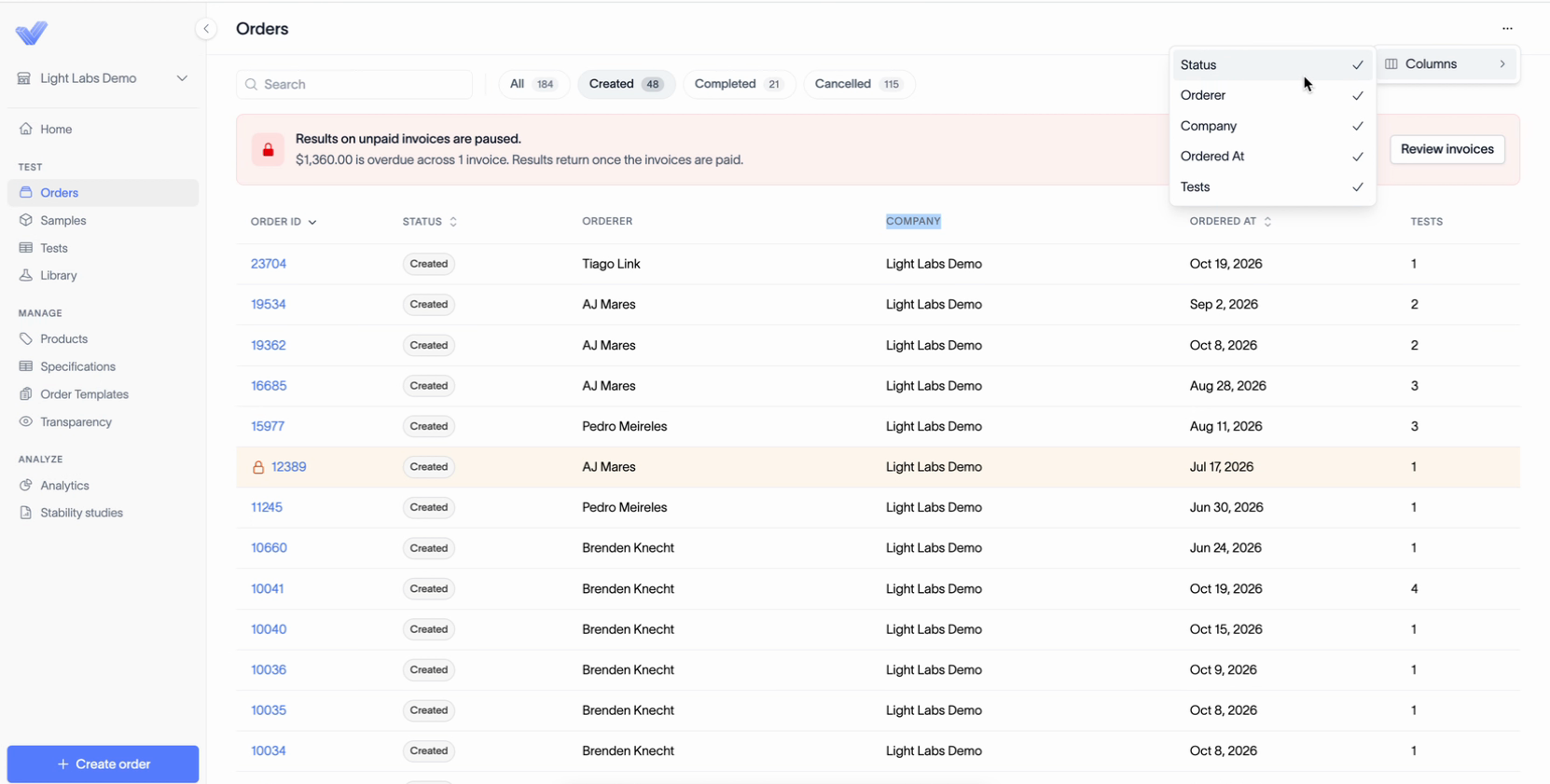
Click the ... menu at the top right of the page.
Click Columns.
Click a column name to turn it on or off. A check mark means the column is showing.
You can turn Status, Orderer, Company, Ordered at, and Tests on or off.
Open an order
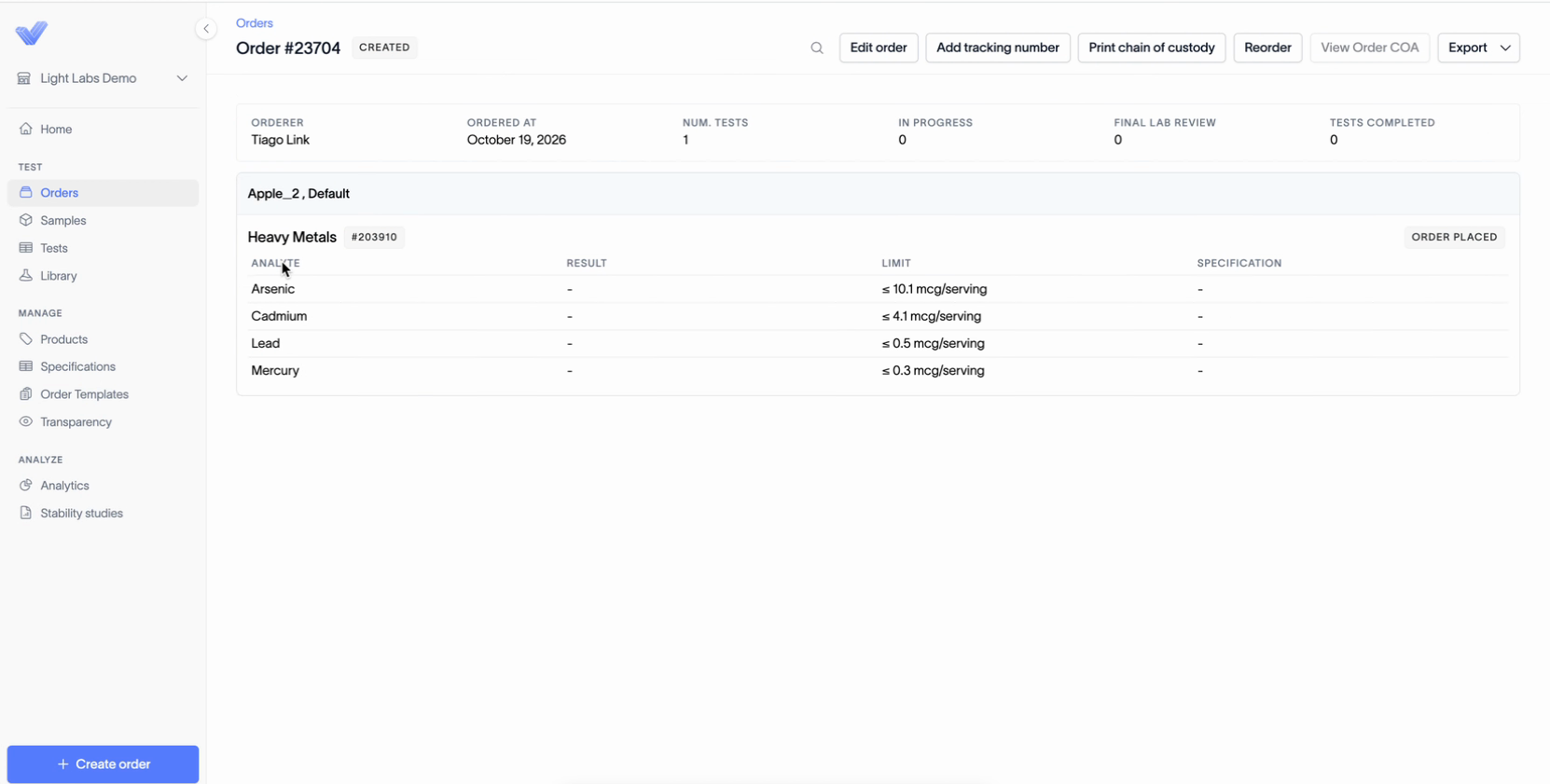
Click an order ID to open it. The order page shows:
Orderer, Ordered at, and Num. tests
In progress, Final lab review, and Tests completed, which count the tests at each stage
Each product and its tests, with the status of every test (for example, Order placed)
For each analyte, the Result, Limit, and Specification. Results appear here once they come back from the lab.
Take action on an order
The buttons at the top of the order page include Edit order, Add tracking number, Print chain of custody, Reorder, View Order COA, and Export. Some buttons may be greyed out.
To add or change a lot number, see Edit a lot number after placing an order.
To cancel an order, see Cancel an order.
To add a PO number, see Add a PO number to an order.