Handle the Supplemental Facts Panel prompt at order time
Last updated: June 22, 2026
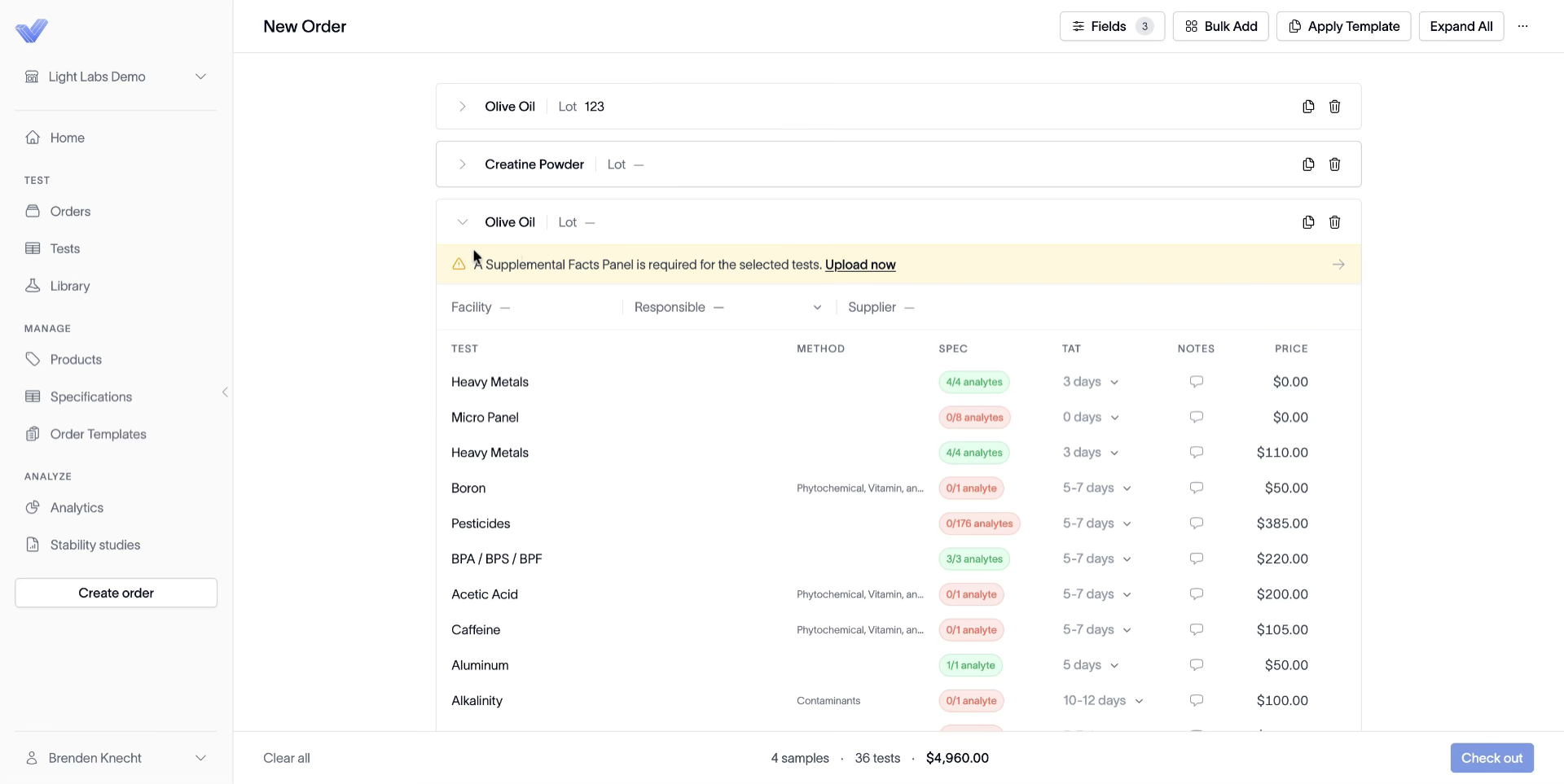
When you add certain tests to a product (especially active-ingredient tests like vitamins), Light Labs needs a Supplemental Facts Panel (SFP) or an analyte-by-analyte usage list to calibrate against. The order page surfaces this with a yellow banner on the sample tile.
Prerequisites: A draft order with at least one product where a relevant test was added.
1. Spot the yellow banner
When a sample needs an SFP, a yellow banner appears at the top of its tile:
Banner: ⚠ A Supplemental Facts Panel is required for the selected tests. Upload now
The banner has either an Upload now link (for products you can attach an SFP image to) or an Add now link (for products without a Supplemental Facts Panel, where you provide the formulation in text instead).
2. Click the link in the banner
Upload now opens a file picker so you can attach the product's SFP image — same flow as the variant-level SFP upload, but tied to this order.
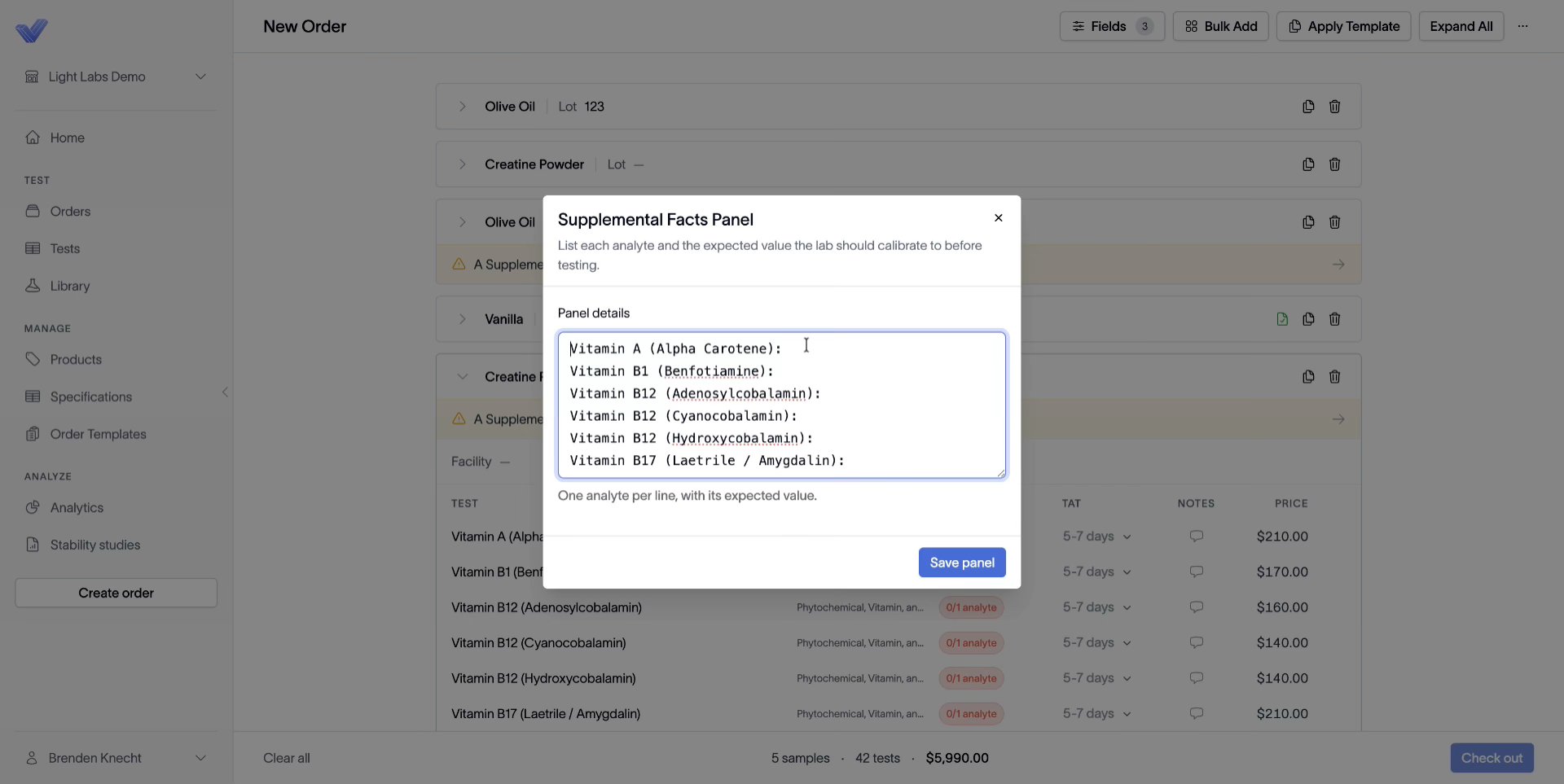
Add now opens the Supplemental Facts Panel dialog where you type each analyte with the expected value the lab should calibrate to.
3. Fill in the panel details
In the Supplemental Facts Panel dialog, enter one analyte per line with its expected value (for example, Vitamin A (Alpha Carotene): 5000 IU). The list is pre-seeded with every active-ingredient test you added.
Click Save panel.
4. Confirm the banner clears
Back on the sample tile, the yellow banner disappears and the tests can now be checked out. Repeat for every other sample tile carrying the banner.
Outcome
The lab has the calibration data it needs for active-ingredient testing, and the order can move past checkout.