Edit a lot number after placing an order
Last updated: October 21, 2026
If you placed an order without a lot number, or entered the wrong one, you can add or change it from the order page.
Before you start
You can only edit the lot number while the order is placed and before the lab has checked in your sample. Once testing is in progress, the lot number can no longer be edited.
Add or edit the lot number
Click Orders in the left sidebar.
Click the order ID of the order you want to change.
Click Edit order at the top of the page.
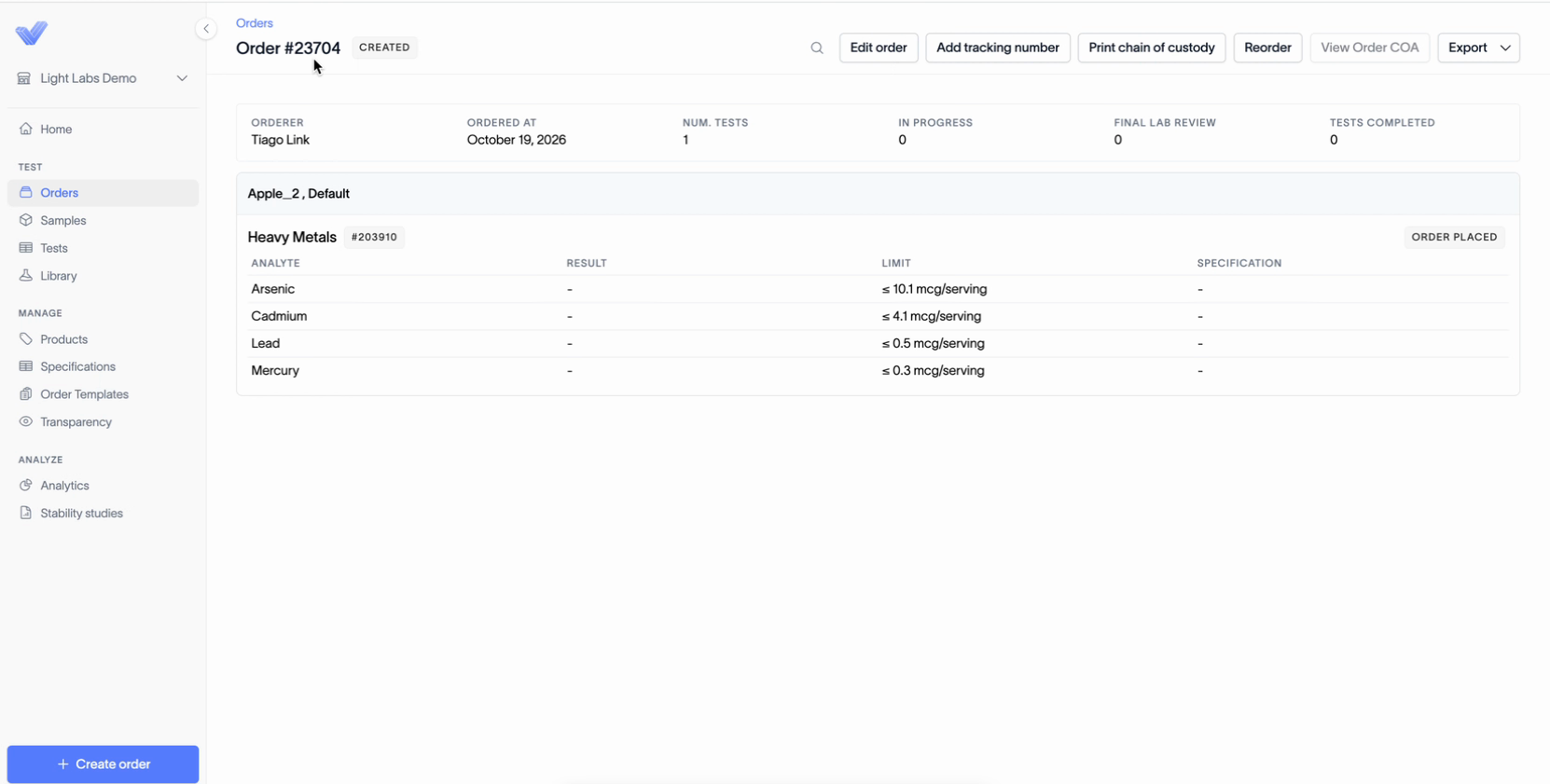
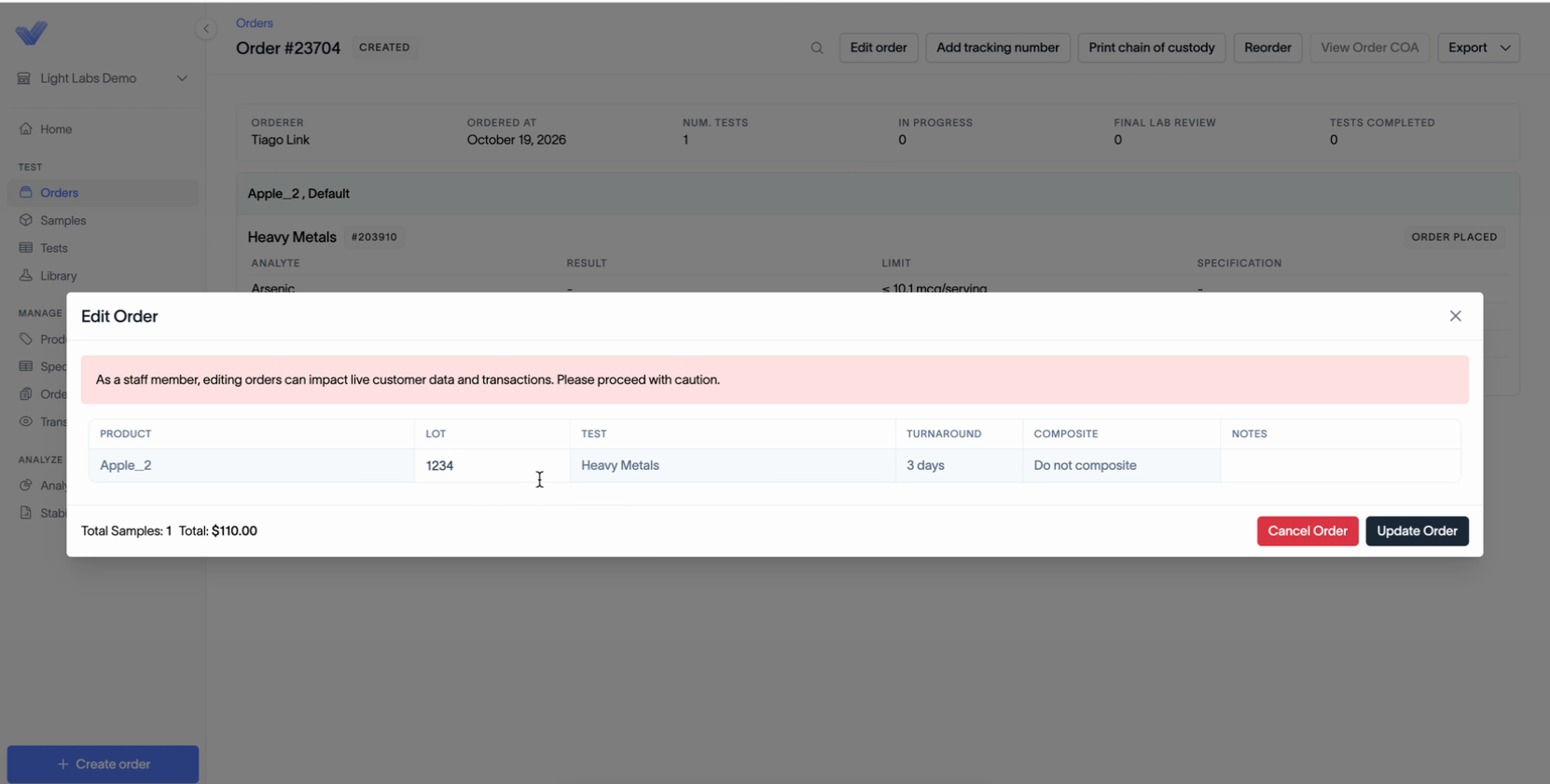
In the Edit Order window, find the product row and click in the Lot column.
Type the lot number, or change the one that's there.
Optionally, add a note in the Notes column.
Click Update Order.
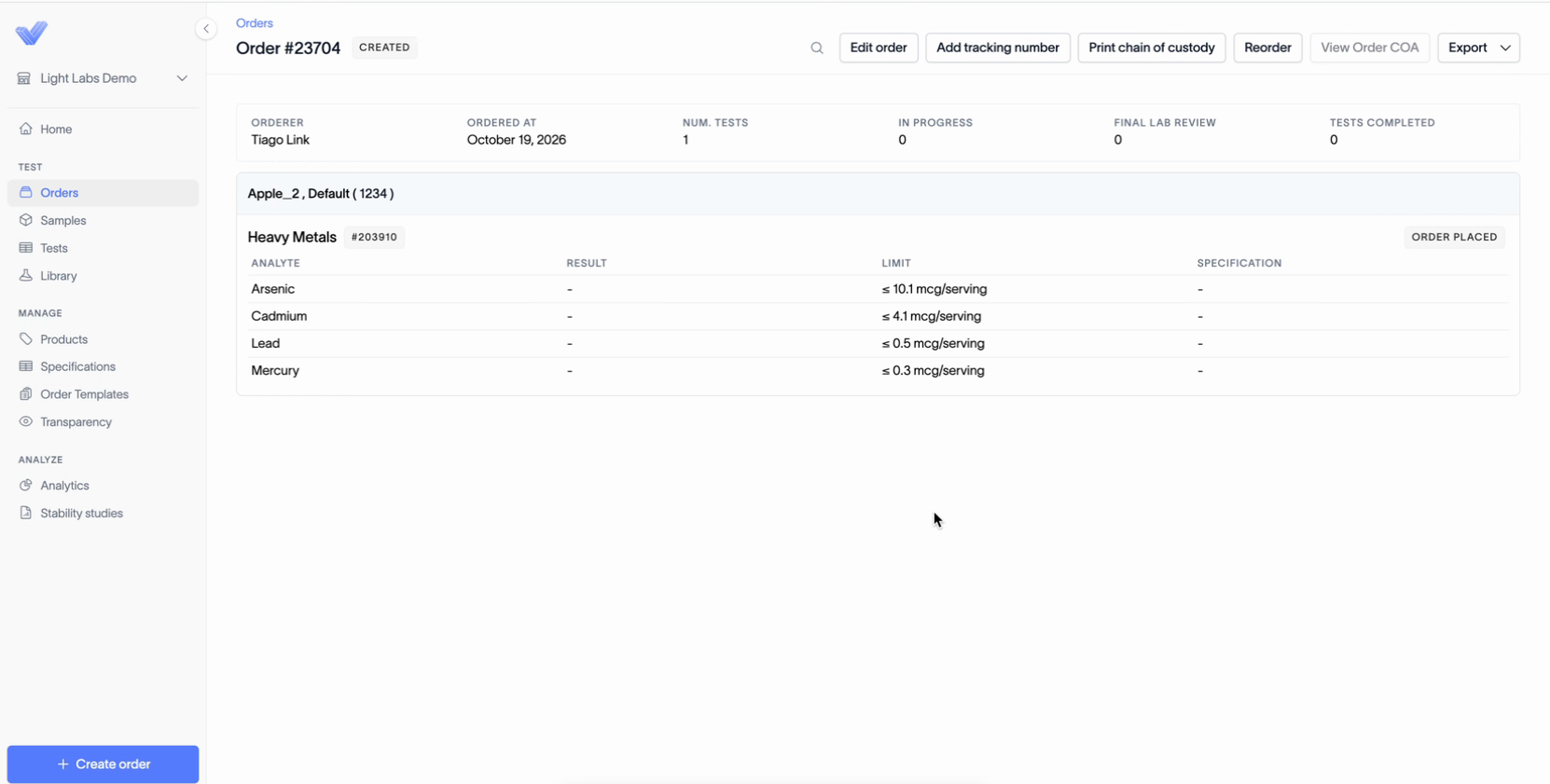
The order page now shows the lot number in parentheses next to the product, for example "Apple_2, Default ( 1234 )."
If you can't edit the lot number
If the lab has already checked in your sample, the lot number is locked and can't be edited.