Open a sample in the side panel
Last updated: August 14, 2026
Time To Completion: 1 minute
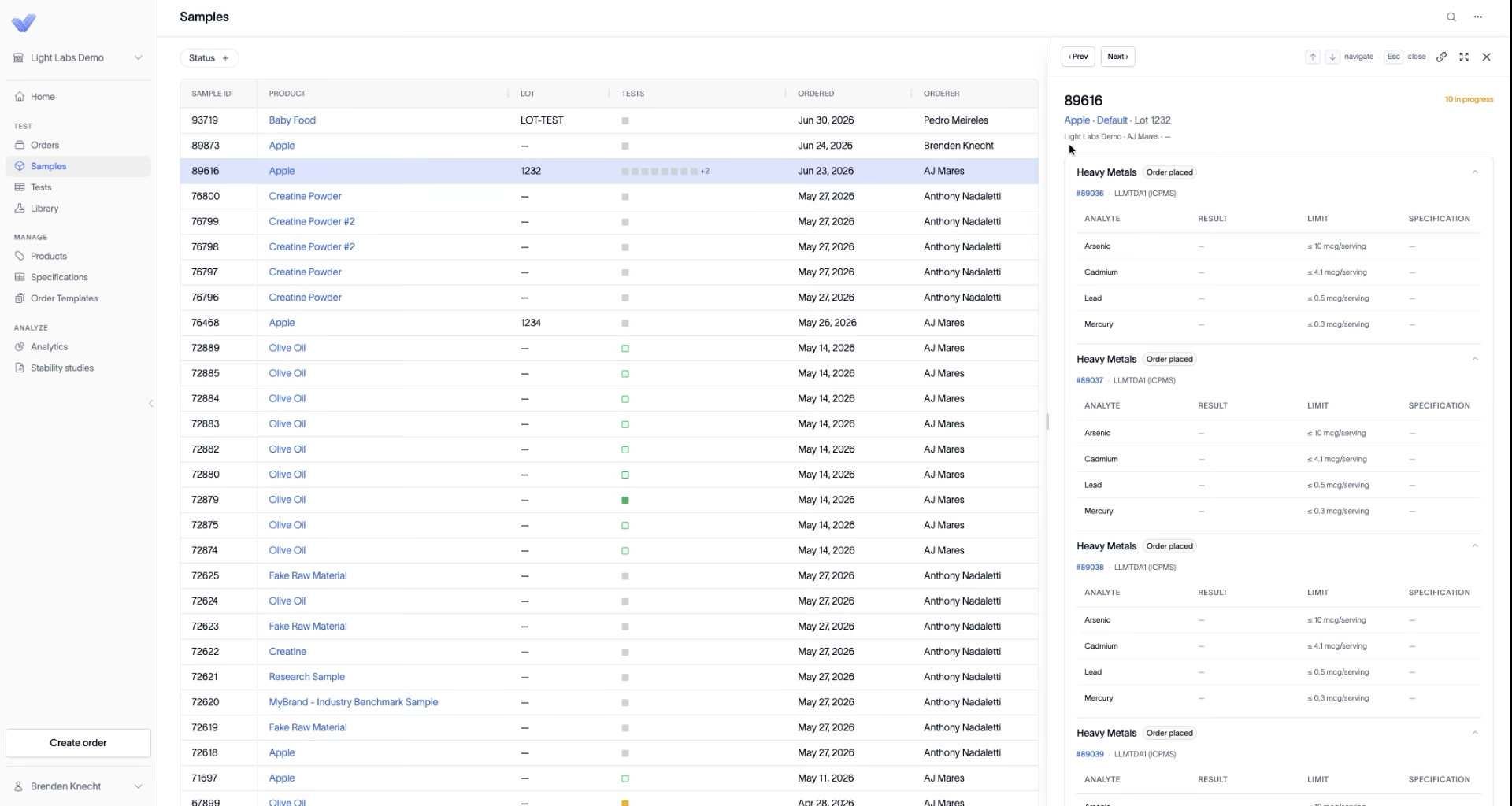
Click any sample to open a side panel with its full details and every test aligned to it — a one-stop view of a sample without leaving the list. Navigate the panel with your keyboard, copy a link, or expand it as needed.
Prerequisites: The Samples page open with at least one sample.
1. Open a sample
Click a sample row. A panel slides in from the right, headed by the Sample ID and a status badge (for example, 10 in progress or 1 pass). Below it, a breadcrumb shows the product, variant, and lot (for example, Apple › Default · Lot 1232), then the organization and orderer.
2. Review the aligned tests
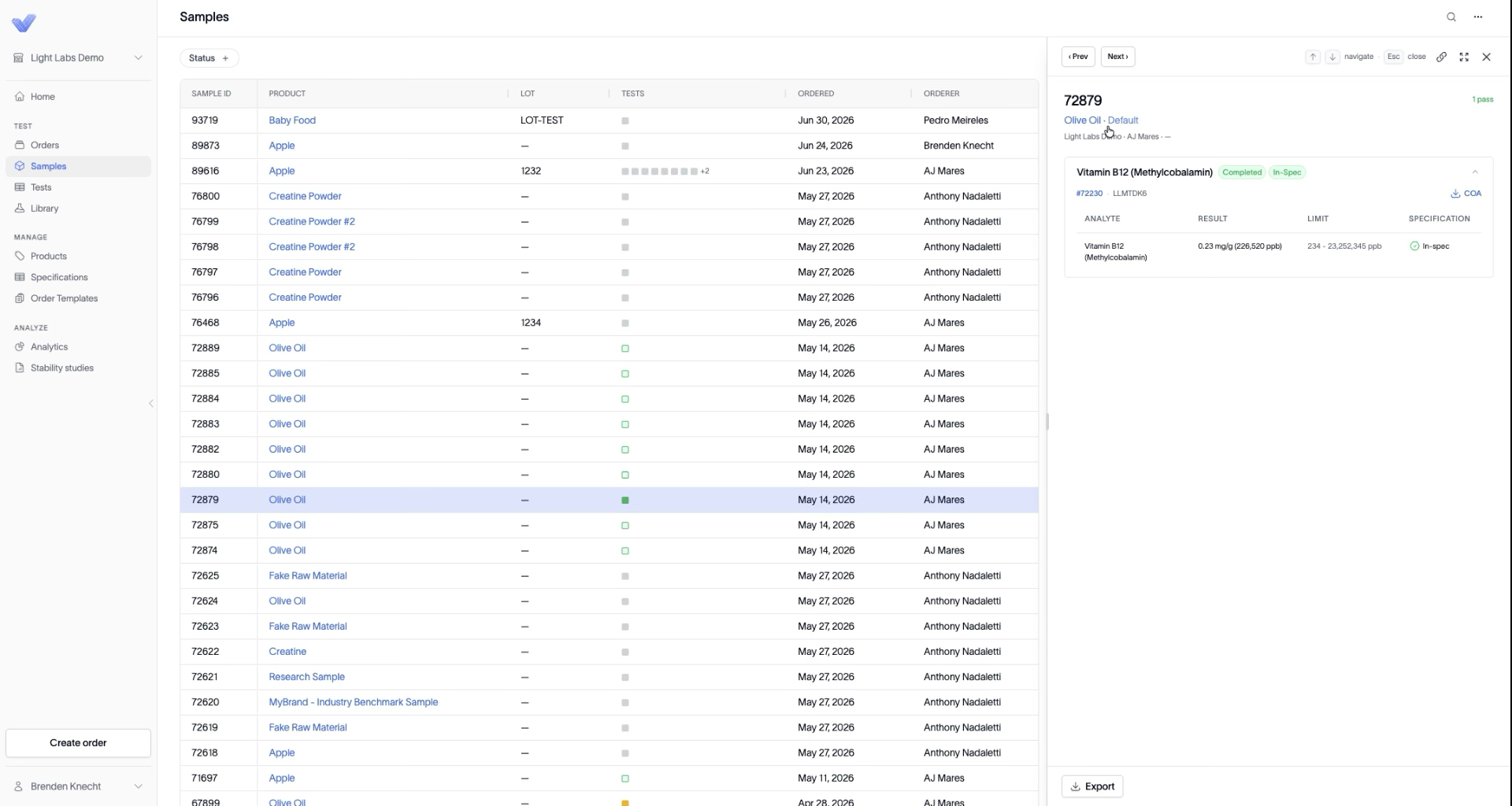
Every test tied to the sample is listed, each with its status (Order placed, Completed, In-Spec, Out-of-Spec, No Spec Listed) and an analyte table (Analyte, Result, Limit, Specification). For a completed test, the panel shows the result against the limit and offers a COA download.
3. Move between samples
Use the controls at the top of the panel to move without closing it:
Press ↑ / ↓ on your keyboard, or click ‹ Prev / Next ›, to step through samples. The panel follows the highlighted row.
Click the link icon to copy a link to the current sample or test.
Click the expand icon to grow the panel; click again to contract it.
Press Esc or click ✕ to close.

4. Export
Click Export at the bottom of the panel to export the sample's data.
Outcome
You can review a sample's tests and results inline, page through neighboring samples with the keyboard, grab a shareable link, and download a COA — all from the panel.