Create and apply an order template
Last updated: August 14, 2026
Time To Completion: 2-3 minutes
An order template saves a reusable bundle of assays you can drop onto any sample at order time. Create it once under Order Templates, then apply it from the new order flow.
Prerequisites: A Light Labs account with access to Order Templates.
1. Open Order Templates
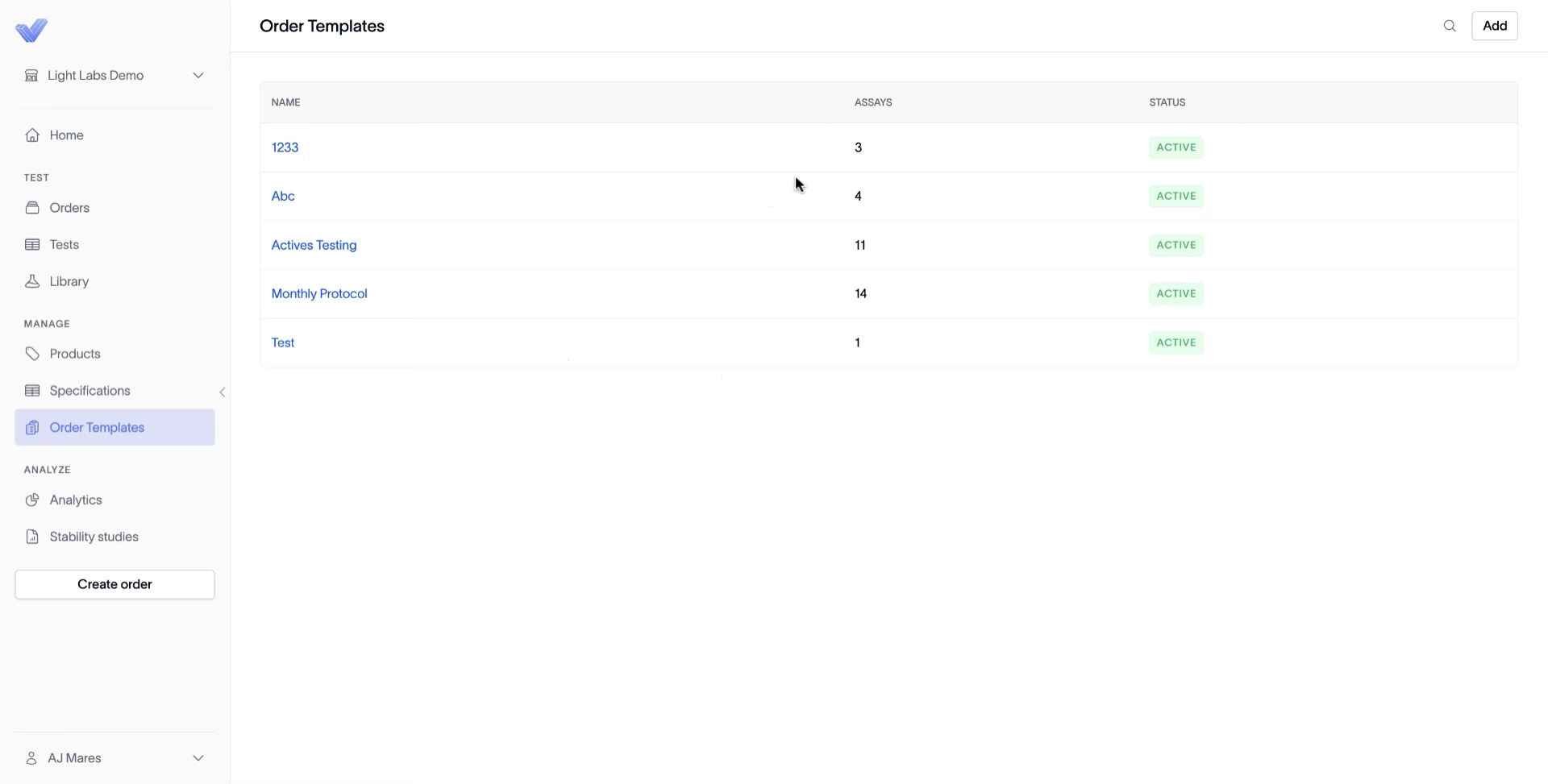
In the left navigation, click Order Templates. The page lists existing templates by NAME, number of ASSAYS, and STATUS (ACTIVE or not).
2. Add a template and its details
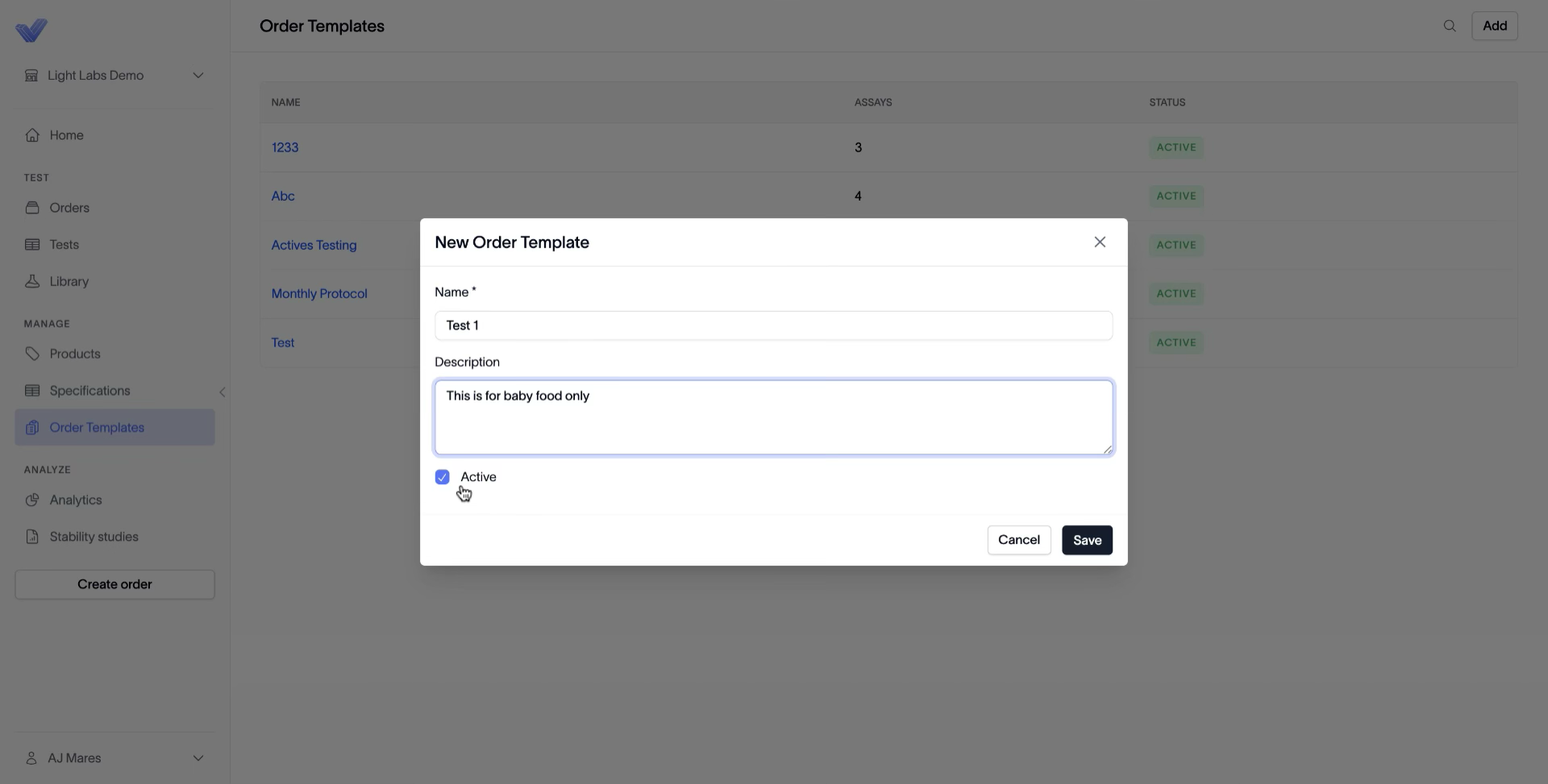
Click Add in the top right. In the New Order Template dialog, enter a Name and Description, leave Active toggled on (or off to keep it hidden), then click Save.
3. Add assays
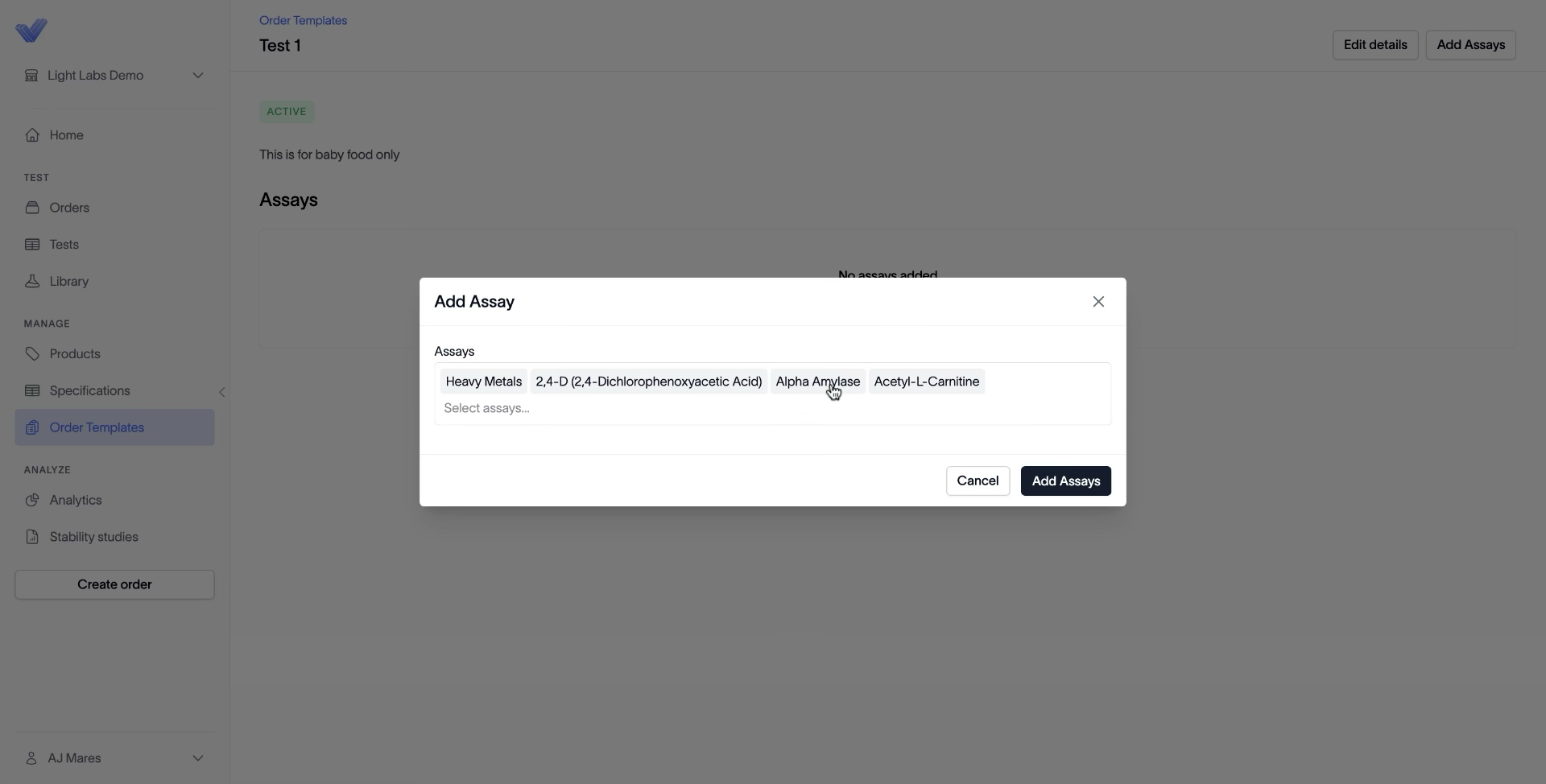
After saving, you land on the template's page with an empty Assays section. Click Add Assays. In the Add Assay dialog, search the library (for example, Heavy Metals), select every assay you need, then click Add Assays.
4. Review or edit the assay list
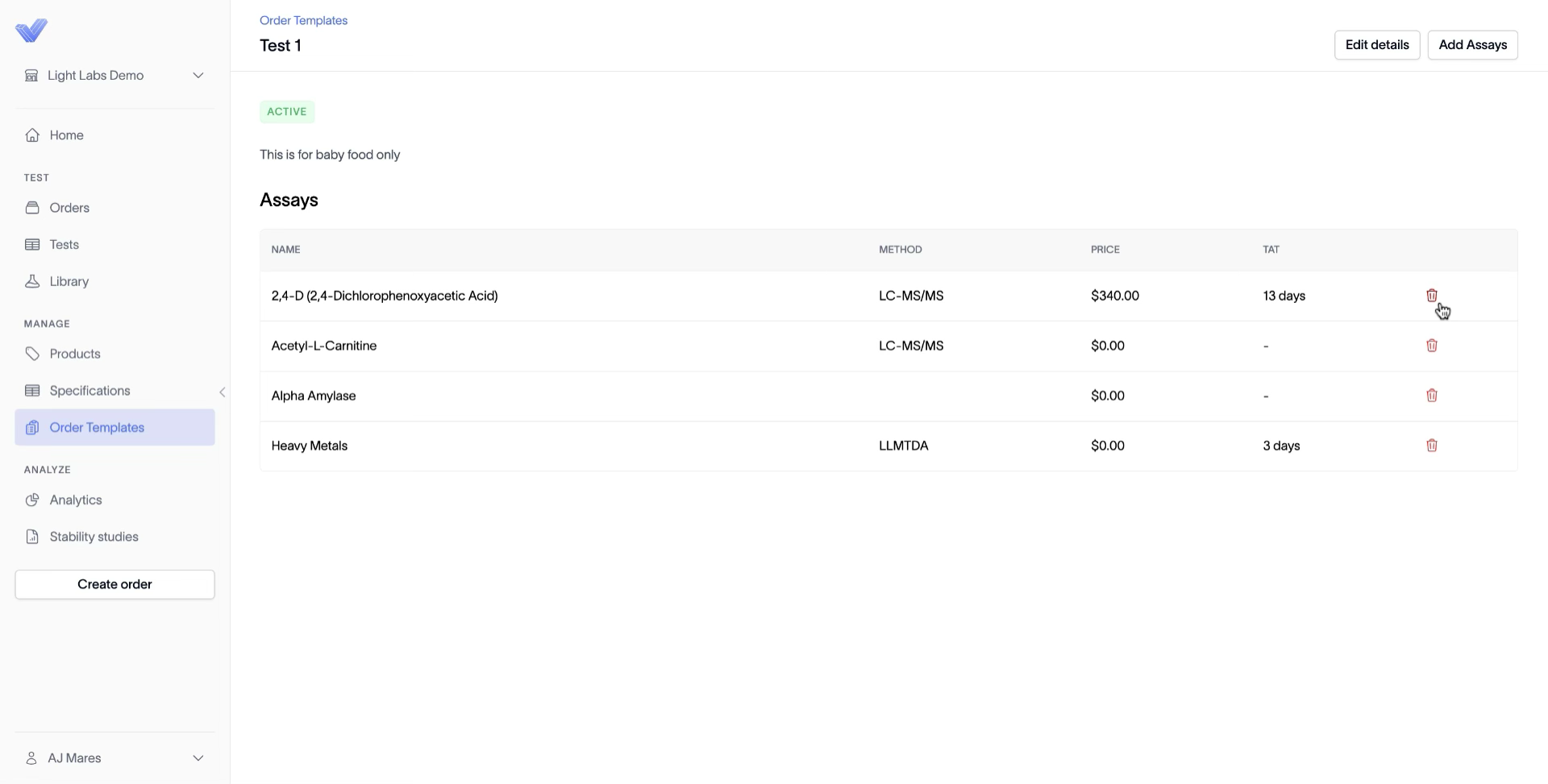
The Assays table now lists each assay with its METHOD, PRICE, and TAT. Click the trash icon on a row to remove an assay, or click Edit details in the top right to change the template's name or description.
5. Apply the template to an order
Click Create order, add a sample, then click Apply Template in the top right. Pick your template (for example, Test 1 — 3 tests · $340.00), choose Select all samples or check individual samples, and click Apply to N samples.
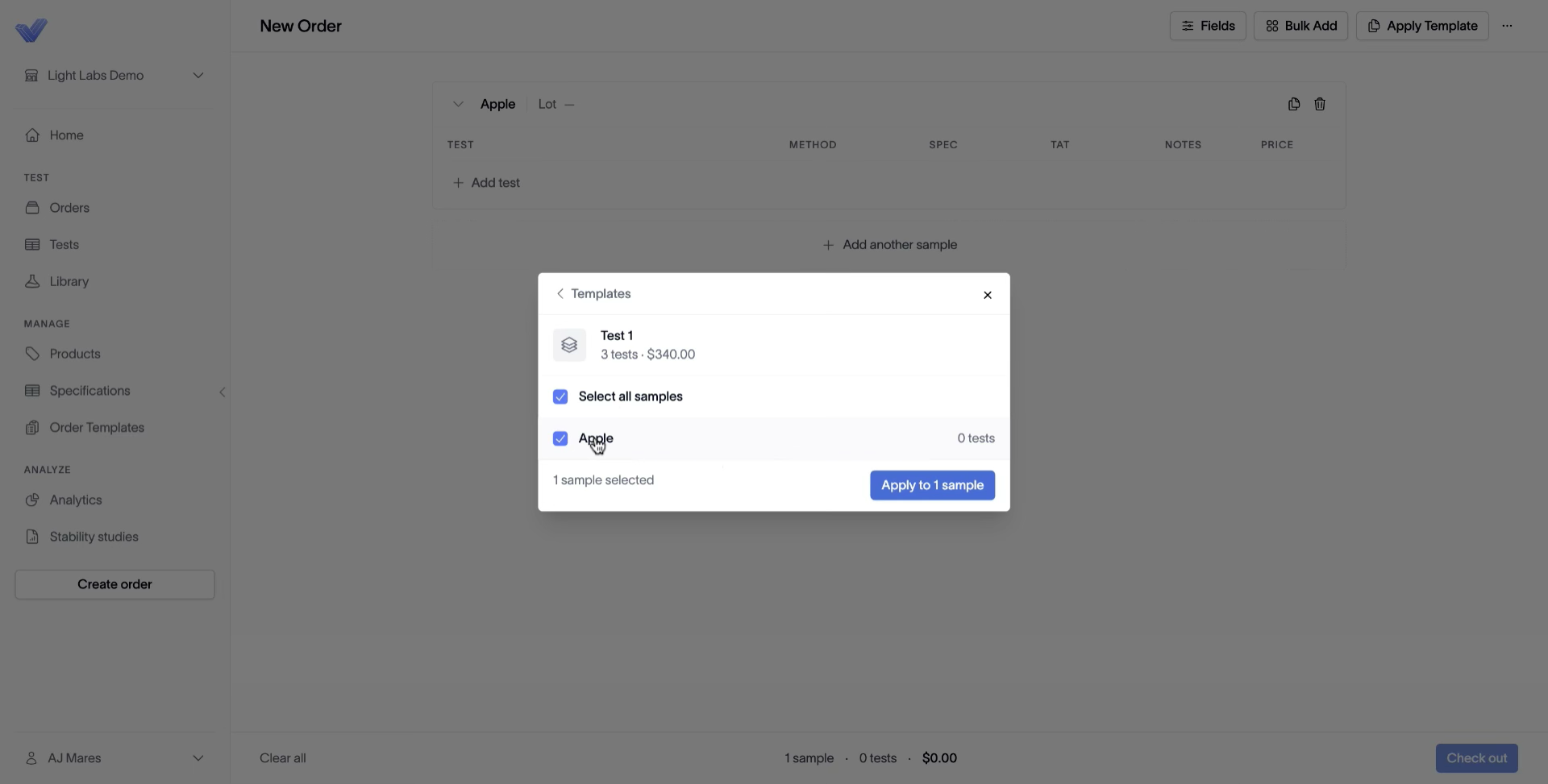
Outcome
The template's assays are applied to the chosen samples in one click. Reuse it on every future order instead of re-picking the same tests.