Editing A Product or Variant
Last updated: October 23, 2026
Time To Completion: 1 minute
Rename a product, change its Product Type, archive it, or move a variant under a different parent product.
Prerequisites: A Light Labs account with at least one product configured.
1. Open Products
In the left navigation, click Products.
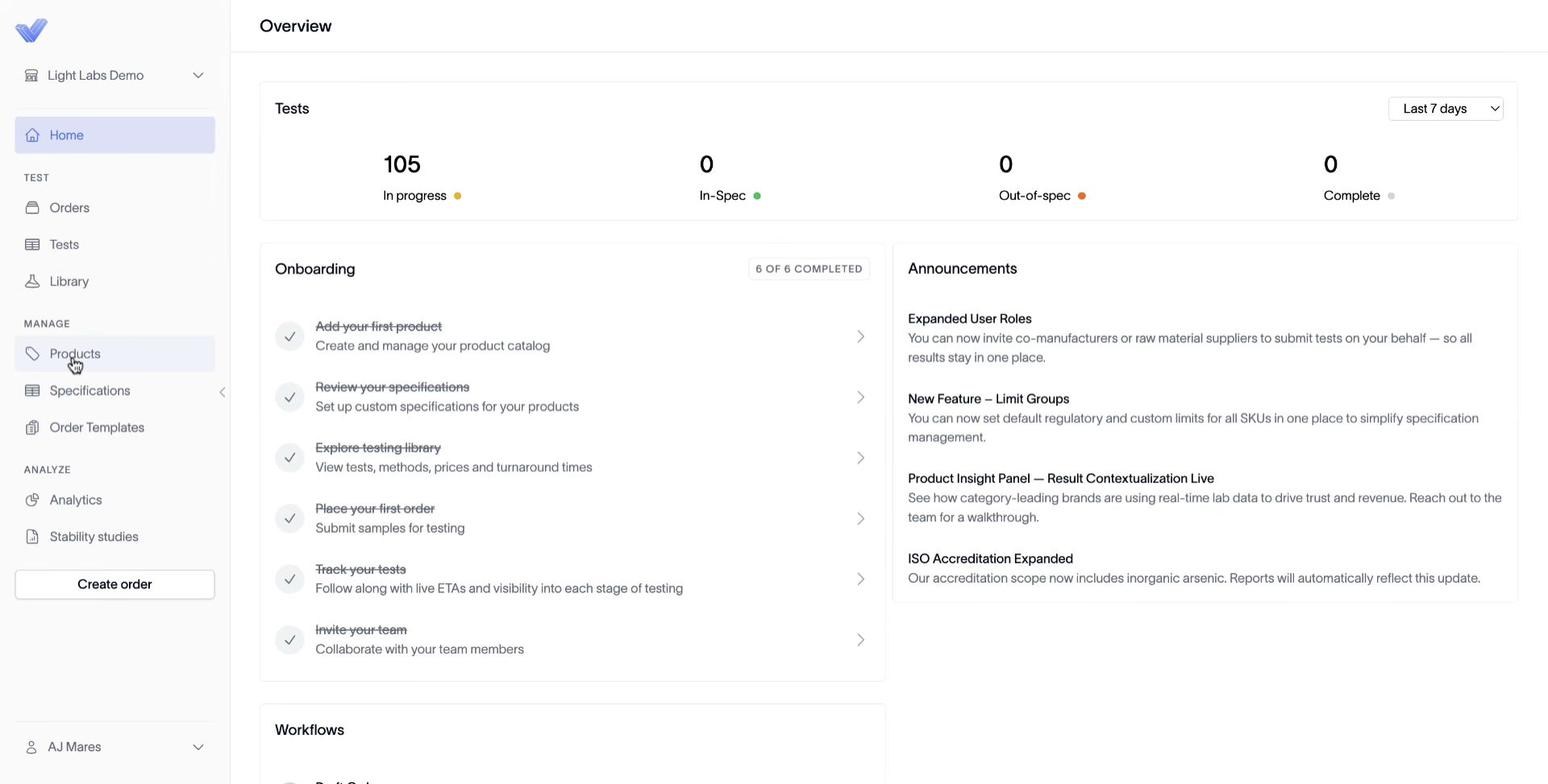
2. Open the product you want to edit
On the Products page, click the product name to open its detail page. The page lands on the Product details tab with Product Details and Variants sections.
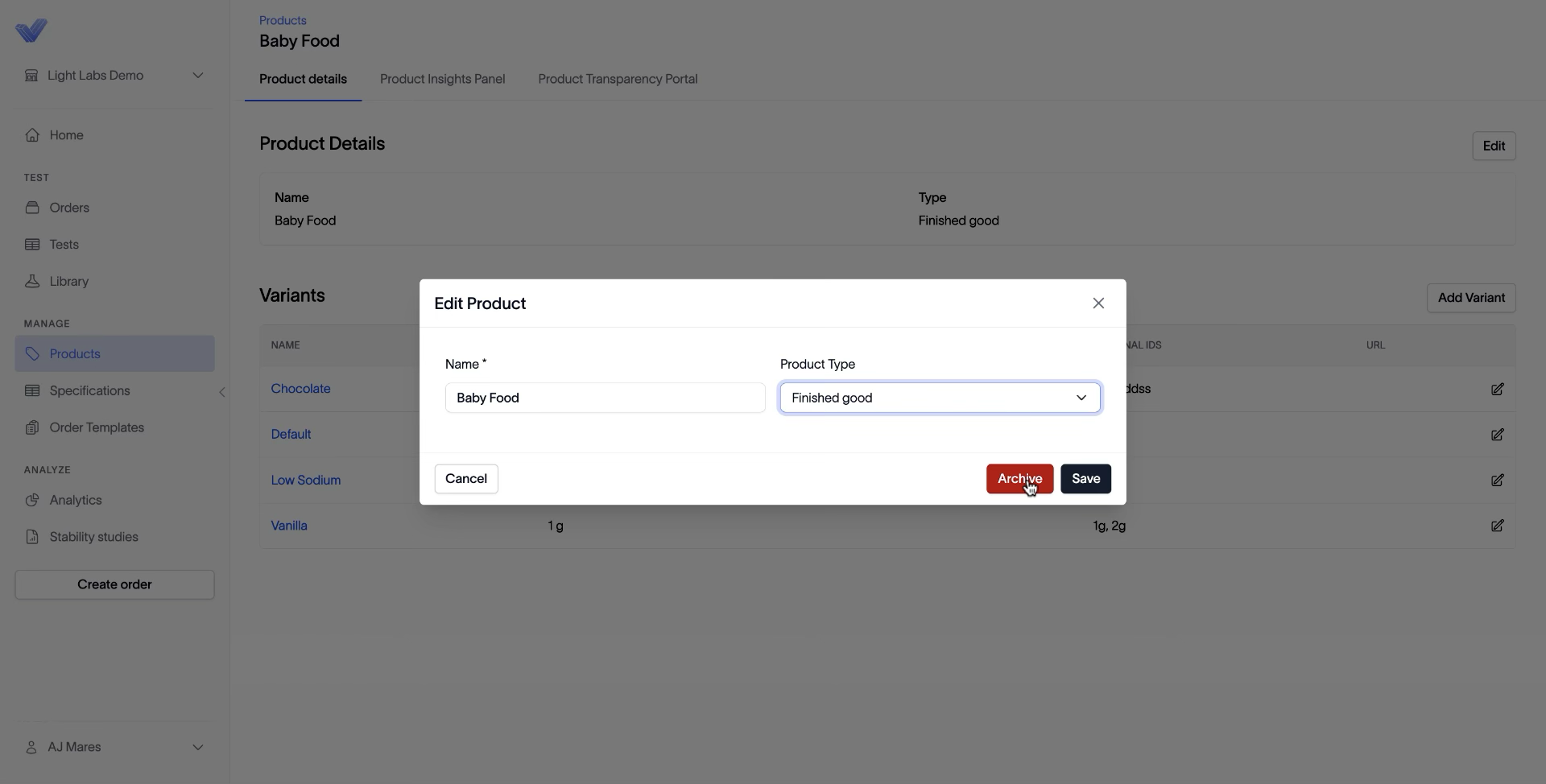
3. Edit the product
In the Product Details section, click Edit in the top right. In the Edit Product dialog, change the Name, switch the Product Type dropdown (raw material, R&D, industry benchmarking, etc.), then click Save.
Warning: Archive is a destructive action — archived products are hidden from order creation. Use it only when you no longer test the product.
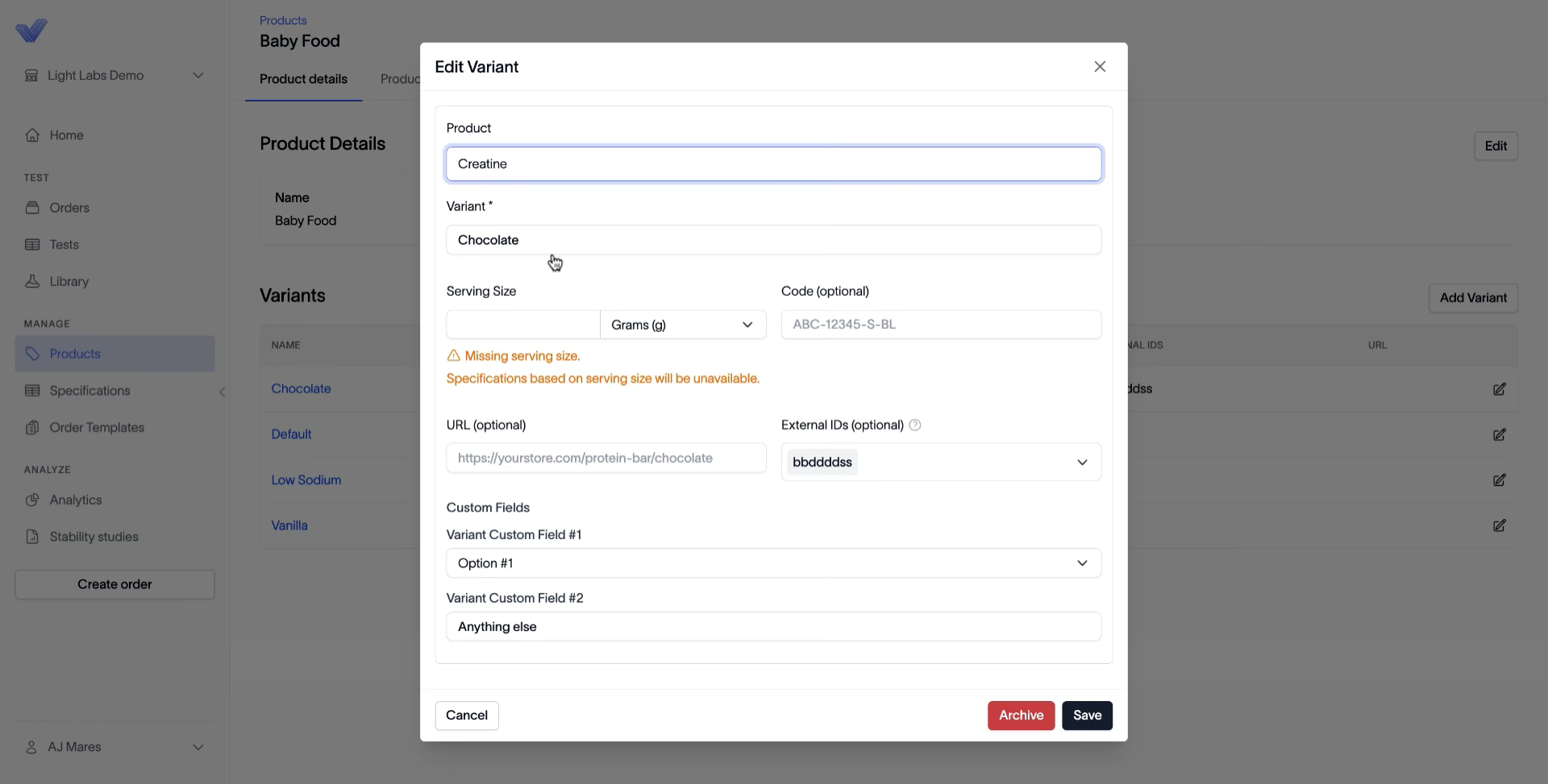
4. Edit a variant
In the Variants section, click the pencil icon at the right of a variant row. In the Edit Variant dialog, change any field — rename via Variant, set the Serving Size, fill Code, URL, or External IDs, or move the variant under another product by changing the Product dropdown at the top. Click Save.
Outcome
Product and variant edits save immediately and apply everywhere the item appears — orders, specifications, and reports.