Navigate the Samples page
Last updated: October 23, 2026
Time To Completion: 1 minute
The Samples page lists every sample in your account. A sample is one physical product being tested — a standalone object with its own Sample ID, separate from tests and orders, that can feed one or many tests. This article covers the layout; the side panel, search, and filters each have their own article (linked below).
Prerequisites: A Light Labs account with at least one sample in the system.
1. Open the Samples page
In the left navigation, click Samples. The page lists every sample that has entered the system.
2. Read the columns
Each row is one sample. The columns are:
Sample ID — the sample's unique ID (distinct from test and order IDs).
Product — the product this sample is.
Lot — the lot the sample belongs to.
Tests — colored squares for the sample's tests; a +N badge means more tests than fit the row.
Ordered — when it was ordered.
Orderer — the person who placed the order.
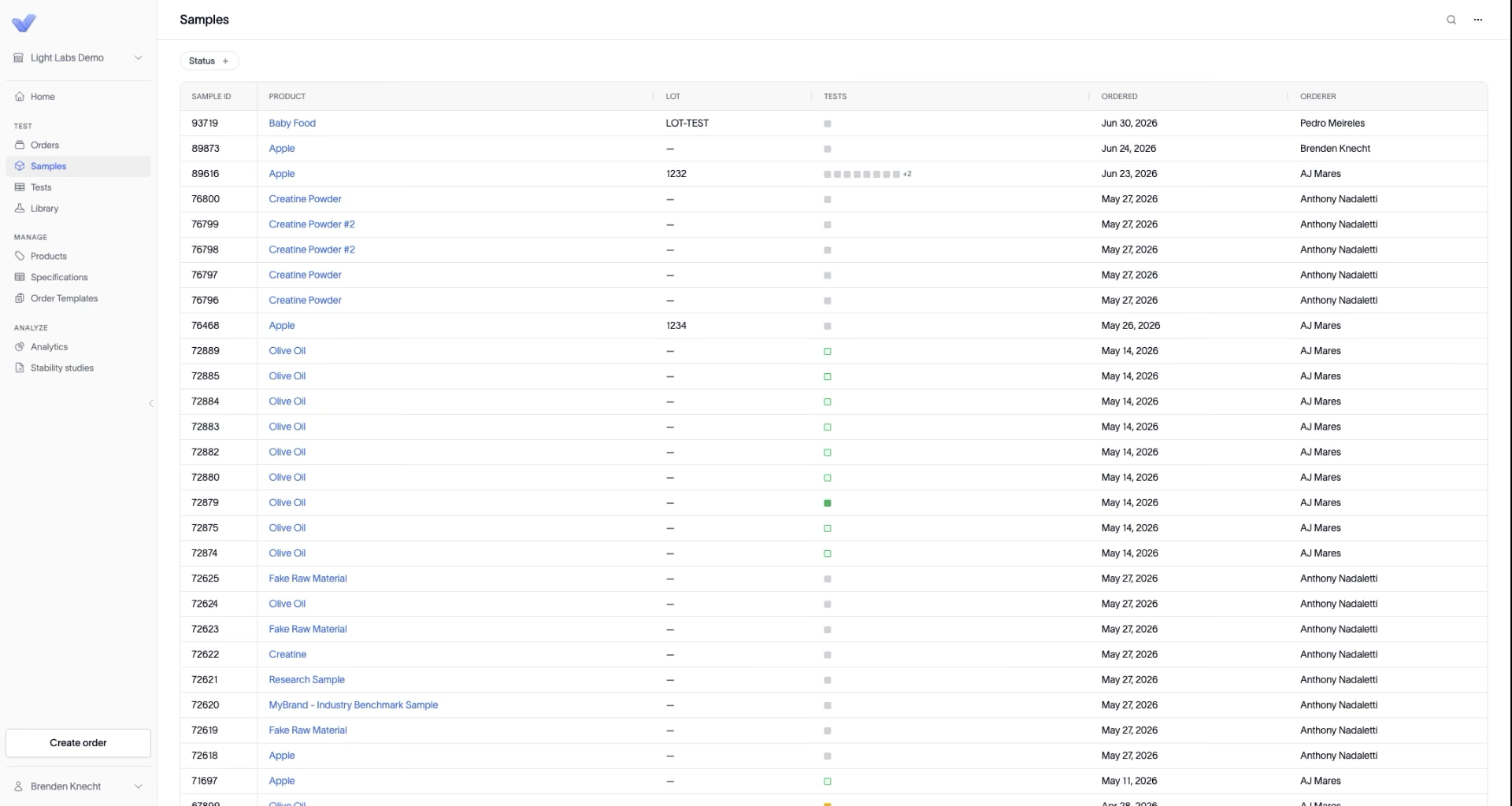
3. Open a sample
Click any row to open the sample in a side panel, where you can see its product, variant, lot, orderer, organization, and every test aligned to it — without leaving the page.
Related: Each has its own article: Open a sample in the side panel · Search the samples list · Filter the samples list.
Outcome
You can read and act on every sample in your account from one page, and open any sample to see all of its tests in one place.