Add specifications to your products
Last updated: August 24, 2026
Time To Completion: 5-10 minutes
Specifications tell Light Labs what range each analyte should fall within. Add them before placing an order so results come back flagged in spec or out of spec — without one, results show as No spec listed.
Prerequisites: A Light Labs account with at least one product configured.
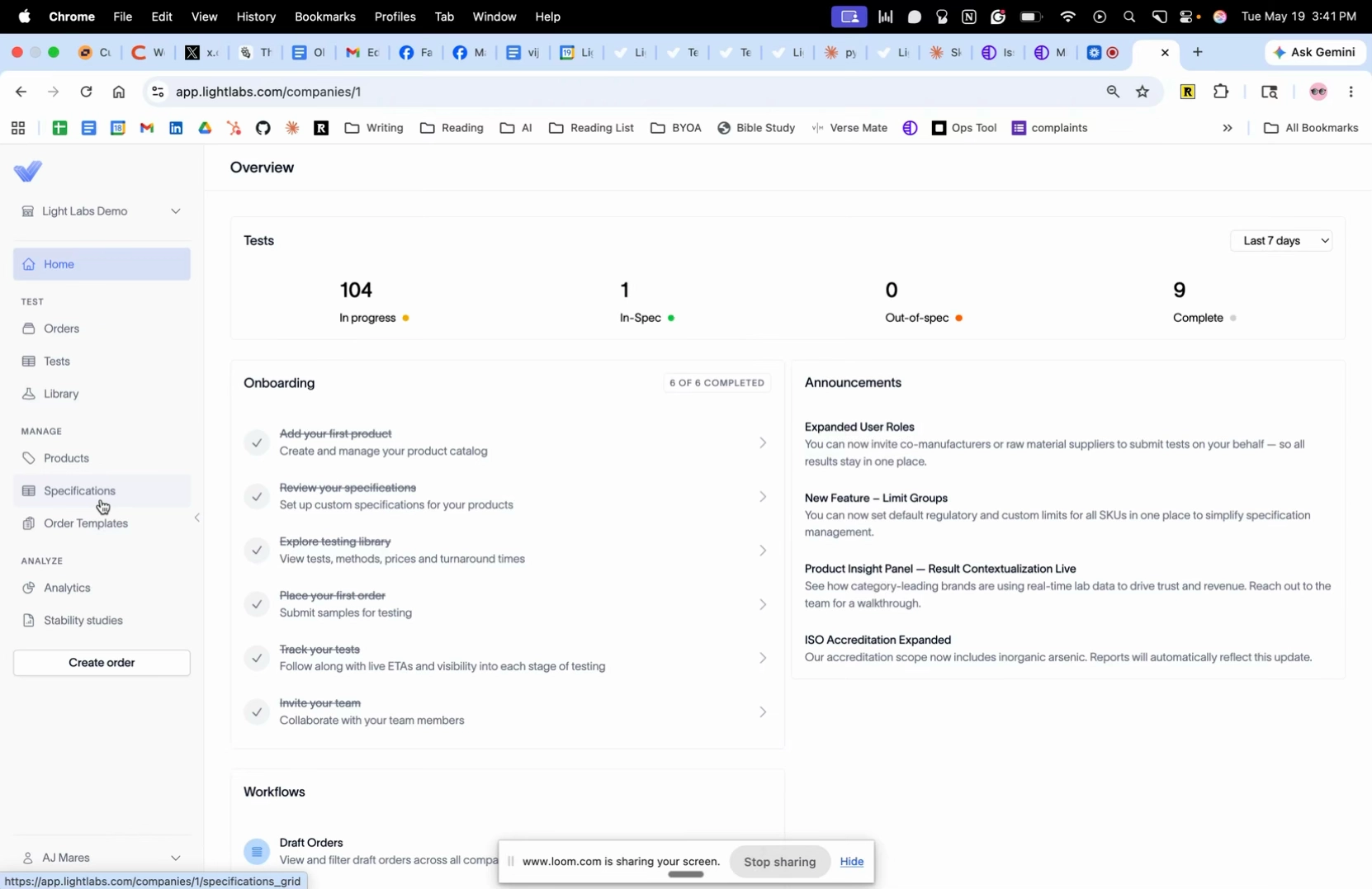
1. Open the Specifications page
In the left navigation, click Specifications.
2. Filter the grid to the rows you care about
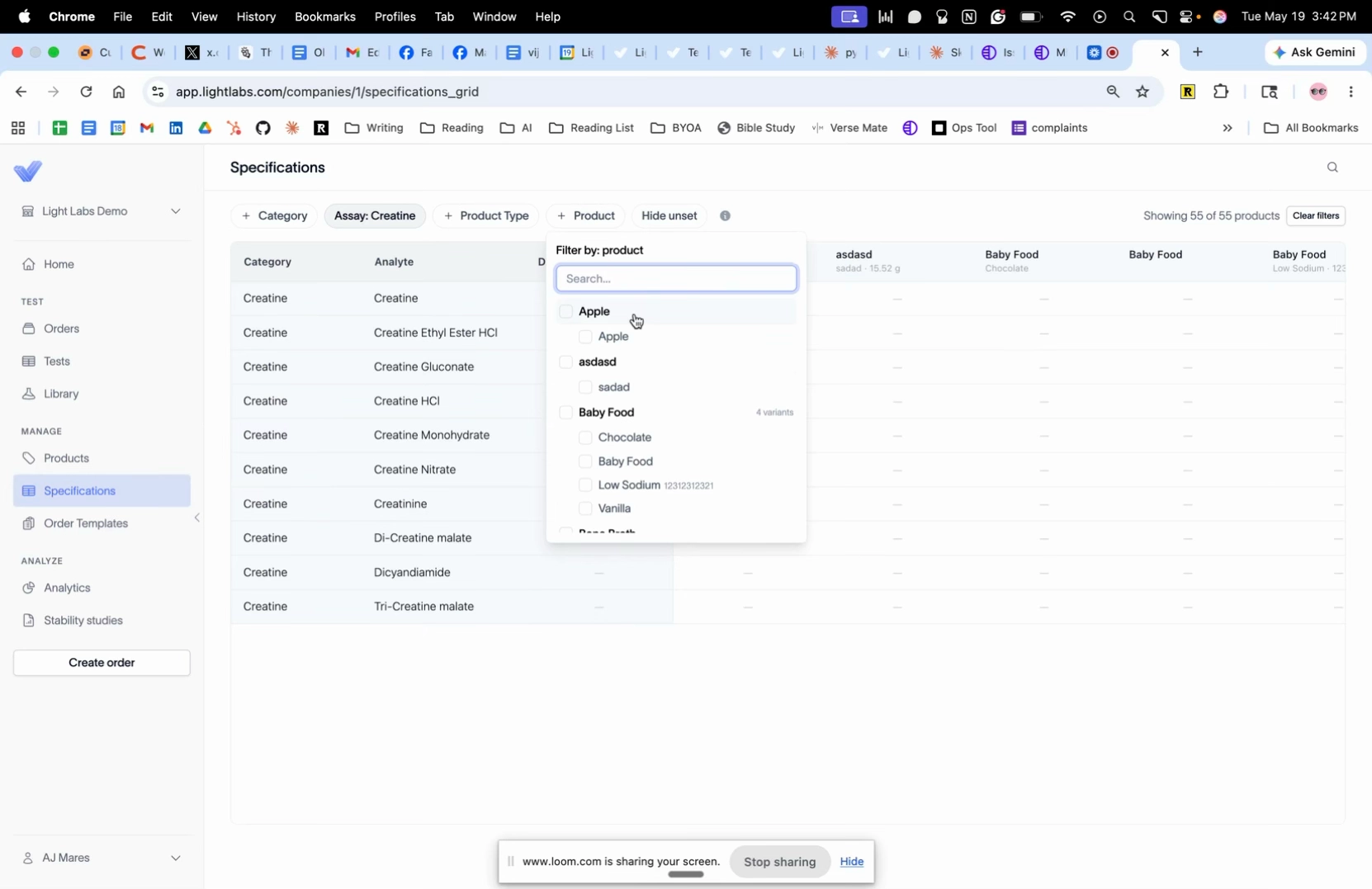
At the top of the page, narrow the view with the filter chips: Category, Assay, Product Type, and Product. Click Clear filters in the top right to reset.
3. Add a default specification
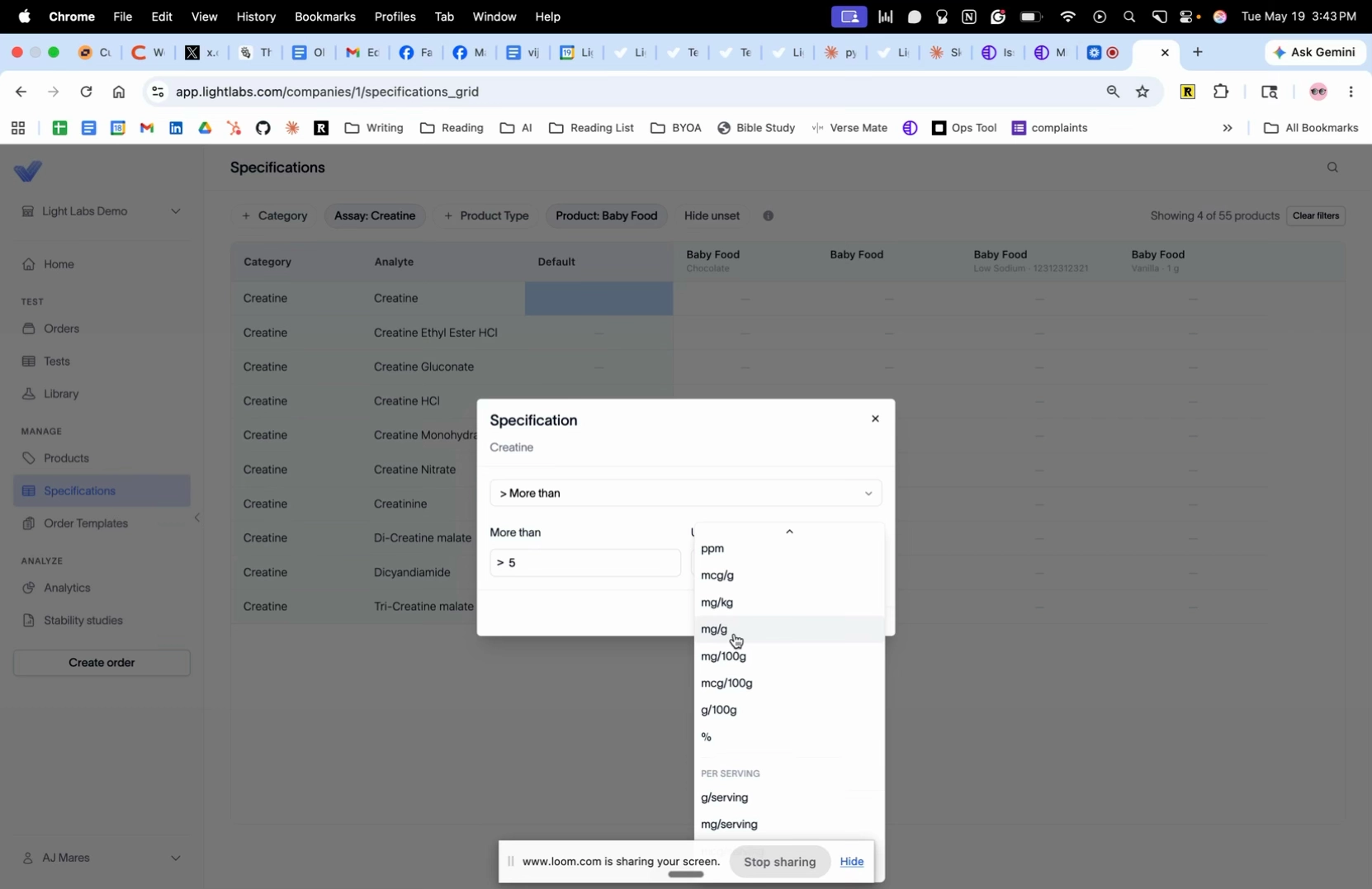
In the grid, double-click the cell under Default next to the analyte you want to spec. In the Specification dialog, pick a comparator from the dropdown (for example, More than), type the value, pick the unit, and click Save.
The default applies to every variant of the products currently selected by your filters. With no product selected, it applies to every product in the platform.
Tip: Match the specification to your label claim. If your label says 5 g creatine, set More than 5 with the unit g/serving.
Note: Lead, cadmium, arsenic, and mercury come pre-populated with Prop 65 specifications. Double-click any of them to change or delete the value on a per-SKU basis.
4. Add a specification to a single SKU
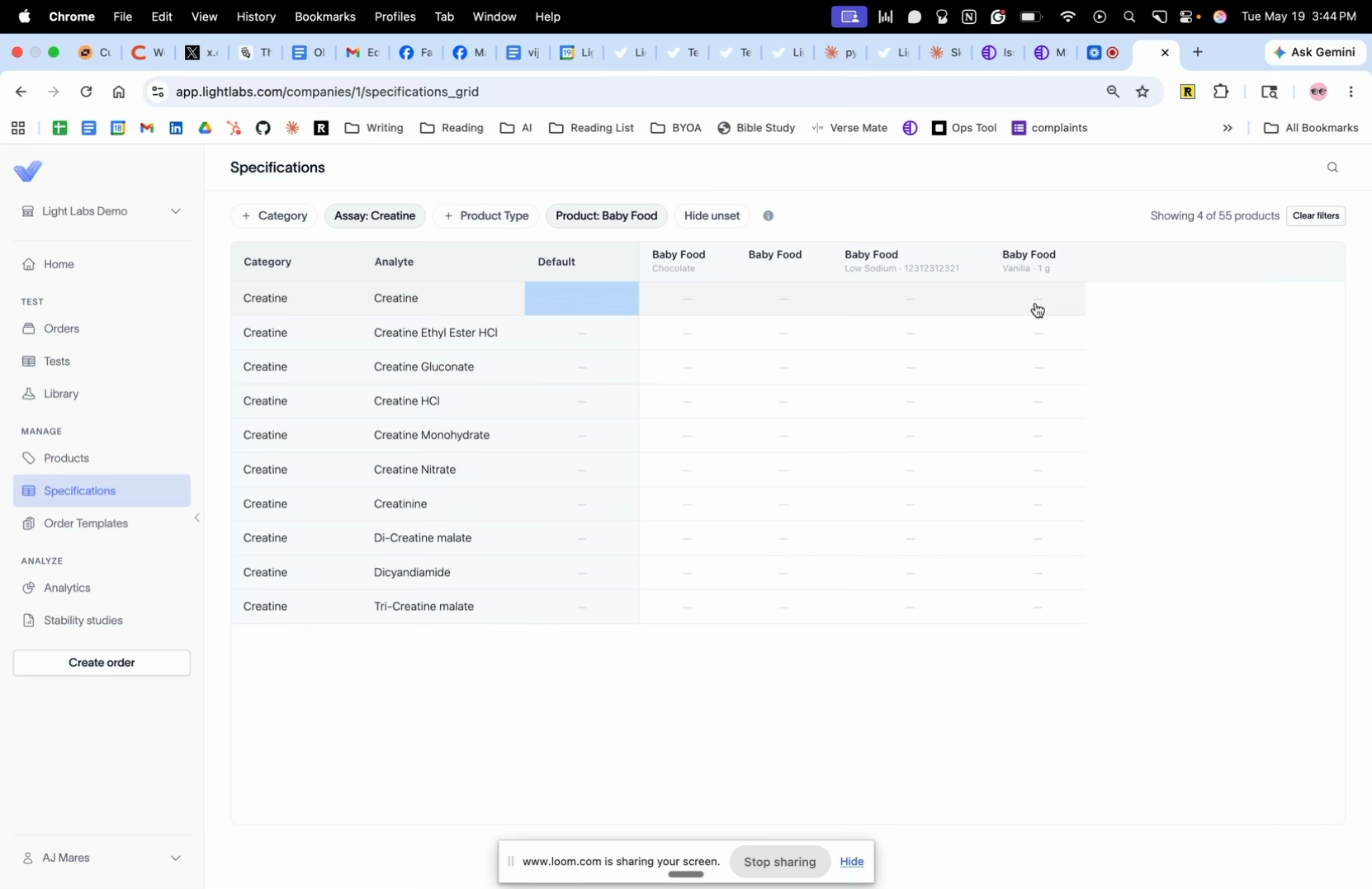
In the grid header, find the column for the specific SKU under its parent product (for example, Baby Food > Vanilla). Double-click the cell where that SKU column meets the analyte row, then follow the same comparator, value, unit, and Save flow as the default.
5. Edit or delete an existing specification
Double-click any populated cell to reopen the Specification dialog. Change the value and click Save, or delete the specification from the dialog.
6. Add specs to an order that's already placed
Email support@lightlabs.com and the team will backfill the specifications if they have been added after an order was placed.
Outcome
Future test results are reported as In spec or Out of spec against the values you saved, on each product or SKU where a specification exists.