Add a custom field
Last updated: August 18, 2026
Prerequisites: None.
1. Open Custom fields
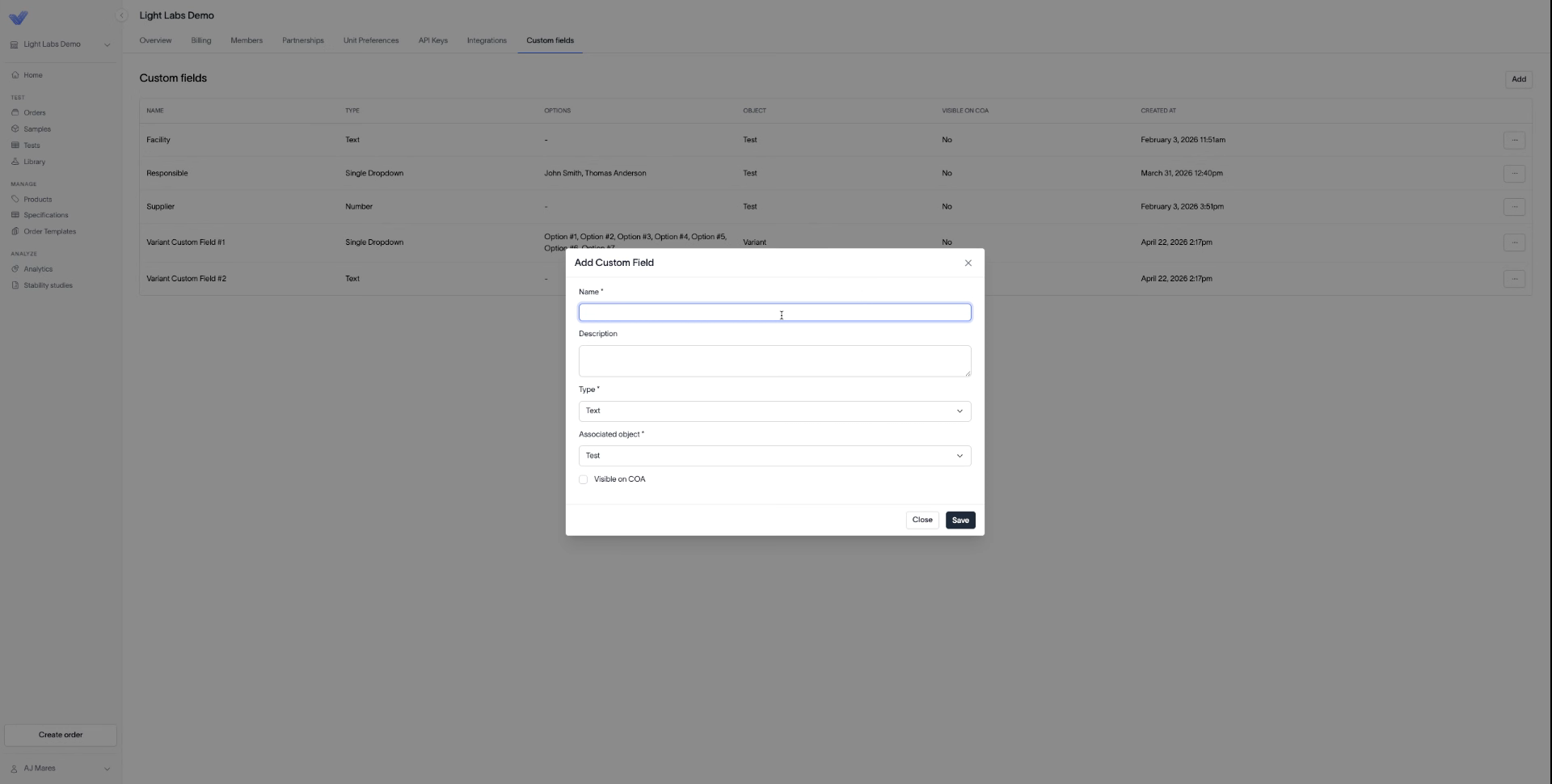
Go to your company's Overview settings page and click the Custom fields tab. Click Add in the top right.
The Custom fields tab, with the Add Custom Field dialog open and the Name field empty and focused.
2. Name the field and choose its type
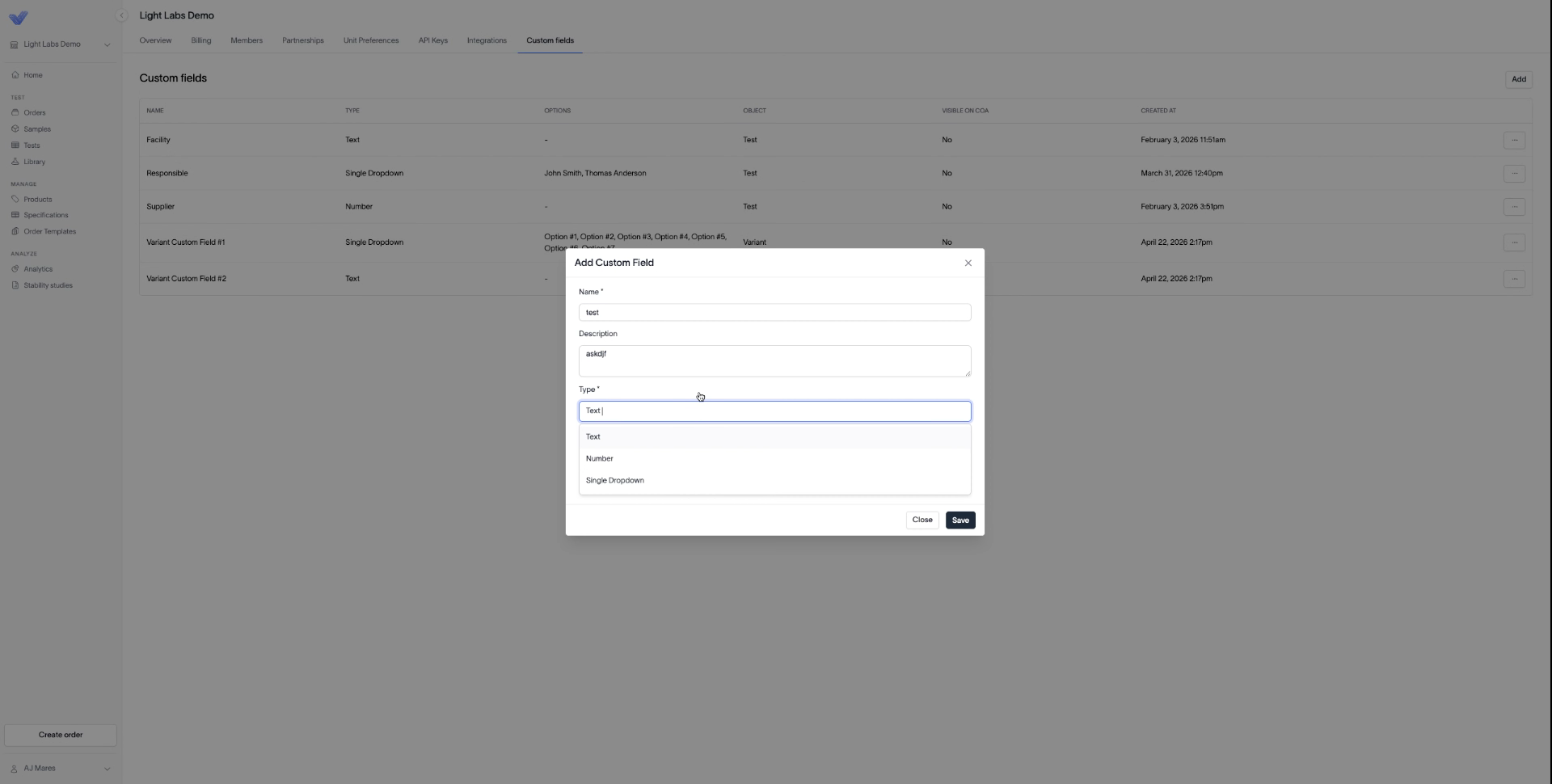
Enter a Name and, optionally, a Description. Under Type, select Text, Number, or Single Dropdown.
The Type dropdown open, showing Text, Number, and Single Dropdown as options.
3. Choose what the field applies to
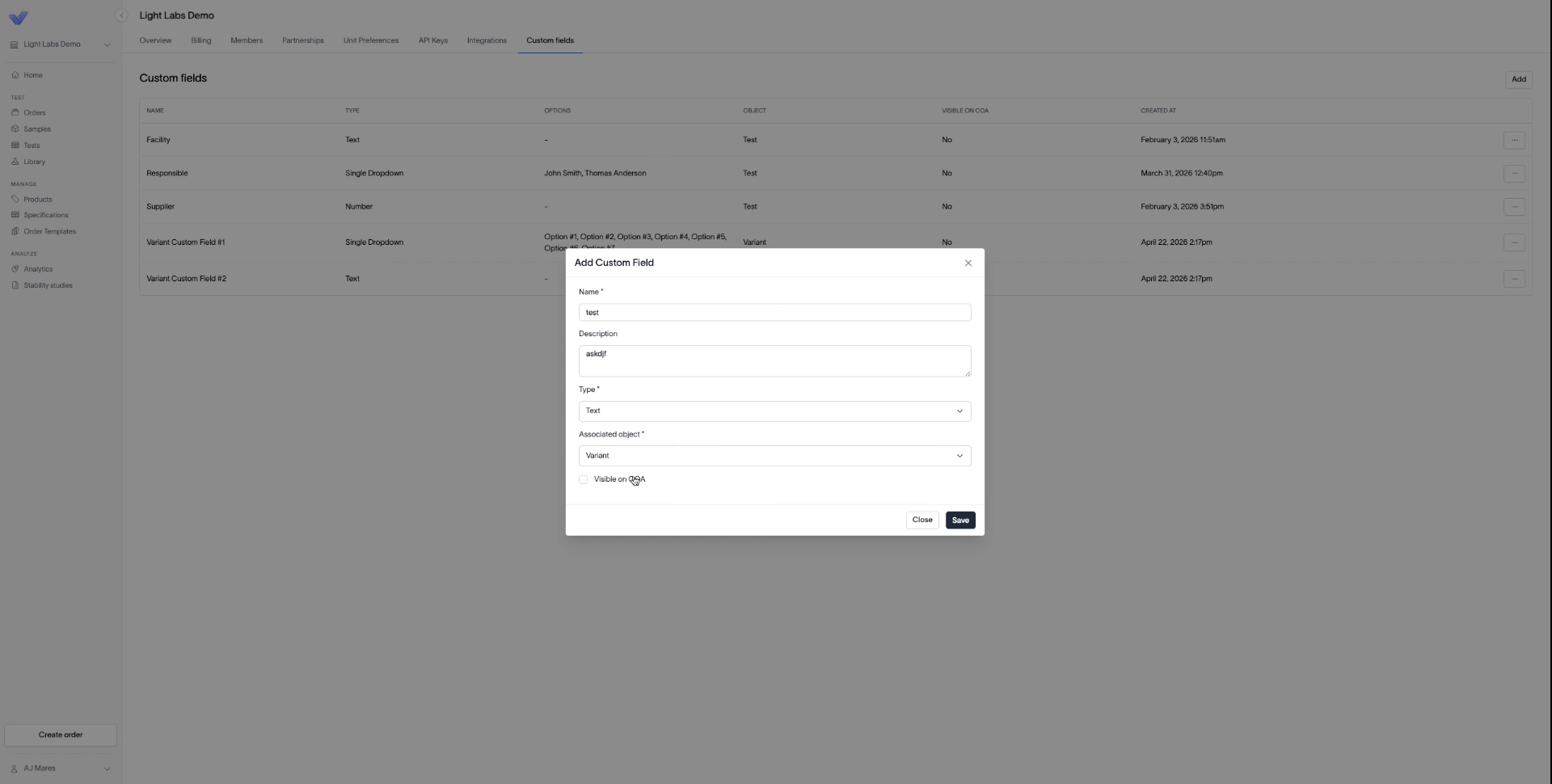
Under Associated object, select Variant to populate the field whenever you place a test or order on that product, or Test to associate it with one specific test — Variant is the more common choice. Select Visible on COA if the field should also appear on the certificate of analysis, then click Save.
The Associated object field set to Variant, with the Visible on COA checkbox and Save button visible.
Outcome
The custom field appears in the Custom fields table and populates wherever its associated object (variant or test) is used.