Embed reference
Last updated: June 8, 2026
This is the technical reference for embedding the Product Insights Panel. It is written for developers. If you are setting it up on Shopify without code, start with 📄 Set up your Product Insights Panel
Each display is a script plus a custom HTML element. Include the script once per page, then place the element wherever the display should appear.
Inline panel
<script async src="https://app.lightlabs.com/assets/ll-pip-widget-v5.js"></script>
<lightlabs-widget company-id="YOUR_COMPANY_ID"></lightlabs-widget>
Sticker
<script async src="https://app.lightlabs.com/assets/ll-pip-sticker.js"></script>
<lightlabs-sticker company-id="YOUR_COMPANY_ID"></lightlabs-sticker>
Full testing report
<script async src="https://app.lightlabs.com/assets/ll-pip-testing-report.js"></script>
<lightlabs-testing-report company-id="YOUR_COMPANY_ID" product-id="PRODUCT_ID"></lightlabs-testing-report>
The full report requires a product-id because it renders one product's report directly, with no matching step.
Attributes
Inline panel and sticker
Attribute | Required | Description |
|---|---|---|
| Yes | Your Light Labs company ID. Identifies whose products to load. |
| No | Recommended for targeting a specific product or variant. Matched against the External IDs you register in Light Labs, so you can use an identifier you already own (your product ID, slug, SKU, or store variant ID). Ideal for bundle, landing, and configurator pages. Updating this attribute re-renders the display. See How products are matched to pages. |
| No | Target a product by its Light Labs internal ID. Works on pages where slug matching cannot identify the product, but requires looking up the Light Labs ID and maintaining that mapping yourself, so prefer |
| No | Set to |
| No | Set to |
Full testing report
Attribute | Required | Description |
|---|---|---|
| Yes | Your Light Labs company ID. |
| Yes | The product whose report to render. |
| No | Width of the embedded report. Defaults to |
| No | Starting height in pixels before the report measures itself. Defaults to |
| No | Extra pixels added to the measured height. Defaults to |
| No | Set to |
The full report resizes itself to fit its contents after it loads.
Loading and performance
The scripts are lightweight and load asynchronously. Keep
asyncon the script tag.Include each display's script once per page even if you place several of its elements.
You can combine displays on one page, for example the inline panel and the sticker. Include both scripts and both elements.
Consent and privacy tools
Some consent management platforms rewrite script tags to prevent them from running until consent is granted, for example by changing the tag to type="text/plain". If that happens the panel will not load. Allow the Light Labs script to run, or ensure the tag is added exactly as shown above.
Previewing with example data
Use company-id="1" to load example results while you build and position a display, then switch to your own company ID before going live.
Finding your IDs
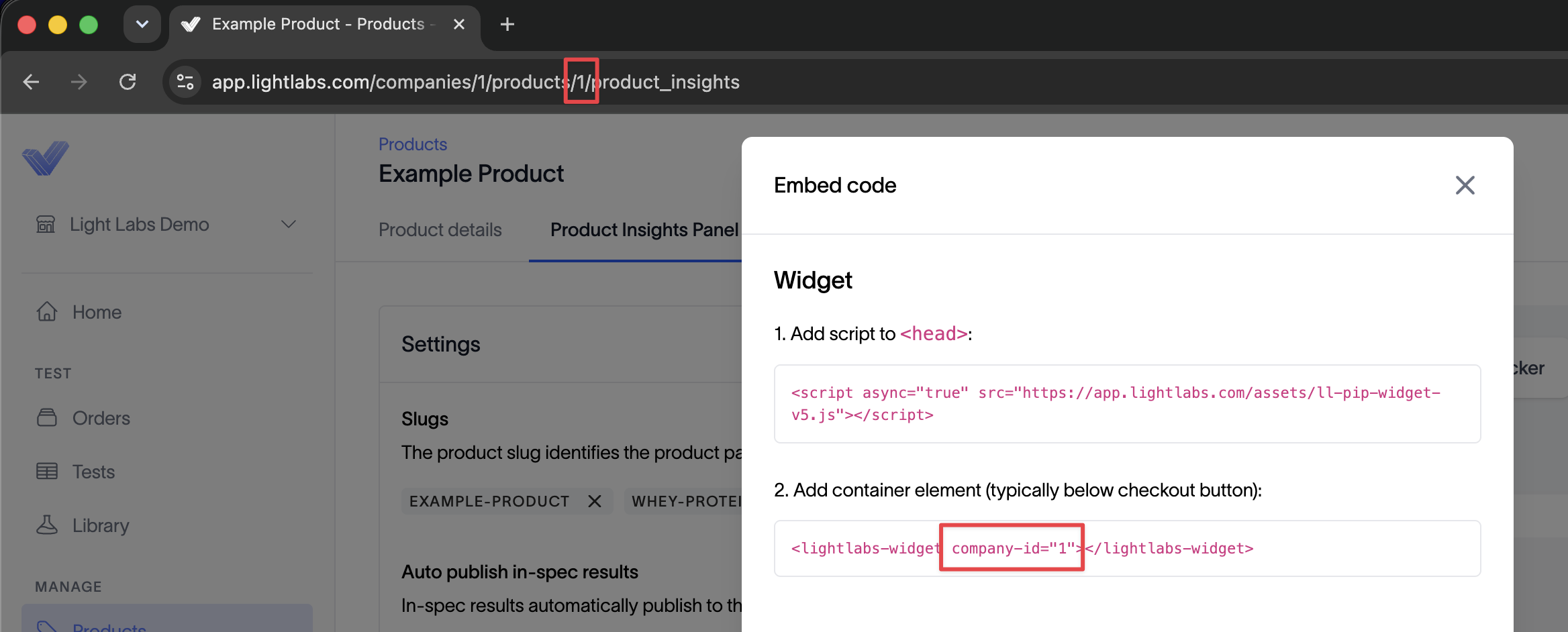
Company ID: provided in your embed snippet in Light Labs.
Product ID: in the product's URL in Light Labs, for example
app.lightlabs.com/companies/.../products/42, where42is the product ID.