Choosing a display: panel, sticker, or full report
Last updated: June 8, 2026
The Product Insights Panel comes in three displays. They all show the same underlying testing data; they differ in how they look on the page and where they fit best. You can use more than one on the same page, and you can switch between them at any time by changing the embed code.
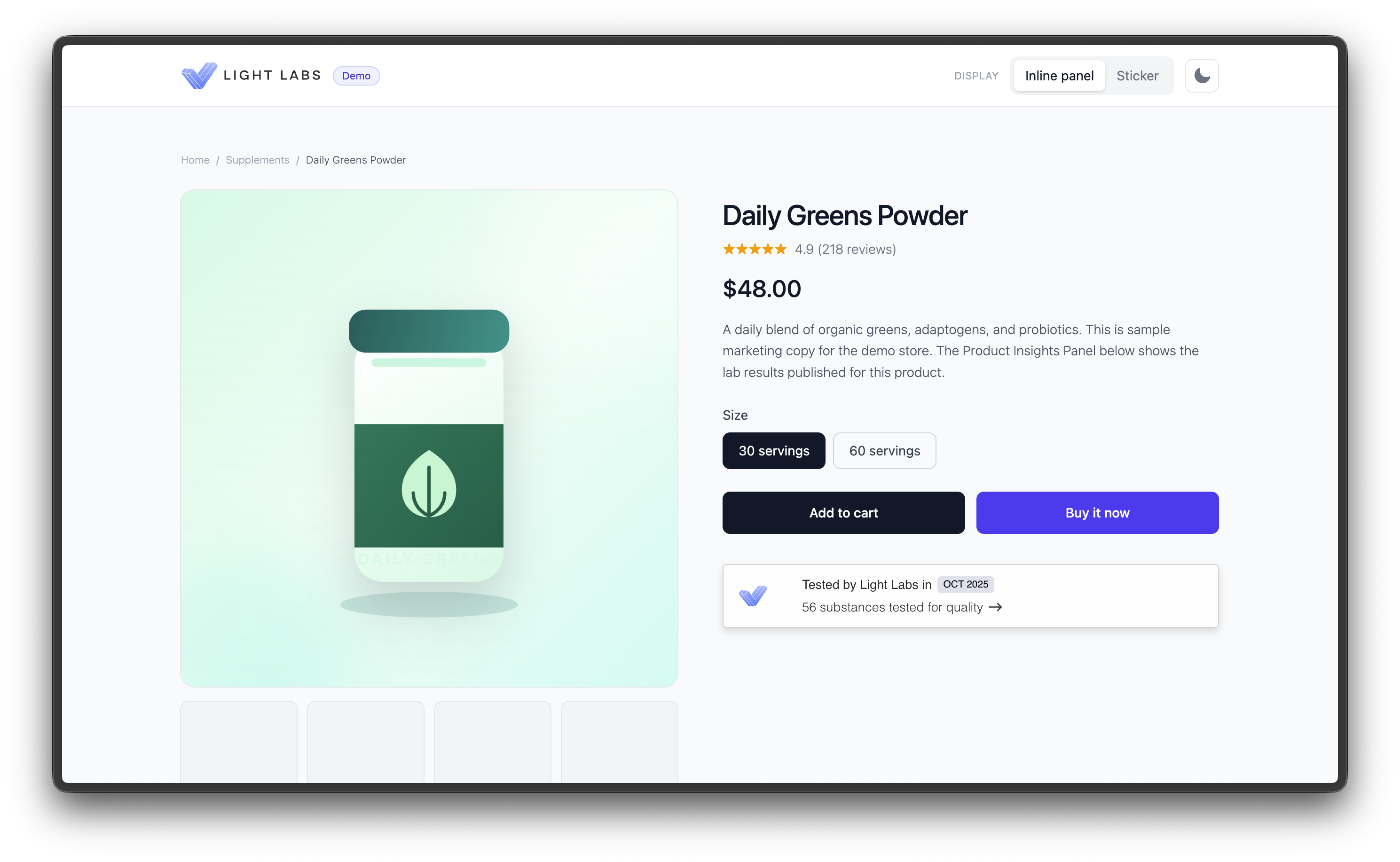
Inline panel
The default display. A compact, horizontal bar that reads "Tested by Light Labs" with the number of substances tested. When a shopper clicks it, the full Comprehensive Testing Report opens in a pop-up.
Best for: the main product page. Most brands place it just below the buy button or near the ingredients.
<script async src="https://app.lightlabs.com/assets/ll-pip-widget-v5.js"></script>
<lightlabs-widget company-id="YOUR_COMPANY_ID"></lightlabs-widget>
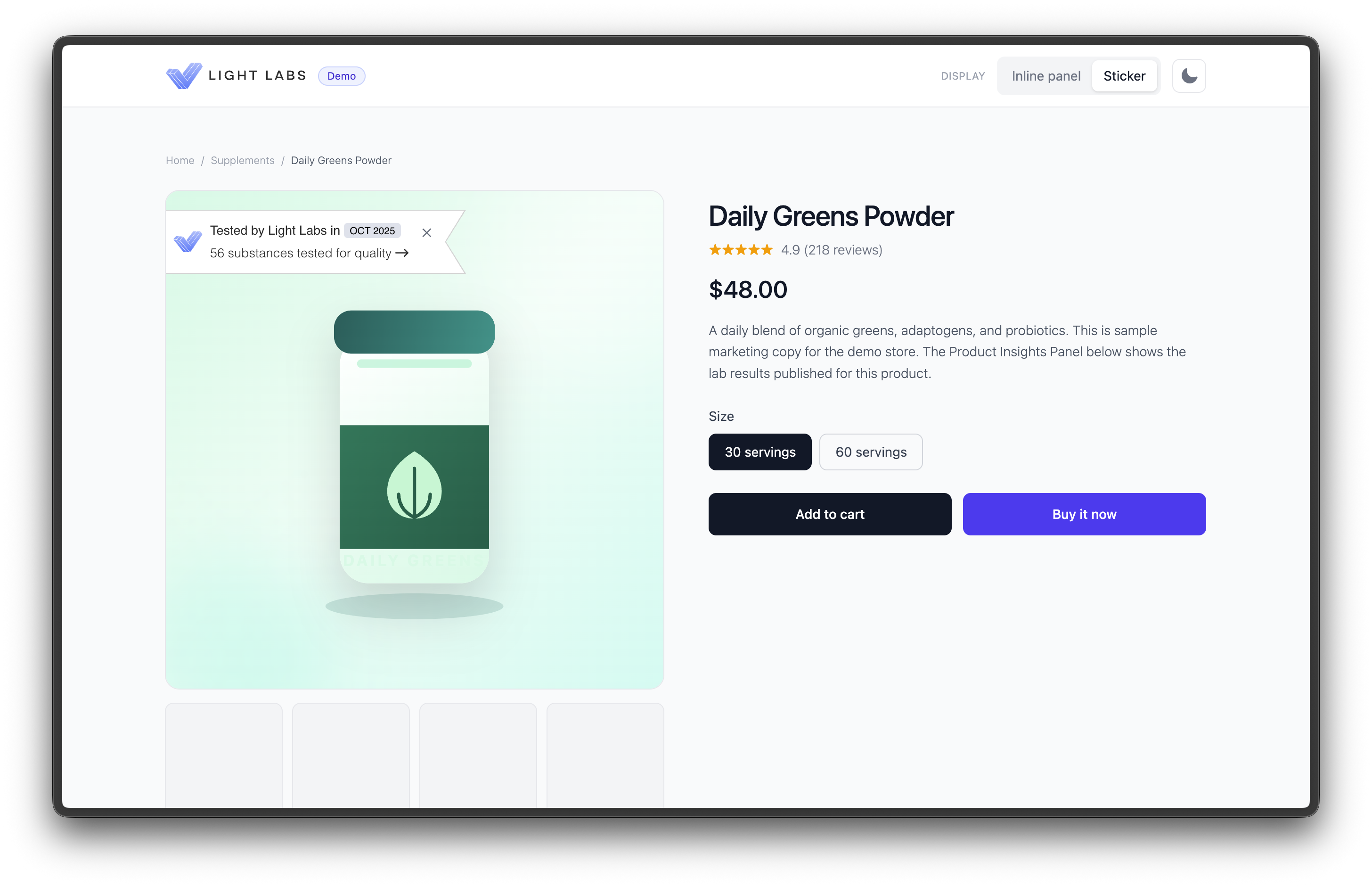
Sticker
A small badge designed to sit on top of your product image. It shows the same summary as the inline panel and opens the same report when clicked. The shopper can collapse it to a small tab if they want it out of the way.
Best for: drawing attention on the product image itself, or running alongside the inline panel.
<script async src="https://app.lightlabs.com/assets/ll-pip-sticker.js"></script>
<lightlabs-sticker company-id="YOUR_COMPANY_ID"></lightlabs-sticker>
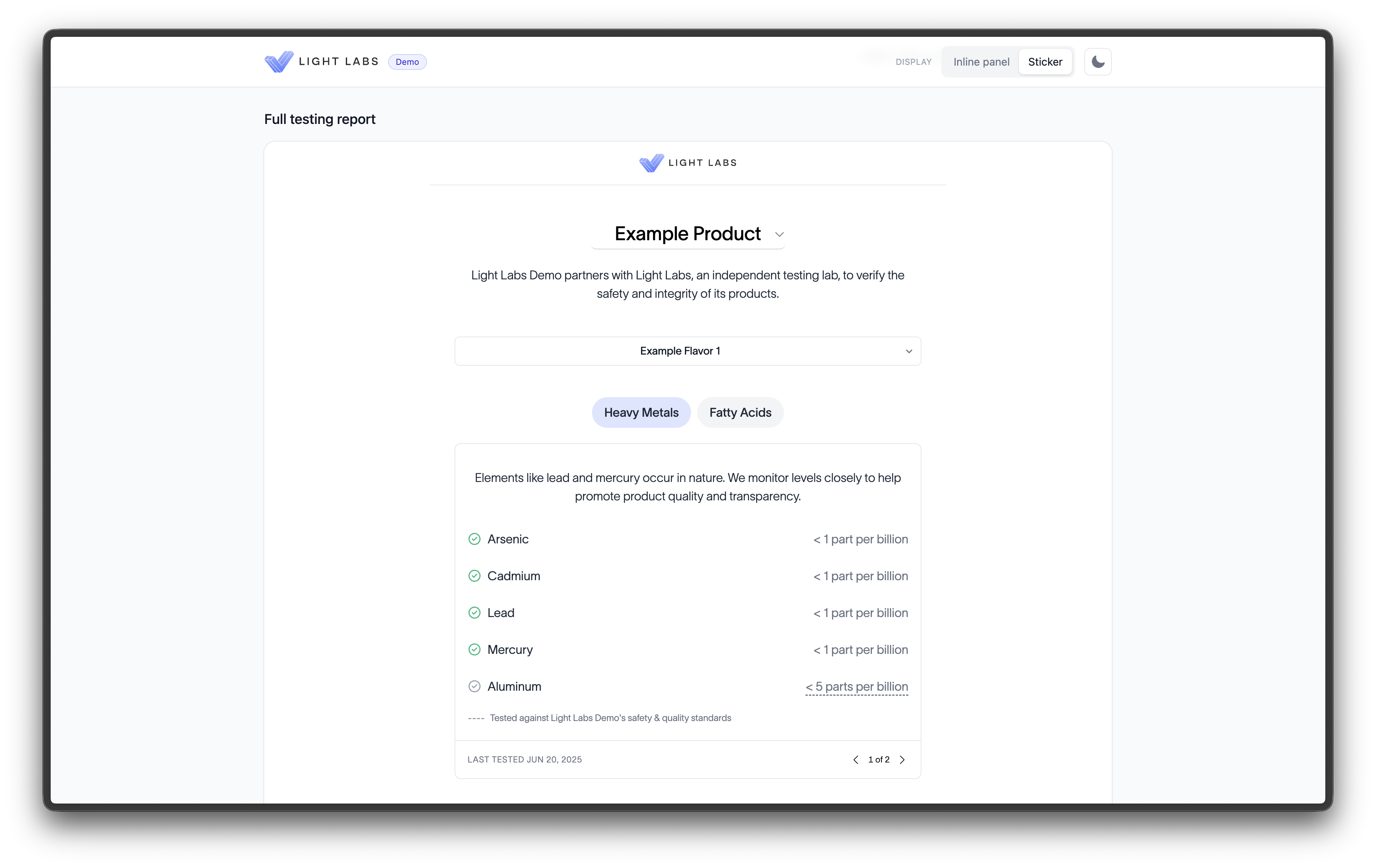
Full testing report
Embeds the complete Comprehensive Testing Report directly in the page instead of opening it from a click. It resizes automatically to fit its contents.
Best for: a dedicated transparency, testing, or quality page where you want the full report visible without an extra step. This display requires a specific product, so you pass the product ID.
<script async src="https://app.lightlabs.com/assets/ll-pip-testing-report.js"></script>
<lightlabs-testing-report company-id="YOUR_COMPANY_ID" product-id="PRODUCT_ID"></lightlabs-testing-report>
For the optional sizing attributes, see the 📄 Embed reference
Using more than one
You can run the inline panel and the sticker on the same page, for example the panel near the buy button and the sticker on the hero image. To do this, include both script tags and both elements.
Tip: Running the panel and the sticker together is a good way to A/B test which placement converts better for your store.
Recommended placements
From what we have seen work well across brands:
Inline panel: directly below the add to cart button, or just under the ingredients or supplement facts.
Sticker: on the primary product image.
Full report: on a dedicated quality or transparency page linked from the product page.