Custom triggers and the JavaScript API
Last updated: June 8, 2026
You can open the Comprehensive Testing Report from your own button or UI instead of the default panel, and you can control displays from JavaScript. This article is for developers.
Opening the report from your own UI
Render the panel with visible="false" so nothing shows on the page, then open the report from your own element. The component stays mounted and the report stays available.
<lightlabs-widget id="ll-panel" company-id="YOUR_COMPANY_ID" visible="false"></lightlabs-widget>
<button type="button" onclick="document.getElementById('ll-panel').openModal()">
  See lab results
</button>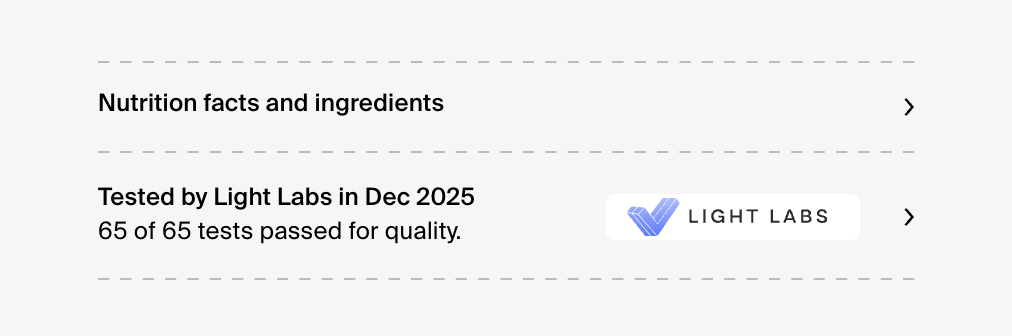
Each element exposes its own openModal() and closeModal() methods. Call them on the specific element you want to open, which is the reliable approach when a page has more than one panel.
The window.lightlabs API
The script sets up a global window.lightlabs object.
Member | Description |
|---|---|
| Opens the report for the most recently mounted panel. For pages with multiple panels, prefer the per element |
| Sets the external ID used for variant matching and re-renders. Pass |
| Boolean. When true, the displays log diagnostic output to the console. |
| An array of the messages the displays have logged. Useful when reporting an issue: open the console and read |
Per element methods:
Method | Description |
|---|---|
| Opens the report for that specific panel or sticker. |
| Closes it. |
Multiple displays on one page
Give each element its own id and call openModal() / closeModal() on the specific element. This avoids ambiguity, since the global window.lightlabs.openModal() targets the most recently mounted panel.
<lightlabs-widget id="panel-a" company-id="YOUR_COMPANY_ID" product-id="42" visible="false"></lightlabs-widget><lightlabs-widget id="panel-b" company-id="YOUR_COMPANY_ID" product-id="43" visible="false"></lightlabs-widget><button onclick="document.getElementById('panel-a').openModal()">Results for product A</button><button onclick="document.getElementById('panel-b').openModal()">
  Results for product B
</button>
Deep linking and auto open
When a shopper opens a report, the URL records which product was open so it can reopen on refresh or when the link is shared:
The inline panel uses the
ll-widget-openquery parameter set to the product ID.The sticker uses
ll-sticker-open.
For example, linking to https://yourstore.com/products/whey-protein?ll-widget-open=42 opens the report for product 42 on load. When several panels on a page point at the same product, only the first opens automatically, so a refresh does not open multiple reports at once.
Debugging
Add
debug="true"to the element, or append?ll-debug=1to the page URL.Open the browser console.
Or, read
window.lightlabs.logsto see how the display resolved a product and why it did or did not render.
Send that output to support@lightlabs.com if you need help.