Troubleshooting
Last updated: October 5, 2026
Most issues come down to one of a few causes. Start here. If you are still stuck, email support@lightlabs.com.
A quick check first
A panel will only appear when all of these are true:
The product has at least one enabled test in Light Labs.
The product has a slug that matches the page URL.
The script tag is in your page's
<head>.The panel element is on the page.
The panel is not showing at all
In order of likelihood:
No matching slug. The panel finds the right product by comparing your product slugs against the page URL. If none match, nothing shows. Add the slug for that page to the product. On pages that are not standard product pages, such as landing or bundle pages, see the next section.
No enabled tests. The product needs at least one test enabled on its Product Insights Panel page.
The script tag is missing from the page. Some themes and page builders do not carry the script tag onto every template. Confirm the script line is present in the
<head>of the specific page where the panel is missing, not only on your product pages.
To see what is happening, open your browser's developer console on the page and type:
window.lightlabs.logsSend us that output and we can usually pinpoint the cause.
It shows on product pages but not on landing, bundle, or collection pages
These pages do not have a single product slug in their URL, so slug matching cannot pick a product. Tell each panel which product to show.
The recommended way is to register an identifier you already own (your product ID or slug) on the product in Light Labs, then pass it as external-id while looping over your own products:
{products.map((product) => (
  <lightlabs-widget company-id="YOUR_COMPANY_ID" external-id={product.id} />
))}
This keeps the mapping in your own data, with no Light Labs IDs to track. If you would rather not register external IDs, you can fall back to product-id (one element per product), at the cost of looking up and maintaining the Light Labs IDs yourself. See 📄 How products are matched to pagesfor both approaches.
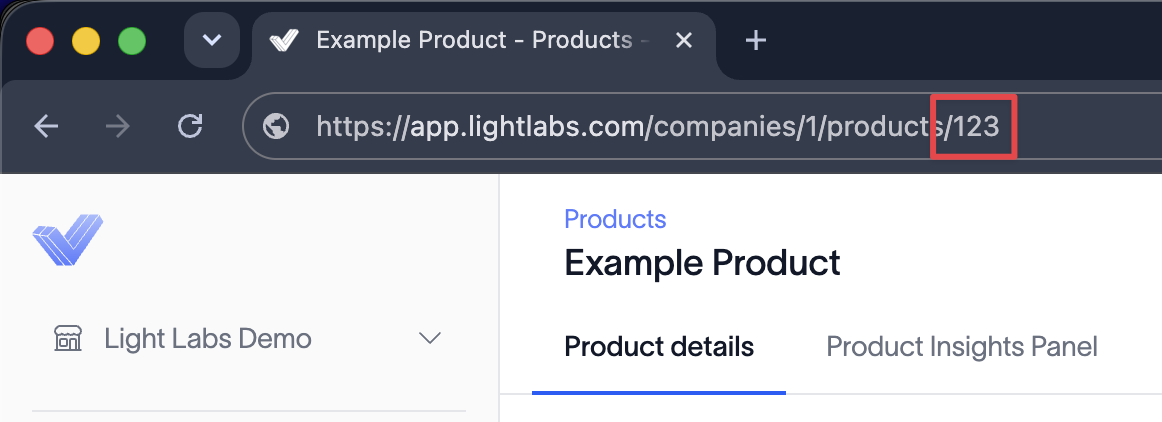
It shows on some product pages but not others
The most common cause is a slug mismatch. Confirm the slug you entered matches the actual page URL.
It opens the wrong flavor or variant
By default the panel tries to detect the selected variant. If your store does not expose the selected variant in a way the panel can read, or you want to be explicit, set the variant's external ID on the element. See 📄 How products are matched to pagesfor the external-id attribute and the setExternalId method.
A pop-up opened on its own after a refresh
When a shopper opens a panel, the URL records which product was open so the report can be reopened on refresh.
The script tag is being changed by a consent or privacy tool
Important: Consent and privacy tools are a frequent cause of a panel that works in a preview but not in production. Check this before assuming the embed code is wrong.
Some consent management tools rewrite script tags to stop them running until consent is given, for example changing the tag to type="text/plain". If that happens, the panel never loads. Make sure the Light Labs script is allowed to run, or is added exactly as provided:
<script async="true" src="https://app.lightlabs.com/assets/ll-pip-widget-v5.js"></script>A change I made is not showing yet
Configuration and result changes can take a few minutes to appear. If a result is still missing after that, confirm the test is enabled and that the result is in spec, since out of spec results are shown differently and do not count toward the tested total.